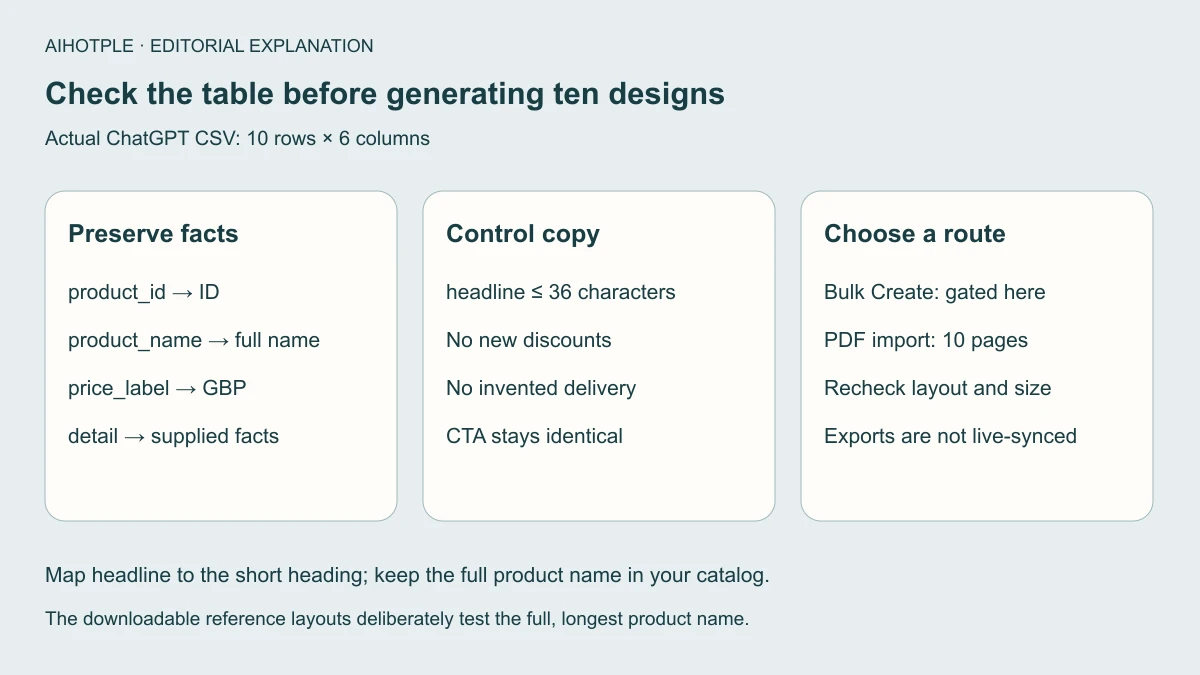
- Check the ten-row CSV before mapping it to design elements.
- Confirm Bulk Create access first; our account required an upgrade.
- The tested no-purchase fallback imported a ten-page editorial PDF into Canva.
- Verify pixel dimensions and every product/price pairing before export.
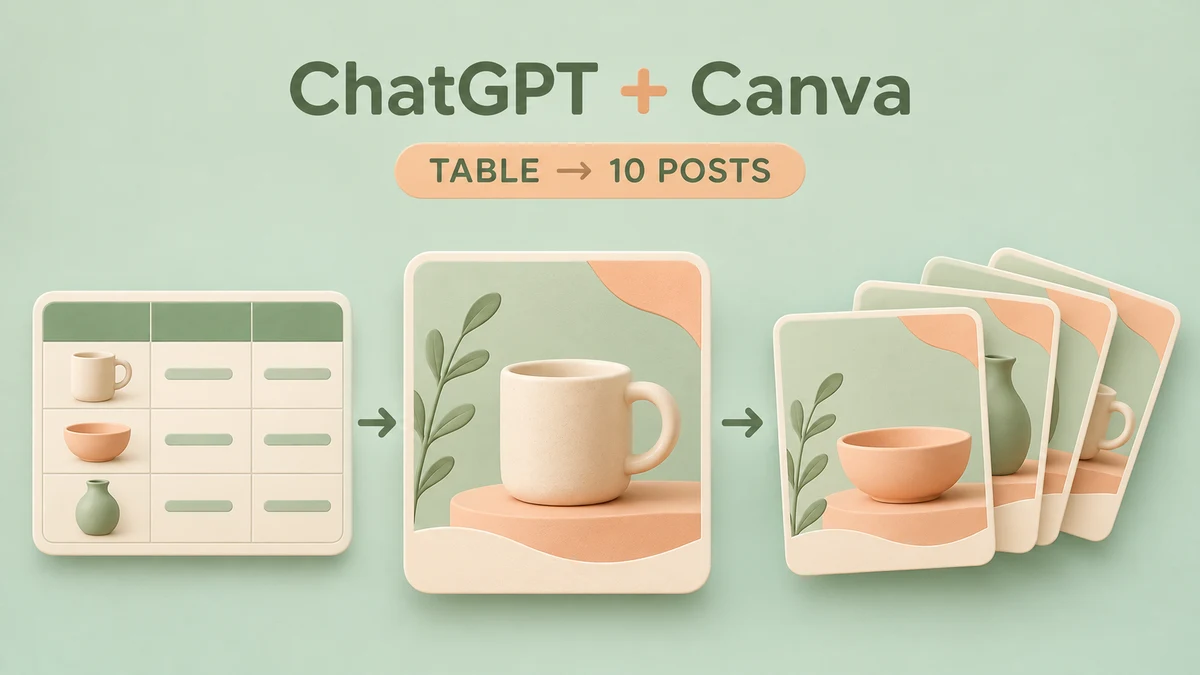
Prepare and check the product table first. Canva Bulk Create is a useful supported-account route, but our browser account reached an upgrade screen. We did not buy access. Instead, AIHotple typeset a ten-page reference PDF from the checked CSV, imported it into Canva and downloaded ten native PNG exports. This fallback does not create a live link to your spreadsheet.
Files for this exercise
AIHotple example files and prompts. Try the exercise before substituting real work data.
Start with a small catalog and a deliberate awkward case
The kit contains ten fictional products with IDs P01–P10, GBP prices and short supplied details. It also includes an intentionally long product name. That last row tests whether a design still works when the text is less convenient than your first sample.
For a real catalog, prepare one authoritative row per product. Keep price, unit, variant and any tax wording explicit. Replace our abstract editorial illustrations with product photographs you have permission to use. Do not ask an AI to invent a photograph that implies a real product feature.
Ask ChatGPT for structured copy, then inspect the file
Open a new conversation, attach your product table or paste the JSON sample in the request. Ask for a real CSV rather than a screenshot of a table. In our run, the response included a file card with a download control. We downloaded the CSV and checked the saved bytes, not just the reassuring completion message.
All ten IDs, full names, GBP labels and supplied details matched the input. Every headline stayed within 36 characters and the CTA was identical across rows. P10 kept its full long name in product_name while using the shorter headline “Product name for layout testing”. That is the distinction the request asked for.
Use only the fictional product table below. Prepare a UTF-8 CSV named product-posts.csv with exactly ten data rows and columns product_id,product_name,price_label,headline,detail,cta. Preserve each ID and product name exactly. Convert price_gbp to a GBP price label with two decimals. Write one factual headline of at most 36 characters, preserve detail exactly and use the CTA "Explore the collection" in every row. Do not invent discounts, stock, sustainability claims, reviews, delivery promises or URLs. Do not shorten the product_name column even when long: we need it to test layout. Return a real downloadable CSV if this mode supports it; otherwise clearly label CSV code. This is fictional practice data, not a live shop.

[
  {
    "product_id": "P01",
    "product_name": "Everyday ceramic mug",
    "price_gbp": "18.00",
    "detail": "350 ml · sage"
  },
  {
    "product_id": "P02",
    "product_name": "Ribbed glass tumbler",
    "price_gbp": "14.50",
    "detail": "400 ml · clear"
  },
  {
    "product_id": "P03",
    "product_name": "Canvas market tote",
    "price_gbp": "22.00",
    "detail": "Natural cotton"
  },
  {
    "product_id": "P04",
    "product_name": "Cork desk mat",
    "price_gbp": "26.00",
    "detail": "60 × 30 cm"
  },
  {
    "product_id": "P05",
    "product_name": "Pocket notebook duo",
    "price_gbp": "9.50",
    "detail": "Two A6 books"
  },
  {
    "product_id": "P06",
    "product_name": "Oak phone stand",
    "price_gbp": "24.00",
    "detail": "Oak-look finish"
  },
  {
    "product_id": "P07",
    "product_name": "Linen tea towel",
    "price_gbp": "12.00",
    "detail": "45 × 65 cm"
  },
  {
    "product_id": "P08",
    "product_name": "Recycled felt sleeve",
    "price_gbp": "28.00",
    "detail": "Fits 13-inch devices"
  },
  {
    "product_id": "P09",
    "product_name": "Stainless travel bottle",
    "price_gbp": "32.00",
    "detail": "500 ml · midnight"
  },
  {
    "product_id": "P10",
    "product_name": "Extra-long product name for layout testing",
    "price_gbp": "16.00",
    "detail": "Fictional sample item"
  }
]
Check whether your Canva account can use Bulk Create
In the desktop editor, open Apps and search for Bulk Create. Our Korean-language interface called it 대량 제작. After opening the feature, it showed an upgrade to Canva Business. We stopped at that screen. An existing design, a successful login or a connected Canva app does not establish access to this specific feature.
Canva’s official Sheets instructions list supported paid or eligible education/nonprofit plans and a desktop requirement. The account screen and plan names can differ from documentation or organization to organization. Check access before building a large template; do not start a subscription merely to follow this exercise.
If your account supports it: map the fields and preview a small batch
The following is the official documented route, not a completed step in our account. In Canva Sheets, select one contiguous populated range, open Actions and choose Bulk Create designs. Select a design and connect each text or image element to the intended data field using More → Connect data.
Map headline to the short headline box, price_label to the price and detail to the detail line. Preserve product_id in your source sheet or proofing checklist. Preview the shortest and longest entries before generating the full set. Direct image URLs are not supported by the documented Sheets route: upload images or use the Canva library.
- Test three rows first.
Include P01, the longest product name and a price with pence such as £14.50. Check wrapping, currency symbols and image assignments.
- Generate after preview passes.
Choose one multi-page design or individual outputs if the current route offers that setting. Review all rows, not only the first preview.
- Rebuild deliberately when data changes.
A one-time Bulk Create batch is not a continuously updated catalog. Recheck affected outputs after a source price changes.
Free-account fallback: import the supplied reference PDF
To keep this exercise usable without buying Bulk Create, we typeset a PDF from the actual checked CSV. It contains ten fictional layouts with abstract product illustrations and visible fictional labels. This is an editorial fallback file, not a native Canva-generated batch.
From Canva Home, choose Upload, then File upload. Select product-posts-reference.pdf from the kit. When the upload completes, select Open. Our import opened a ten-page design, with product names, prices and other text represented in the canvas. We did not test editing every imported object or complex photographic layouts.
Open Share → Download, choose PNG and All pages, then download. Our first automatic download did not leave a local file; the completed export panel’s “click here” link supplied the actual ZIP. It contained ten PNG files. A separate native PDF re-export retained all 50 checked product fields across its ten pages. The imported canvas was 720×900, so those native exports are smaller than the separate 1080×1350 reference PNGs. Do not assume PDF import preserves your desired pixel dimensions.
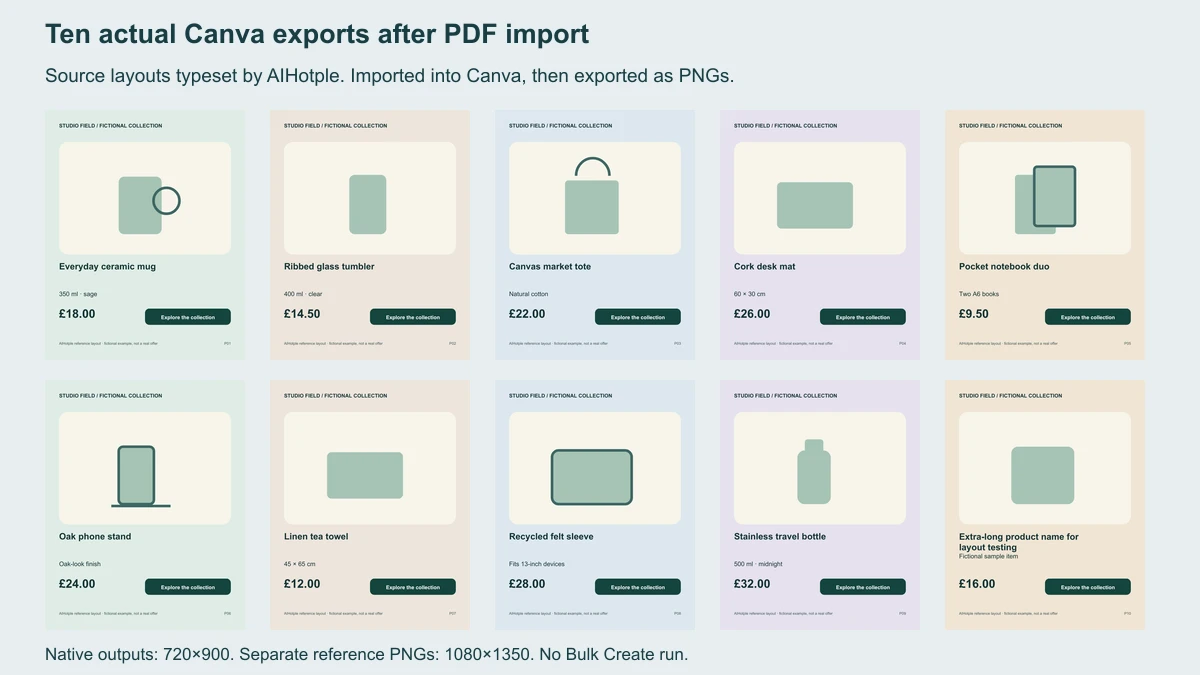
Review the batch as a set before using it
Inspect every price and product pairing, then the longest name, the CTA, currency symbol and fictional label. Our supplied PDF/PNG references are examples to adapt; they are not real offers or proof of any product certification. The kit keeps the original CSV, editable generation script, reference files and native Canva exports separate. Public native PNG copies remove identifying metadata only; their pixels are unchanged. The public native PDF re-export removes identifying metadata while preserving decoded page content.
If you only need ready-made practice graphics, start with the 1080×1350 reference PNGs. If you need to change content in Canva, inspect the imported design and check the final export dimensions. If you have Bulk Create access, use the CSV to build the mapped template and test it with your own images. These routes produce different kinds of reusable assets.
- CSV facts can be correct while the image-to-price pairing is wrong.
- A short headline is not permission to alter the authoritative product name.
- An imported PDF is not linked to the CSV: a price edit requires an explicit update.
- To turn a few checked product photos into motion next, use our promo-video workflow.
Continue this workflow
A generated file will not download? Check the attachment and local copy →
Sources & verification
Observed on 6 November 2026. ChatGPT web, temporary Not personalized conversation: one request produced a real ten-row UTF-8 CSV. The exact backend model and subscription tier were not independently confirmed. We checked all IDs, full names, prices, supplied details, CTA values and headline lengths. Canva’s browser Bulk Create route requested a Business upgrade; supported-plan generation and field mapping were not executed. The separately authored PDF and 1080×1350 reference PNGs are AIHotple layouts, not ChatGPT design output. Actual Canva PDF import created ten pages on a 720×900 canvas and exported ten PNGs at that size. No purchase, live shop, publishing to social accounts or recurring synchronization was involved.
- OpenAI · clean a copy of tabular data
- Canva · create designs in bulk with Canva Sheets
- Canva · create designs in bulk
Sources checked: 2026.11.06