- Separate product invariants from flexible scene styling.
- Recompose a banner instead of assuming a square crop will work.
- Check the downloaded file and visual details rather than trusting the requested ratio.
Supply the same product and visual rules, then request a new composition for each placement. Review shape, unwanted props, usable space and actual file dimensions before adding copy.
Files for this exercise
AIHotple example files and prompts. Try the exercise before substituting real work data.
Build a small brand brief before generating
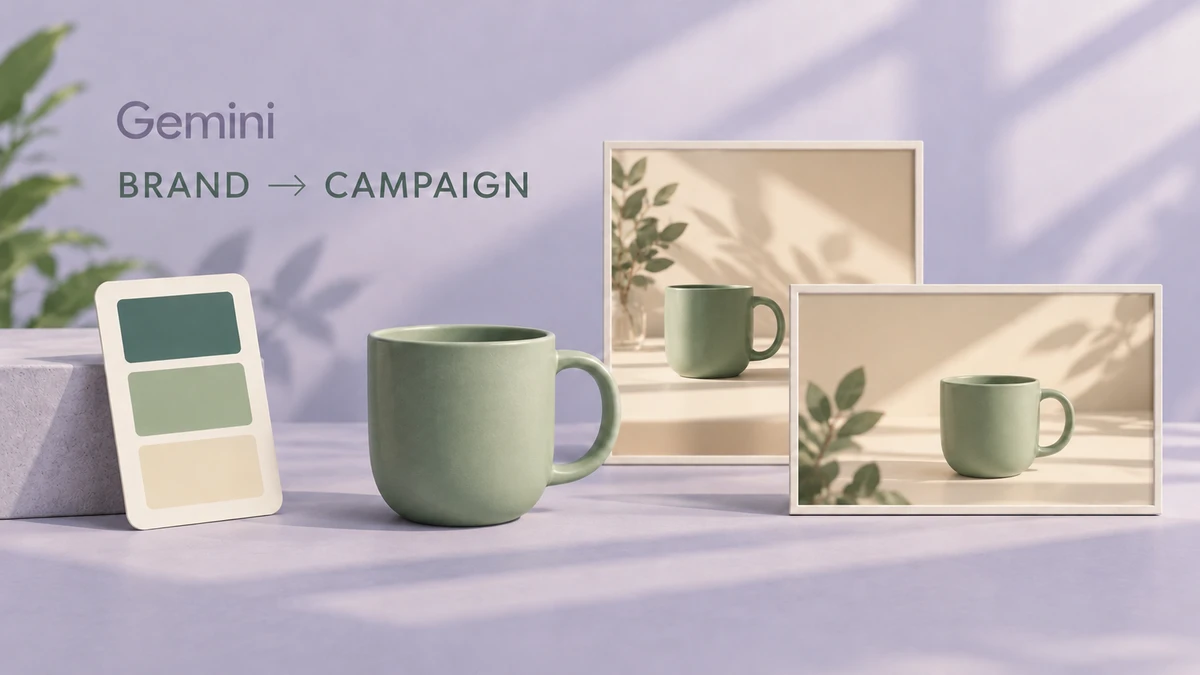
A square social tile and a wide website banner need different framing, but they should still look like the same campaign. Start with one product reference, a small palette and a few explicit rules. “Make it on brand” leaves too much for the model to invent.
Google’s 20 October announcement describes brand-style inputs and marketing tools rolling out in Gemini. Here we test a narrower method available in ordinary chat: supply a brief and reference in one conversation. We did not verify the new hub or persistent brand-style storage.
The fictional Cove Desk brief uses deep teal, sage, warm cream and a small apricot accent. Its mug has a plain sage body, one right-side C handle, no logo, no lid and no pattern. The supplied image is our code-drawn product study, not a real product photograph. Exact commercial-product identity is outside this test.
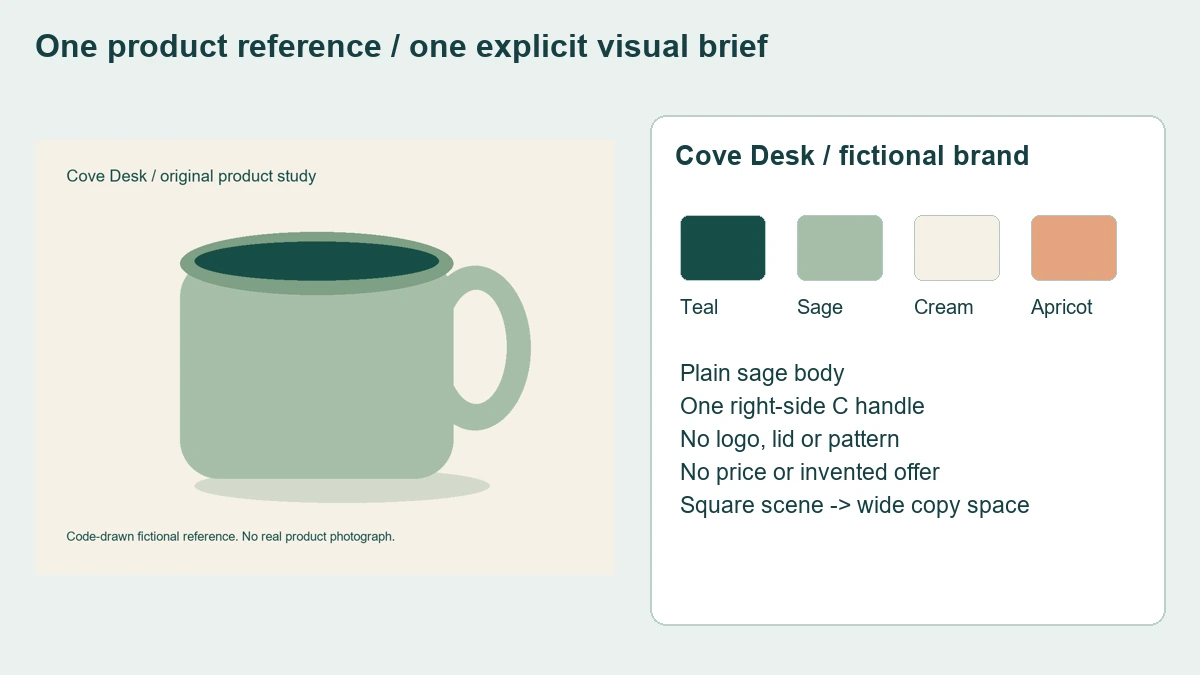
1. Attach the product and brief in a new chat
Open Gemini and choose Uploads and tools → Upload files. Attach brand-brief.txt and product-reference.png from the kit. Wait for the TXT label and image preview, then enter the square-image request. The app also exposes an Images section; our run used a direct generation request in chat.
Google’s image help describes generation, reference-based editing and account-dependent limits. The help page currently uses Nano Banana 2 terminology, while the business announcement names Nano Banana 2.1. Our UI exposed Automatic mode without independently identifying the image backend, so the result is described as a Gemini app run rather than a model-version benchmark.
Check the current account, age and regional eligibility in the official help if the image option is absent. Do not assume every work or school account exposes the same tools. We did not start a paid plan or change account permissions.
- Upload the brief and reference
Keep the source product and visual rules together.
- Request one square scene
Use a clear product and a simple background before adding variants.
- Inspect the result
Check the handle, body, colour family, extra props and unwanted text.
2. Generate the square scene
Ask for a single clear product with no visible copy, price or promotional claim. Keeping text out of the generated image lets you add accurate, accessible typography later and avoids baking a made-up discount into an otherwise usable visual.
The actual square result shows a plain sage mug with a right-side handle on an apricot coaster. It keeps the calm cream desk setting and has no invented price or slogan. It also adds a pencil cup and notebook despite our request for no extra products. Treat those as creative deviations to review, not evidence that every constraint was followed.
Generate one square 1:1 campaign image using the attached brand brief and product reference. Preserve the plain sage mug, one right-side C handle, no logo, lid or pattern. Use a calm matte home desk, soft daylight and the supplied teal/sage/cream palette with a small apricot accent. Make the mug the clear subject. No people, extra products, visible text, prices, discounts or badges. This is a fictional concept illustration. Do not save a skill, change settings or connect apps.3. Ask for a wide recomposition in the same conversation
For the second image, restate the product invariants and identify where copy must fit. A simple crop may cut the mug or leave no useful text area. Our request placed the mug in the right third and asked for a clean cream left half.
The actual wide result moves the mug right and leaves useful space on the left. The sage body, dark interior and apricot coaster remain recognizable. The scale and shape are not pixel-identical, and the extra notebook and pencil cup persist. Same-chat consistency does not prove cross-chat brand recall or exact physical-product fidelity.
The two actual image media are shown below without substituting an editorial cover for the output. Our separate article cover is an AIHotple illustration and should not be mistaken for a native screenshot or the generated campaign files.
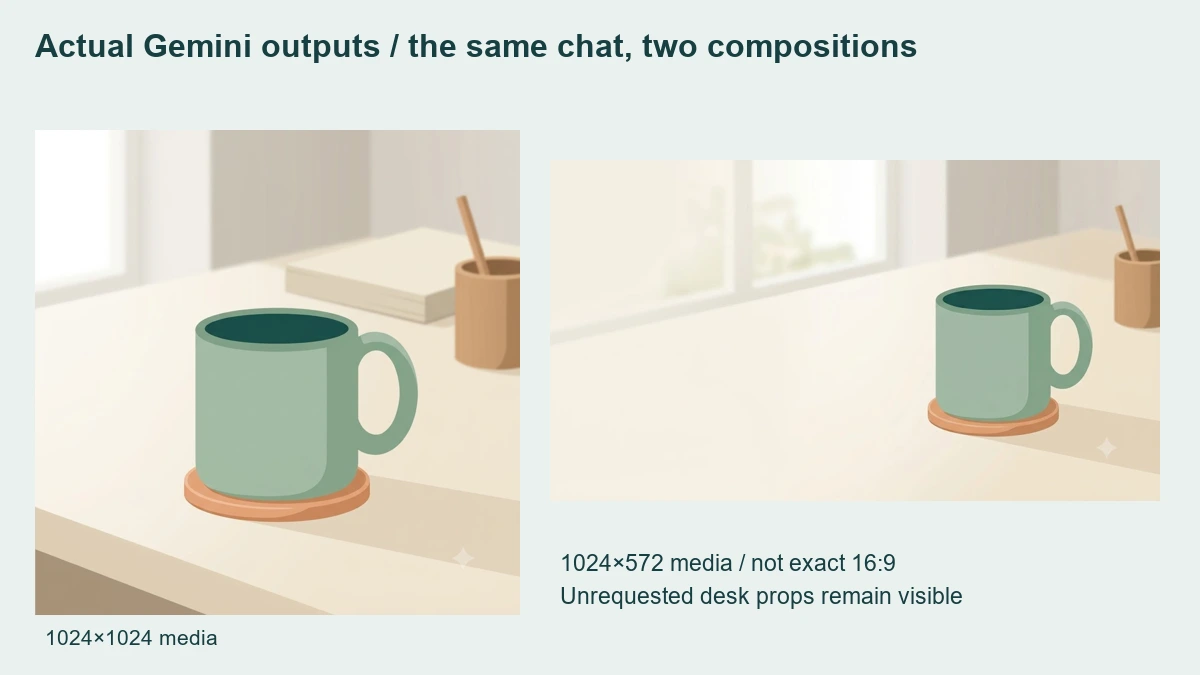
Create a second campaign image in a wide 16:9 composition using the same brief, product reference and square scene from this chat. Keep the same plain sage mug with one right-side C handle and no logo, lid or pattern. Keep the matte desk mood and teal/sage/cream palette. Put the mug in the right third; leave the left half as clean warm-cream copy space. Recompose rather than merely crop. No visible text, people, extra products, prices, discounts or invented claims. Do not save a skill or connect apps.4. Check the saved asset before designing around it
Google’s documented download path is to hover over a generated image and choose Download full size. In this run that control did not produce a captured download event. We retained the observed generated image media instead. The kit therefore includes the actual 1024-pixel JPEG media, not a claimed 2K original.
The wide file is 1024×572, approximately 1.790:1, while exact 16:9 is approximately 1.778:1. A prompt asking for 16:9 does not establish the file’s dimensions. For a strict placement, inspect width and height in file properties and fit/crop in your design editor, checking the mug and safe area again. Do not enlarge a 1024-pixel source and describe it as a higher-resolution native output.
Before adding a call to action, decide whether the generated shape and props are acceptable. For an actual product listing, compare against the real permitted product source and reject any changed feature. For a concept mockup, label it as a concept and avoid implying that the generated scene proves product specifications.
| Review item | Observed result | Practical decision |
|---|---|---|
| Product cues | Sage body, right handle, no logo/lid/pattern | Broad conceptual consistency; not exact product verification |
| Copy space | Wide version leaves the left half mostly clear | Check readable contrast after adding real copy |
| Extra props | Notebook and pencil cup appear in both | Request removal if they distract or imply included items |
| Dimensions | 1024×1024 and 1024×572 retained media | Verify placement requirements; exact 16:9 not demonstrated |
| Persistent brand settings | Not created or tested | Reuse the brief; do not assume cross-chat memory |
5. Add real copy only after visual review
Use your normal design editor to add a short, factual headline and destination. Keep important information as editable text wherever possible. Verify any price, offer period, stock statement and product claim from your own source, rather than asking image generation to invent marketing facts.
The kit includes the brief, code-drawn reference, both exact prompts, actual JPEG media and the review notes. These are fictional practice assets. No ad was placed, no campaign was published and no customer-response test was run. The useful deliverable is a repeatable composition method with visible review boundaries.
Sources & verification
Tested on 29 October 2026 in signed-in Gemini web chat with Automatic mode displayed. We uploaded an original code-drawn fictional mug reference and English brand brief, requested a square image and then a wide recomposition in the same chat. Both images were actually generated. The retained observed image media are JPEGs at 1024×1024 and 1024×572. The full-size UI button produced no captured download event, so these are not claimed to be full-resolution exports. We visually reviewed both outputs: the mug and palette broadly persisted and the wide image left copy space, but extra desk props appeared and the wide file was not exact 16:9. No real-product fidelity, persistent brand memory, marketing skill, cross-chat recall, precise colour match, conversion or ad-platform acceptance was tested. No additional purchase, app connection, saved skill or public campaign was created.
- Google · new Gemini tools for small business owners, 20 October 2026
- Google · upload and analyze files in Gemini Apps
- Google · generate and edit images in Gemini Apps
Sources checked: 2026.10.29