- Specify the exact old and new text and name the details that must stay.
- Review the actual saved image at full size, including its dimensions and any added mark.
- Use a separate text layer if product photography must remain identical.
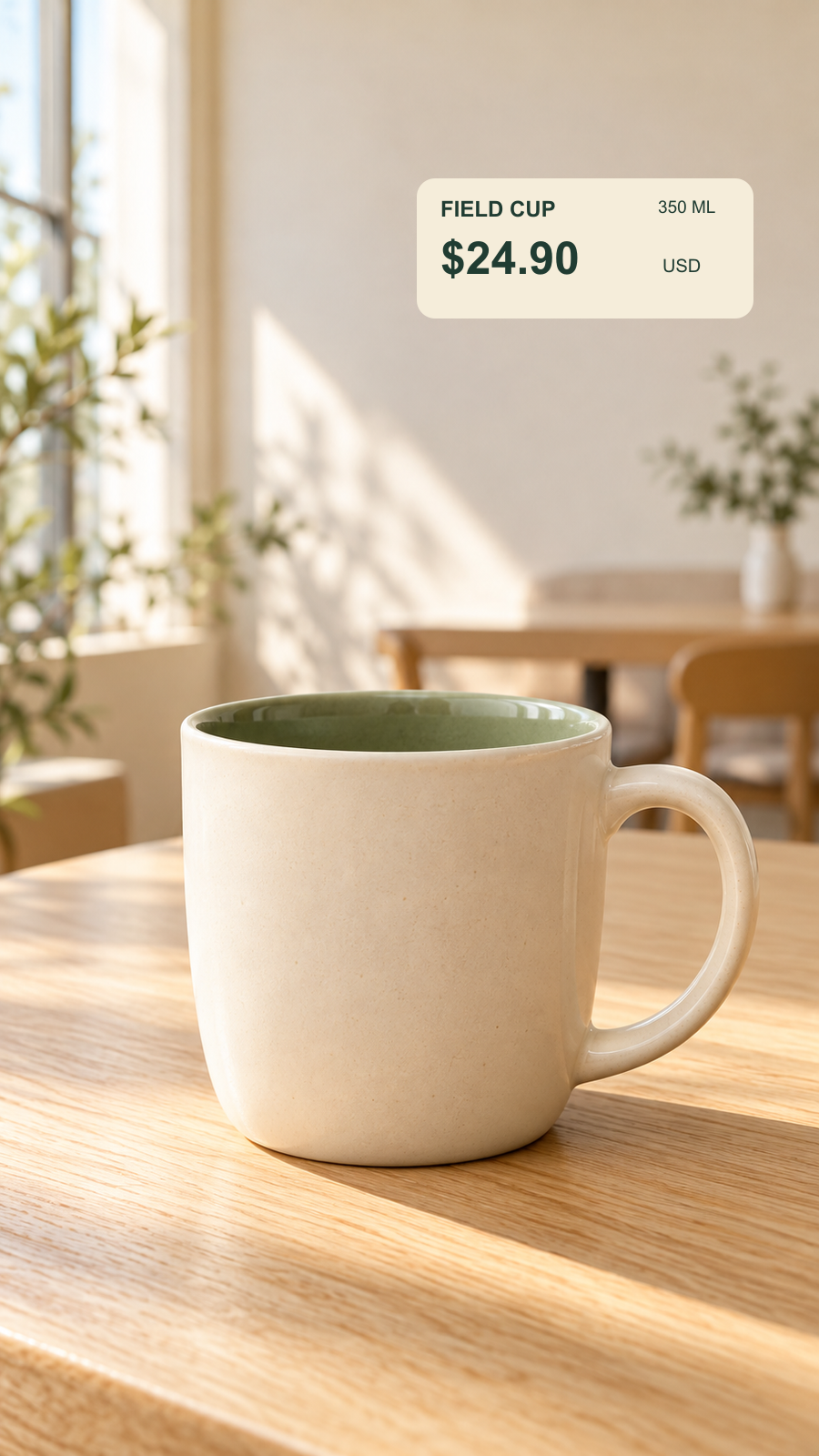
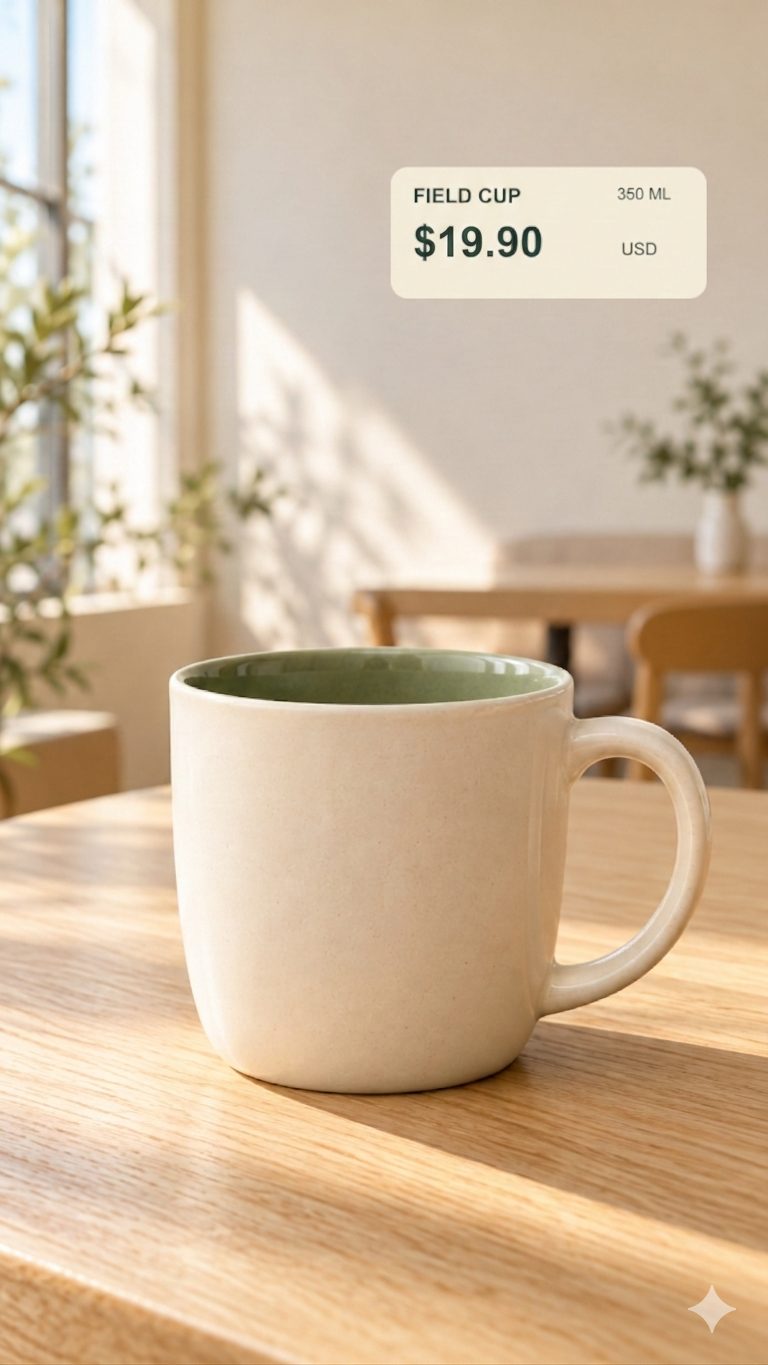
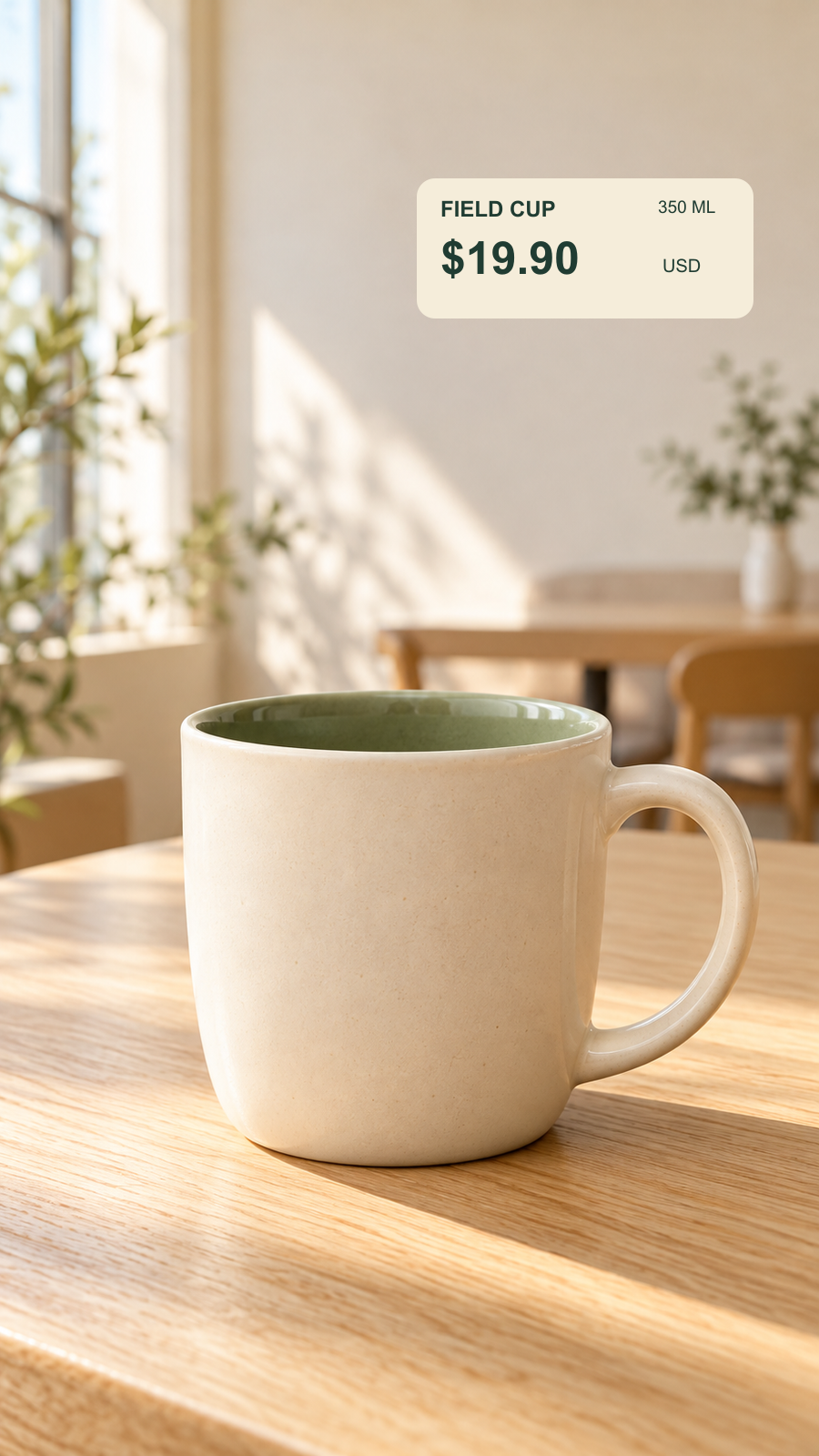
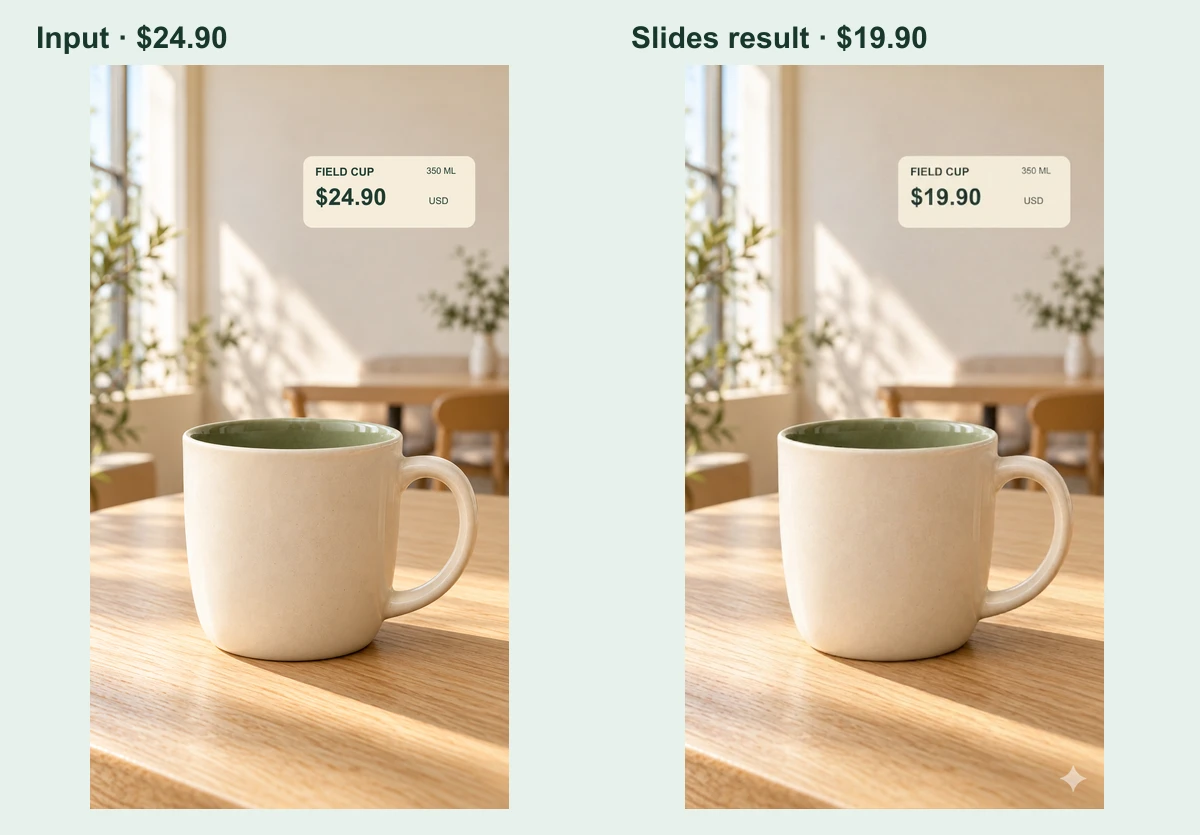
The edited label read $19.90 and preserved FIELD CUP, 350 ML and USD. It came back at 768 × 1365 from a 900 × 1600 input, with a visible sparkle mark and changes outside the label. For catalog images that need pixel-level consistency, keep the price in a separate text layer.
Files for this exercise
AIHotple example files and prompts. Try the exercise before substituting real work data.
Change one price on a copy
Start from the downloadable FIELD CUP image, a fictional price card over an illustrative product photo. Google announced Nano Banana 2.1 for Pics on November 16, including use of Pics inside supported Slides and Docs accounts. Supported plans and organization settings affect what opens when you select Edit image.
- In Google Pics, add the input
Open the Pics editor with an eligible account. Upload field-cup-original.png. Choose the existing image to edit and describe only the price change. If the link opens the product page again after sign-in, check whether the account is eligible.
- In Slides, select the image first
Open a blank presentation. Select Insert → Image → Upload from computer. Select the image on the slide, choose Edit image and enter the prompt below in the image panel that opens. In our account this was the Gemini image editor.
- Keep the generated version on a second slide
Open the result in Preview. In the Slides editor we used More options → Insert on new slide so the original stayed in the deck. Then we used File → Download → Microsoft PowerPoint and inspected the two embedded image files.
Change exactly $24.90 to $19.90 on the cream price label. Match the original type style, alignment and size. Keep FIELD CUP, 350 ML and USD as written. Keep the mug, green interior, handle, background, crop and shadows unchanged. Return one image at the same dimensions. Do not add labels or badges.What changed in the actual Slides output?
The headline test passed. The exported result says $19.90, shows the expected currency and size text, and still depicts the same mug and handle on the wooden table. It also contains a white sparkle near the lower-right corner. The image dimensions changed even though the prompt asked to keep them.
| Check | Input or requirement | Observed in the exported result |
|---|---|---|
| Price and surrounding copy | $19.90, with FIELD CUP, 350 ML and USD preserved | All four read correctly |
| Dimensions | 900 × 1600 | 768 × 1365 |
| Background | Keep the original product, framing and shadows | Similar composition. The image was regenerated and has a visible lower-right sparkle. |
| Approval | Use for an exact catalog swap | Review required because more than the digits changed |
Keep the photo fixed when it matters
If the only job is to replace a price that will change again, place a cream label and editable text over the original photo in your normal design editor. To reproduce this example without AI, replace $24.90 with $19.90 in the price layer and export at the same dimensions. Our downloadable editorial reference changed 1,176 RGB pixels in the price area and zero outside the label. That measurement is for the text-layer reference.
- Compare at full size
Open the saved input and output side by side. Verify the decimal point, final zero and neighboring label text at 100%.
- Check the corners and the product edge
Look at the lower-right corner, mug rim and handle. If you see a mark or visual drift and the catalog requires an exact match, switch to the text layer.
- Keep the price editable
Save the source design with the photo on its own layer so the next price update reuses the original pixels.
Sources & verification
We tested one fictional mug image in Google Slides and extracted the image stored in the exported PowerPoint file. The standalone Pics entry returned to its product page in our session. Slides opened its Gemini image editor and did not expose a model version. Google’s Nano Banana 2.1 announcement applies to Pics. This result documents the observed Slides route without attributing its render to a version we could not see.
- Google Workspace announcement for Nano Banana 2.1 in Pics
- Edit images in the Google Pics app
- Edit Slides images with Pics
- The Gemini image editor in Google Slides and Vids
Sources checked: 2026.11.18