- Specify the body surface as the target and name the lid, mark and shadow as fixed elements.
- Review color spill and shape changes separately.
- Treat the result as a color concept until it has been checked against real product references.
A document-based workflow for selective recoloring. The source product is fictional; no burgundy output or color-accuracy test was produced.
Files for this exercise
AIHotple example files and prompts. Try the exercise before substituting real work data.
Explore a new color before organizing a shoot
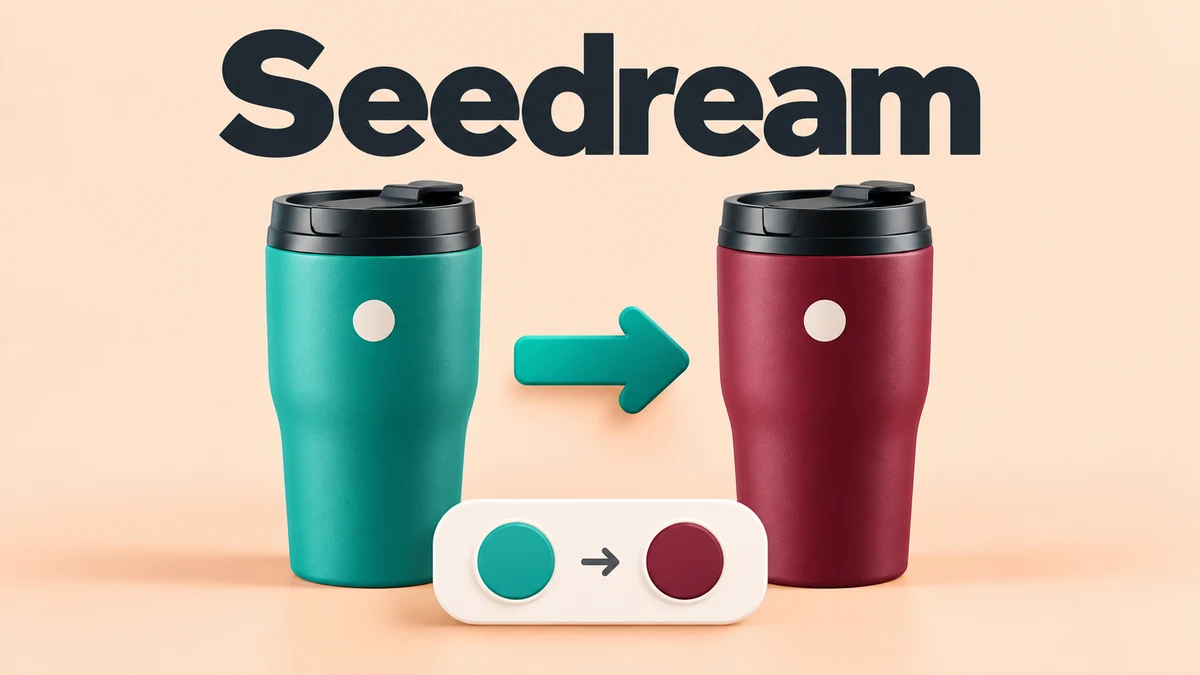
You may have a teal product photo but want to consider a burgundy option. The task is a body-color concept, not a redesign. Lumina’s text-based editing can be used to request that limited change.
A newly generated color does not establish a manufacturing specification or the appearance of an actual sale item. Set the purpose as concept review first.
Separate the changing surface from the fixed details
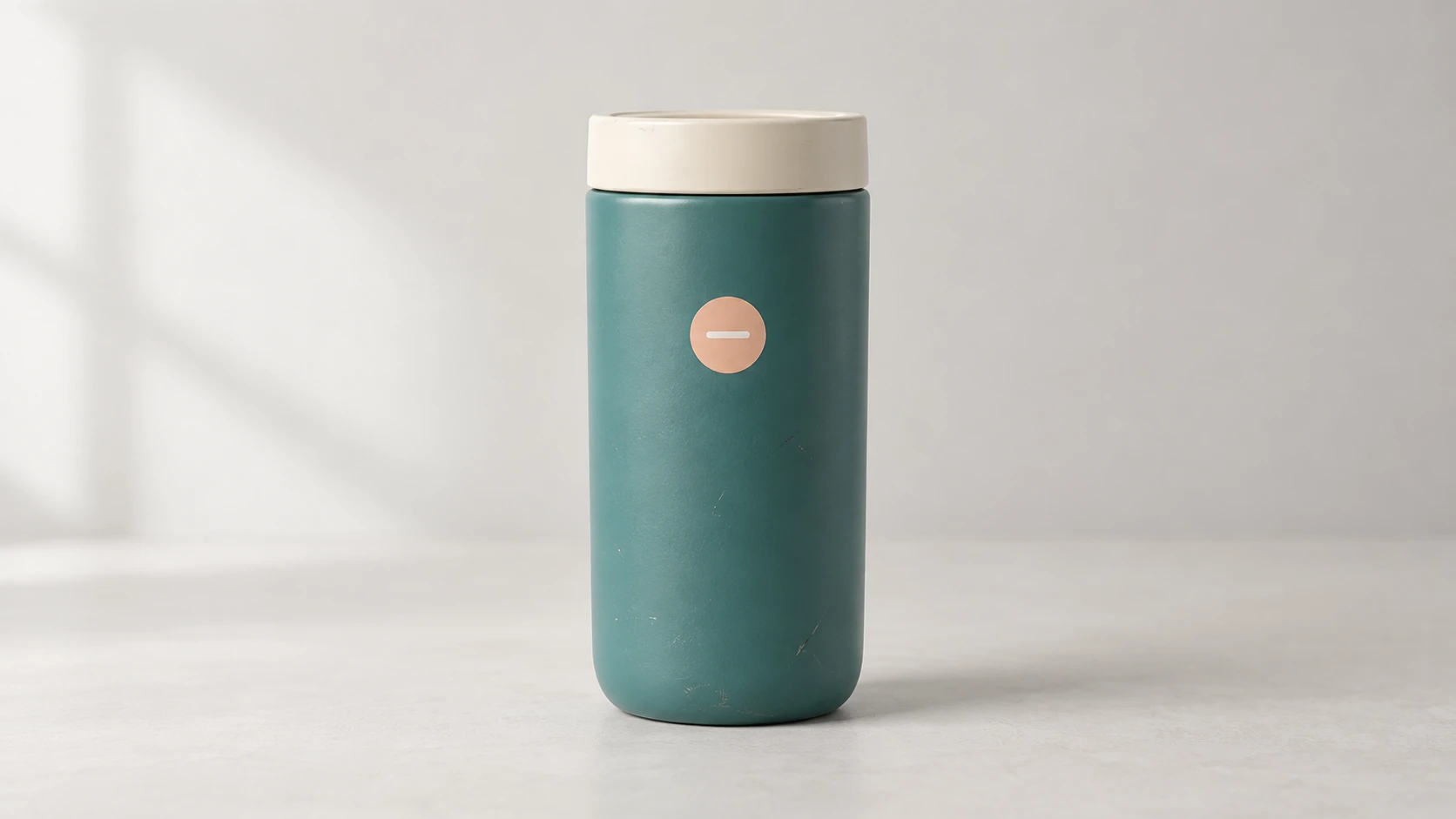
The source has a teal body, cream lid, peach circle and white horizontal mark. Only the body surface is the recoloring target. A front mark should not be repainted merely because it sits on the body.
This is the same fictional source used in the earlier background-edit exercise. Start from this original rather than from the already edited background result.
Choose the interface and prepare the request
The linked Image Edit Seedream 5.0 Pro app provides an input for one photograph and an editing instruction. In the general Image workspace, check the model button first: the default we observed was a different model.
| Step | What to do |
|---|---|
| Source | Attach source.png from the ZIP, or preserve an untouched copy of your own photo. |
| Target | Name only the teal body surface as the burgundy target. |
| Fixed details | Specify the lid, mark, shading, background and composition. |
| Before execution | Check the selected model, output settings, displayed cost and usable credits. |
| Save | Use another filename and compare with the original. |
A selective recoloring prompt
The target and exclusions are explicit. This English adaptation is supplied for readers to try; it was not executed.
Change only the teal surface of the tumbler body in the attached original to a muted burgundy. Do not redesign the tumbler: preserve its cylindrical proportions, body shading and matte texture. Keep the cream lid, peach circle, white horizontal mark, contact shadow, background and composition unchanged. Do not let the burgundy recolor the front mark. This is a color-concept visualization. Add no lettering or decoration.Review more than the target hue
A burgundy-looking image can still fail a selective edit if the product design changes. Compare at the same scale.
| Item | Check |
|---|---|
| Color boundaries | The cream lid, peach circle and white mark have not been painted over |
| Geometry | Opening, lid thickness, body width and base height remain visually consistent |
| Material and shading | The matte finish has not become glossy, and volume-defining shading remains |
| Whole scene | Background and contact shadow have not been unnecessarily recolored |
If the color spills onto the mark
Return to the original and add a clearer exclusion rather than repeatedly repainting the previous output. This is a proposed clarification, not a tested correction.
Change only the painted surface of the tumbler body. The peach circle and white horizontal line are separate markings: preserve their original colors and shapes. Exclude the lid and background from the recoloring. Preserve the matte surface and the relationship between the lighter and darker faces.Does a HEX value guarantee the exact product color?
A HEX value can communicate a target direction, but a shaded, reflective product surface does not consist of one uniform color value. We did not test exact HEX matching or real-material reproduction.
For brand color specifications or an actual sales option, compare with physical product references and consider controlled color correction. Do not present a generated concept as a photograph of an available product color.
Use the same original for each color direction
For burgundy, olive and navy concepts, start each request with the same original and preservation constraints, changing only the target color. Reusing a previous recolor can carry forward unwanted alterations. This is a comparison method, not a guarantee of consistency.
The ZIP contains bilingual prompts and preservation.csv. Output filenames and review results are blank for the reader to complete. If you need multiple outputs in one request, check the selected model’s batch capability.
Sources & verification
Official editing capabilities and model support checked on October 18, 2026. We read the Lumina input interface and model list without a new upload, recoloring request, credit spend or purchase. The source is AIHotple’s independently AI-generated fictional product from the earlier exercise. Prompts, failure scenarios and worksheets are editorial suggestions, not observed recoloring results. Exact HEX matching, print color, real-product color, geometry preservation and English execution were not tested.
- Lumina · Image Edit Seedream 5.0 Pro
- ModelArk · Image generation tutorial (updated 2026-10-13)
- BytePlus · What is Seedream? (updated 2026-09-23)
Sources checked: 2026.10.18