- Specify what must stay alongside what should change, so you have a meaningful comparison.
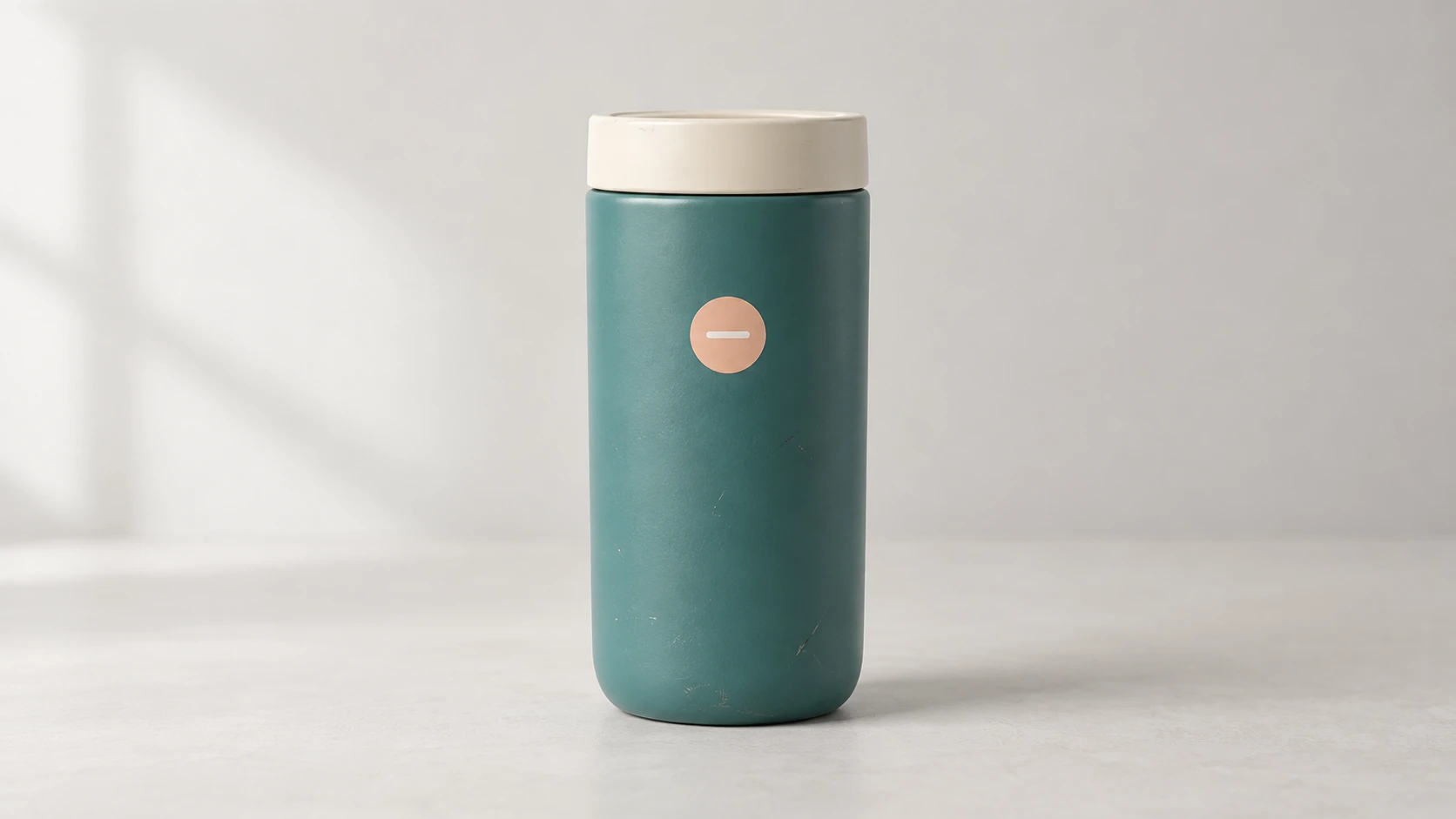
- The main shape and front mark remained visually recognizable; scuffs and surface texture changed.
- Download the actual PNG and source together before substituting your own product.
One Korean-prompt edit and PNG download were completed in Lumina. The source is an AI-generated fictional item, not a real product photograph.
Files for this exercise
AIHotple example files and prompts. Try the exercise before substituting real work data.
Explore another setting for the same product
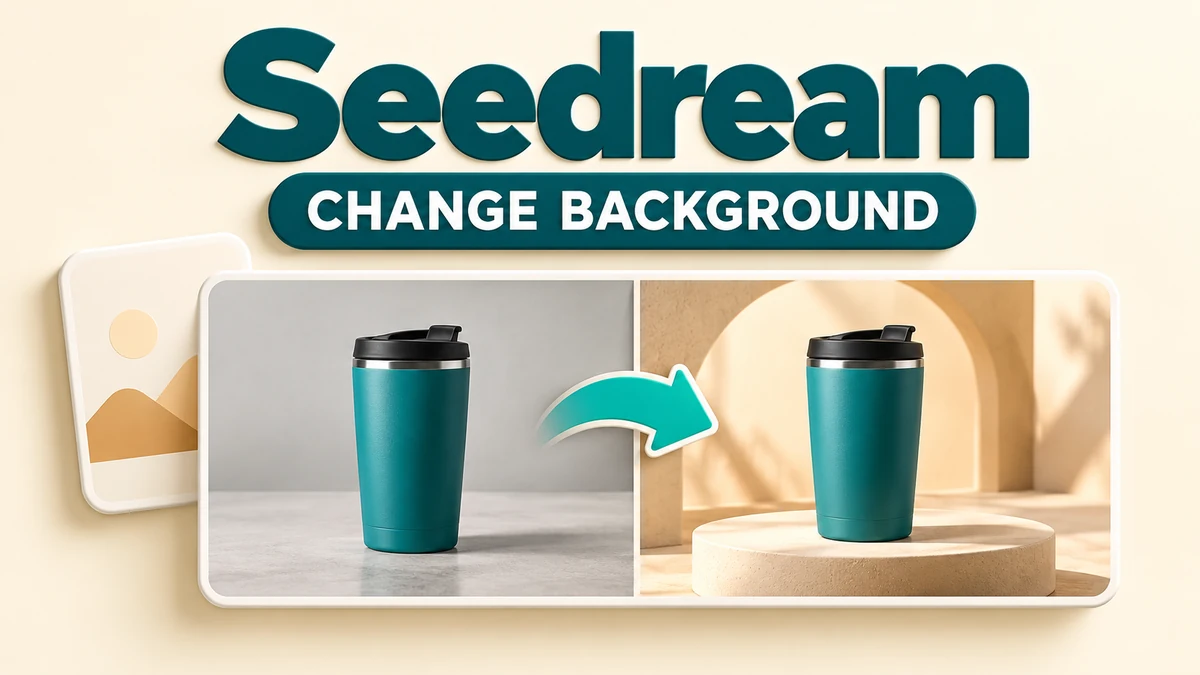
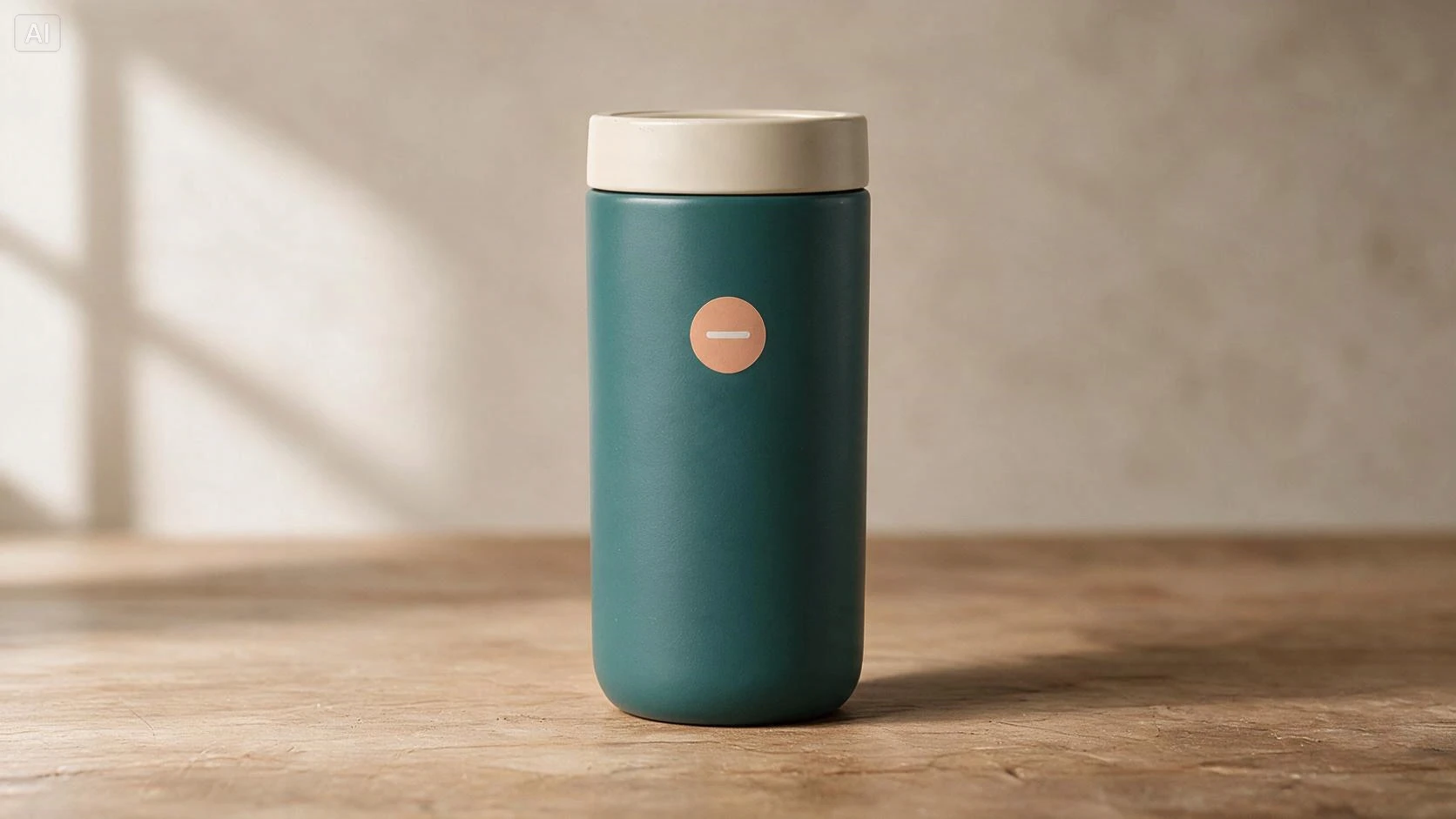
A plain product picture can be useful, but you may also want a cafe-table concept. We changed the surroundings of a fictional teal tumbler to a light wooden table and beige wall.
This is our independently AI-generated source, not a Seedream output or a photograph of an item for sale. Use your own or appropriately authorized imagery for real work.
Actual result: a new background, with some changed surface detail
The wooden surface and light wall appeared. The teal cylindrical body, closed cream lid and peach circle with one white line remained visually recognizable. No handle, straw or extra product was observed.
The original lower-body scuffs and finish were not reproduced exactly. Changed lighting also prevents an exact-color claim. A visual concept should not automatically become a factual sales photograph.
| Check | Observation in this one output |
|---|---|
| Background | Wooden table and light wall introduced |
| Main shape | Closed cream lid and cylindrical body recognizable |
| Front mark | Peach circle and single white line present |
| Surface | Scuffs and texture changed; exact preservation not established |
| Not tested | Real item, commercial logo, Korean lettering, repeat-run reliability |
1. Open the specific Lumina image-editing app
Open the official link and sign in with Login. Confirm the page says Image Edit Seedream 5.0 Pro. ModelArk is a separate developer platform; this workflow needs no API key or terminal.
Alternatively look for that exact app name under AI Apps. Similar templates can have different inputs and costs.
2. Upload one clear source image
Unzip the practice pack and select source.png in the app’s image upload area. Wait for its thumbnail. The simplified app displayed PNG/JPEG/JPG/GIF with a20 MB limit; API specifications are not the upload rules of this screen.
For a real item, keep the lid, handle and label fully visible. Save the untouched source separately. Do not assume the model can accurately reconstruct an unseen back or unreadable lettering.
3. Separate the change from the features to preserve
Put the prompt below in Describe the image you want to generate. Adapt the body, lid and front-mark details to your own item. It requests a setting change and explicitly lists the characteristics to keep.
Start with one change so you can understand what worked. This is an editorial recommendation, not a guarantee that a preservation clause always succeeds.
Change only the background and supporting surface of the supplied fictional tumbler to a bright wooden table in a softly blurred beige cafe. Preserve the teal body, closed cream lid, cylindrical proportions, product position, viewing angle and peach circle containing one white horizontal line. Use soft window light from the left and a natural contact shadow. Do not add a handle, straw, other products, text or logos. Produce one restrained realistic product scene, without excessive gloss.4. Check the cost, then generate once
Our button showed9/time. One request changed the balance68→59. We waited through queueing and generation rather than sending duplicates. This is an observation of this app, not a universal Seedream tariff.
A99% progress label is not a finished image. Wait for an output and check the original task and balance before considering a retry.
5. Inspect and download the actual file
Click the result to open its detail view, then the downward-arrow download icon. We observed Download successful and saved the1672×941PNG with its AI mark. A preview alone does not prove a downloaded file.
Open source.png and actual-seedream-output.png at the same scale. Check the lid edge, base, mark and reflections. A commercial label needs character-by-character inspection; this text-free sample does not test lettering fidelity.
6. Decide whether it is suitable for the next step
If proportions change, narrow the requested edit and preserve the source framing. Do not use a distorted product image as a factual sales representation. A further run may use more credits, so decide the intended correction first.
The next article prepares a restrained camera movement and checks the cost. No moving video of this tumbler was generated in the current exercise.
Sources & verification
On 17 October 2026 we uploaded an independently AI-generated fictional tumbler PNG to Lumina’s Image Edit Seedream 5.0 Pro app and made one Korean-prompt edit. The balance changed68→59, matching the displayed9 credits. The result and the actual download-button PNG were checked; their RGB pixels match. Output1672×941 px, AI label retained. Visual comparison does not establish exact color/pixel preservation or real-product fidelity. English prompts are unexecuted adaptations. Real branding, Korean lettering, repeated success rates, multiple items and paid features were not tested.
- Lumina · Image Edit Seedream 5.0 Pro
- BytePlus · Seedream 5.0 pro / flash tutorial
- Lumina · Frequently Asked Questions
Sources checked: 2026.10.17