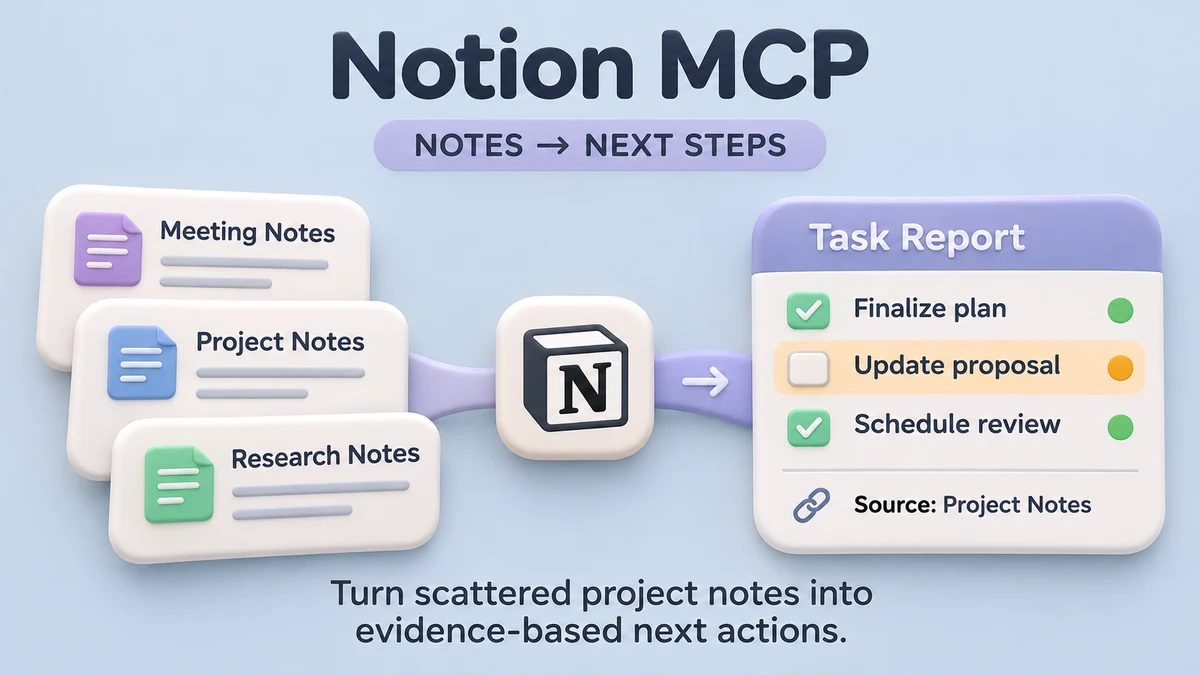
- MCP connects tools; it does not establish the truth of a project status.
- Read the actual source pages and retain conflicting decisions and unknown fields.
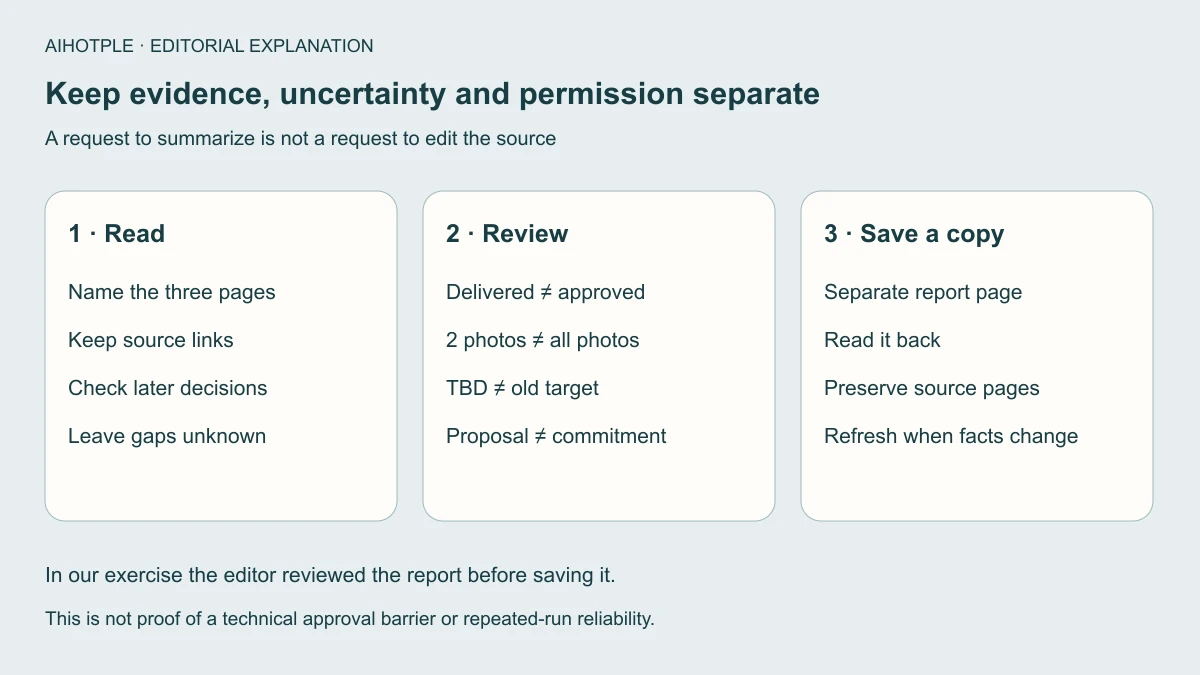
- Save a reviewed report separately, then read it back and check the source links.
- A static connected report is not a scheduled autonomous assistant.
Start with a read-only status request. Ask the assistant to show evidence, missing information and conflicting decisions before it writes a separate report. In our fictional project, an old “Launch ready” label was contradicted by missing photos and approvals. The useful output was a clear not-ready decision, not a more confident summary.
Files for this exercise
AIHotple example files and prompts. Try the exercise before substituting real work data.
What you will build—and what MCP adds
A chatbot can summarize text you paste. A connected assistant can find and read the Notion pages you name, then save a reviewed result back into Notion. MCP is the connection layer; the assistant still has to decide which facts support its answer. It does not turn every status label into reliable evidence.
Our small exercise uses a project brief, a work log and a later decision note. The downloadable files reproduce the fictional inputs without exposing private workspace IDs. Recreate them as three ordinary pages in a test workspace or an appropriate private area. You do not need a new task database for this example.
Connect the tool, then prove that it can read your test page
Notion’s official MCP page links to its supported AI apps and setup documentation. Open that page, choose your assistant and follow the connection option exposed in that app. Client menus, account eligibility and administrator restrictions can differ; the fact that our existing connection worked does not establish access for every ChatGPT or Claude plan.
Review the authorization screen yourself. Notion says the tools operate with your Notion permissions. Naming three pages in a prompt limits the requested task; it does not technically narrow the connection’s permissions to those pages. Use fictional material first, avoid sensitive records and check your workspace’s connection controls.
- Make one clearly named private test page.
Use the title “AIHotple fictional studio launch — brief” and paste the brief from the kit. Add the work log and decision note as two more pages.
- Ask the assistant to find the exact titles.
Check the returned page links before asking for a report. A successful connection badge alone does not prove that the correct workspace or page was read.
- Request a specific fact and its source.
For example: “Read the decision note and tell me whether a replacement launch date is approved.” The expected answer in this fixture is no; the date is TBD.
Use a bounded status request
The request below specifies the source set, output fields and actions that are outside the task. Replace the page titles with your own test pages. Keep the instruction to show the proposed report before saving it. This is a useful operating convention, not a substitute for the client’s actual permissions and confirmation controls.
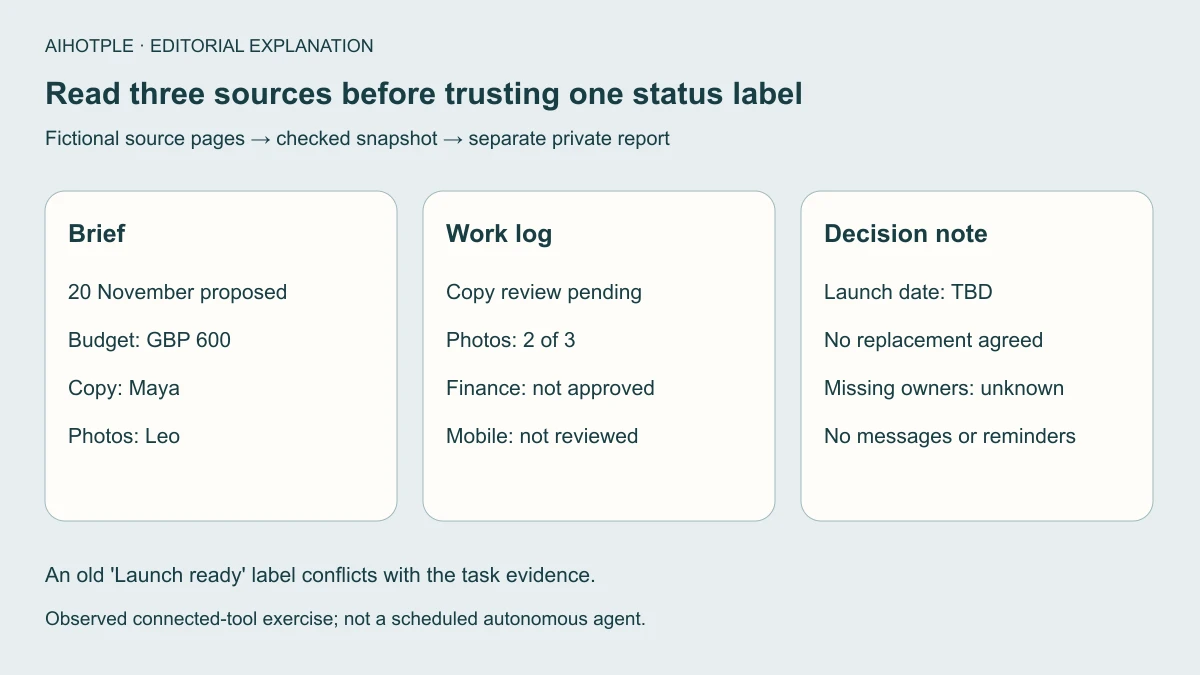
Read only the three pages titled AIHotple fictional studio launch — brief, work log and decision note. Produce a status table with item, evidence-based state, owner, due date, source title and next check. Distinguish delivered from approved. Keep missing owners and dates unknown. Resolve the obsolete 20 November target using the explicit later decision, and flag the conflicting Launch ready label. Do not mark the launch ready, change source pages, assign real users, send messages or create reminders. Show the proposed report first. Save a separate private report only after I approve the exact text.Review the difference between delivered, approved and ready
The work log says Maya delivered three descriptions, but copy review is pending. Leo uploaded two photos out of three, not all three. Prices are drafted, not approved. A landing-page draft exists, but mobile review has not started. Those distinctions should survive the summary.
The brief’s proposed 20 November date is superseded by an explicit decision that the launch date is TBD. Do not assume that the most recently edited page always wins: here the later decision states the change directly. If two sources disagree without a clear decision, retain the conflict and ask a human to resolve it.
| Item | Reviewed state | Owner | Due date |
|---|---|---|---|
| Copy | Delivered; review pending | Maya | Unknown |
| Photos | Blocked; 2 of 3 uploaded | Leo | Unknown |
| Prices | Draft; finance approval pending | Unknown | Unknown |
| Landing page | Draft; mobile review not started | Unknown | Unknown |
| Launch | Not ready; date TBD | Unknown | Unknown |
Save a separate report after reviewing the proposal
Our editorial assistant assembled the report from the three fetched pages. The editor checked the six rows against the fixture before saving a separate private report. Readback confirmed the six rows and three native source-page references. This demonstrates a connected read-and-write workflow; it does not measure how reliably another model would produce the same answer without review.
In your own assistant, approve only the specific write you want: “Save this reviewed report as a new private page. Do not change the three sources.” Open the saved page and verify its title, source links, unknown fields and next actions. Do not treat a response saying “saved” as proof until the page can be retrieved.
Make the report useful the next time you return
Treat the report as a dated snapshot. When a photo arrives or a price is approved, update the authoritative source first, then ask for a fresh read and a proposed report revision. Ask the assistant to identify what changed rather than silently replacing unknowns with guesses.
A practical next request is: “Read the same three sources again. List changes since the last reviewed report, keep unresolved blockers visible and propose the smallest report update.” That follow-up is a suggested workflow, not a second run tested here. Persistent memory, reminders and cross-app search are separate capabilities; this exercise does not establish them.
- Keep a source title or link beside every important state.
- Do not convert a named reviewer into an assigned workspace user without authorization.
- Keep unknown dates visible; a calendar that looks complete can still be wrong.
- For automatic imports from transcripts, continue with our n8n-to-Notion workflow.
Sources & verification
Tested on 6 November 2026 using this editorial assistant’s already-connected Notion tools. We created three private fictional source pages, fetched each page, reviewed a six-row report, saved it to a fourth private page and read it back. A scoped search found all four pages. The source pages remained unchanged. This was one editor-reviewed tool workflow, not an independent benchmark of ChatGPT versus Claude, a fresh OAuth setup, an autonomous background agent or a technical test of approval enforcement. The Notion browser required a separate login, so native page appearance was not verified there. No real workspace records, assignments, messages, reminders or sharing settings were changed.
Sources checked: 2026.11.06