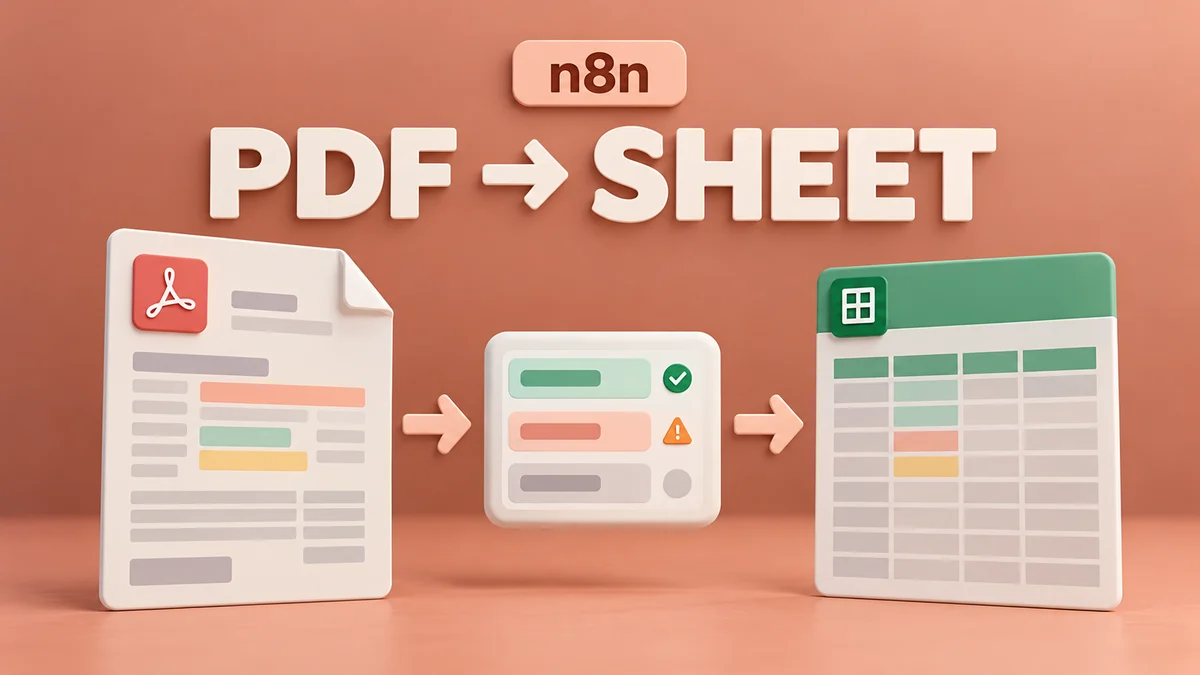
- Inspect the extracted PDF text before blaming or trusting the AI result.
- Validate field types and source values; a JSON object can parse successfully and still be wrong.
- Keep missing information and hold reasons visible in the spreadsheet.
This is an invoice data-entry exercise with fictional USD documents. The output is a review queue; it does not approve or pay invoices.
Files for this exercise
AIHotple example files and prompts. Try the exercise before substituting real work data.
What the completed workflow actually gives you
If you repeatedly copy vendors, totals and due dates into a spreadsheet, the useful automation is not merely asking AI to read a PDF. It is producing rows you can inspect, with a reason when the data should stop. This exercise downloads two fictional invoices, extracts text, asks a local model for fields and creates invoice-review.csv.
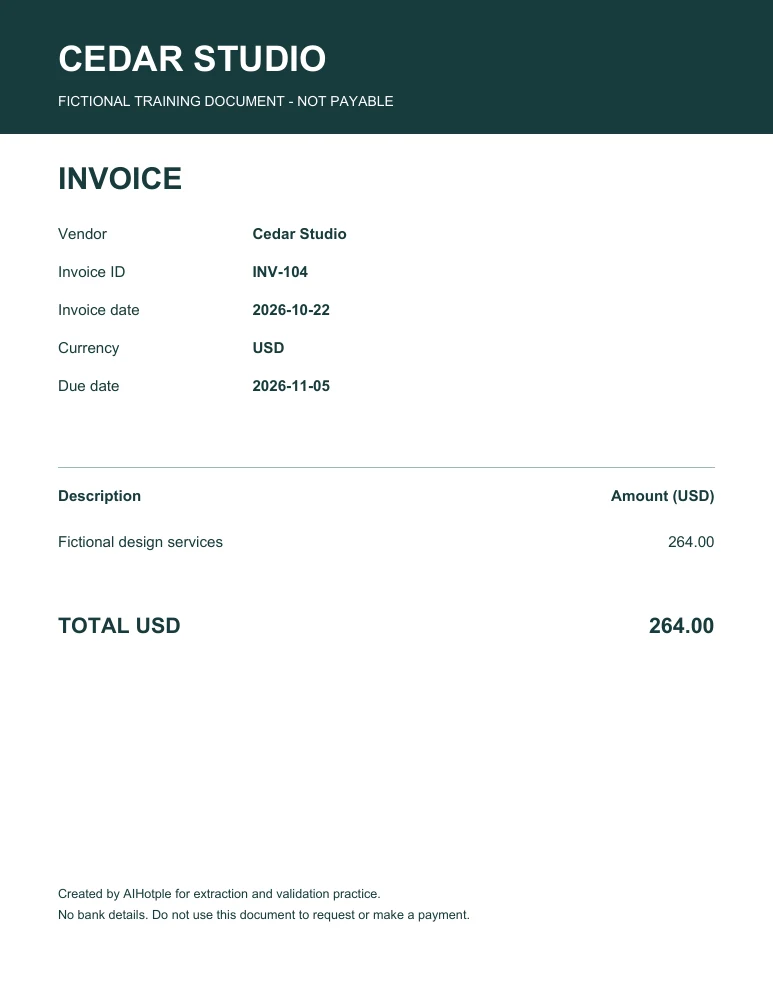
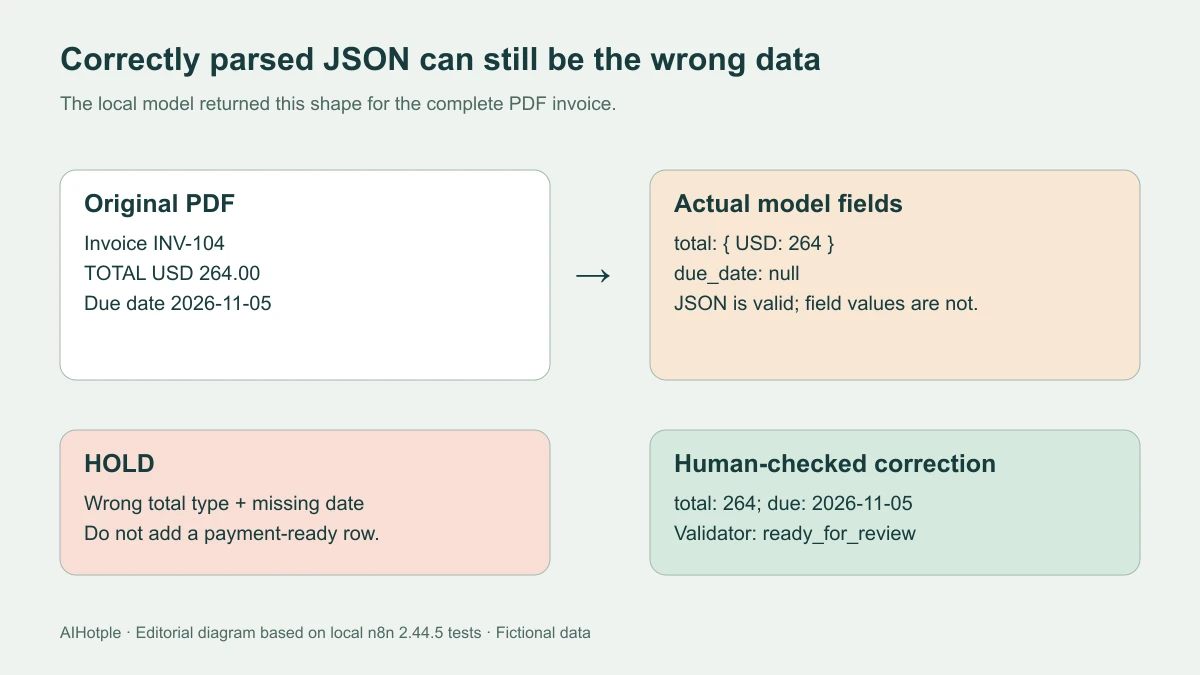
The first invoice says USD 264.00, due 5 November 2026. The second says USD 120.00 and does not state a due date. The model mishandled the complete invoice and correctly left the second date empty. Both rows were held. That is the actual result, not a claim that AI successfully completed invoice entry.
Prepare the local lab before importing a workflow
This walkthrough suits someone who already uses n8n or is comfortable installing a local tool. It uses a real, small language model on your CPU instead of a paid model API. The first start downloads packages and model weights; allow time, storage and memory. The ZIP contains the source files, not a preinstalled runtime or a model-weight bundle.
Install Node.js 24.x, extract the shared lab ZIP into its own folder, and open a terminal there. Run the two commands below, then leave that terminal open until the bridge prints Ready. Open subsequent terminals in the same extracted folder. The helper listens only on 127.0.0.1:5683.
Our checked environment was Windows, Node 24.20.0, n8n 2.44.5, Transformers.js 4.3.1 and Qwen2.5-0.5B-Instruct q4 on CPU. The current n8n documentation deprecates npm installs from 3.0, so this pinned learning lab is not an ongoing production-hosting recommendation. In n8n Cloud or Docker, 127.0.0.1 does not automatically refer to this host computer; the JSON needs a different reachable AI endpoint before it can work there.
Official Node.js installation site ↗
Check n8n installation and version conditions ↗
npm install
npm start
1. Import the workflow and run the supplied PDFs first
Import invoice-extraction.json using the commands below. In the editor, the equivalent documented route is the canvas header’s three-dot menu → Import from File. Open Two fictional invoices to inspect the two local fixture URLs before executing the workflow. Use the supplied files first so you have known source values to compare.
Download PDF uses HTTP Request with a file response in binary field data. Extract PDF text then uses Extract from File, Operation Extract From PDF, and Input Binary Field data. Open its output before looking at any generated fields: INV-104 must contain both TOTAL USD 264.00 and Due date 2026-11-05.
These PDFs contain selectable text. A scanned page is a different input: this test did not run OCR. If the extracted text is empty, damaged or missing a column, stop and inspect the document rather than asking the model to fill in the gaps.
node run-n8n.mjs import:workflow --input=invoice-extraction.json
node run-n8n.mjs execute --id=aihInvoice --rawOutput
2. Define fields precisely, including what an absent value means
Extract invoice fields sends the extracted text to the actual local model. The requested shape has vendor, invoice_id, currency, total and due_date. Currency is an explicit code, total is a number, and a missing due date is null. An invoice date must not silently become the payment deadline.
The task is deliberately narrow: the supplied validator expects the English labels and USD total line in these two fixtures. It is not a universal invoice parser. An arbitrary supplier layout, multiple currencies, credit notes, line-item taxes or a handwritten total needs different extraction and checking rules.
Open the raw response as well as the parsed fields. In our complete invoice, the model returned total as an object containing USD: 264 and returned due_date as null. Those are valid JSON values, but they do not satisfy the requested shape or match the available due date.
"total": { "USD": 264.00 },
"due_date": nullExtract only facts from the invoice. Return one JSON object with exactly these keys: vendor, invoice_id, currency, total, due_date. Use ISO dates YYYY-MM-DD. Use currency code USD, not $. total is a number. Missing or Not stated due_date must be null. No markdown. No extra fields.3. Put the validation decision before any accepted-row destination
Open Validate against source. It checks JSON parsing, object shape, the vendor and invoice ID against source text, a positive finite numeric total, the USD total line, currency and the explicit due date. A mismatch sets status to hold and stores issues. Passing these fixture checks sets ready_for_review; that name deliberately leaves approval to a person.
INV-104 received invalid_total, total_mismatch and due_date_missing_or_mismatch. INV-105 received due_date_missing_or_mismatch because the source itself says Not stated. We did not convert an absent date into today, the invoice date or a guessed 30-day term.
The workflow preserves both held rows in the CSV so that unresolved work stays visible. If you later connect an accepted-row destination, branch on the status before that destination. Do not use “the node succeeded” as the condition for accepting an invoice.
| Invoice | Source truth | Actual automatic result |
|---|---|---|
| INV-104 | USD 264.00; due 2026-11-05 | Hold: total object and missing date |
| INV-105 | USD 120.00; due date not stated | Hold: missing date |
4. Download the native n8n CSV and read the hold columns
Spreadsheet review columns keeps a flat set of fields: invoice ID, vendor, currency, total, due date, status, issues and raw_model_output. A nonnumeric total is left blank in the total column while the exact model response remains available. A blank here means unresolved data; it is not zero.
Create review CSV is the native Convert to File node with Operation Convert to CSV, output field data and filename invoice-review.csv. In the editor, open that node’s output, choose Binary, then the data file’s download control. The file linked with this article is the actual 521-byte output from our run.
For a CLI execution, the raw output includes an n8n-managed binary-file reference. That does not mean a CSV has appeared beside your JSON. The supplied ZIP includes the checked CSV so you can inspect the result without extracting a managed binary file yourself. Google Sheets was not connected or written to in this exercise.
| CSV value | How to interpret it |
|---|---|
| status = hold | Needs a source check; not accepted |
| total is blank | The raw AI total was not a valid number |
| due_date is blank | No verified due date was accepted |
| raw_model_output | Original AI answer, preserved for review |
5. Correct from the PDF, then recheck; do not fix by guessing
Open INV-104 and read the total and due date yourself. The explicit human correction in reviewer-corrections.json is total: 264 and due_date: 2026-11-05, with the vendor, invoice ID and USD code unchanged. An independent call to the same validation function returned ready_for_review for those fields. This was a validator check of human input, not another AI run that repaired the invoice automatically.
We also checked a wrong total of 2640, a GBP currency substitution and the second invoice’s absent due date. Each remained held. These targeted checks explain the boundary of the rules; they do not establish general invoice accuracy or prove that a document is authentic.
For INV-105, ask for the missing information through your usual business process and leave the row held meanwhile. A model cannot discover an unstated contract term from a page that does not contain it. Before using a real intake folder, add duplicate-invoice handling and protections appropriate to your documents and spreadsheet destination; neither is included in this fixture parser.
Sources & verification
Checked on 22 October 2026: n8n 2.44.5 downloaded two original fictional text PDFs, extracted their text, called Qwen2.5-0.5B-Instruct q4, validated the answers and created a real CSV through Convert to File. Both raw AI rows were held. A separate run of the same validator accepted human-corrected INV-104 fields as ready_for_review. No OCR, real invoice, tax assessment, Google Sheets write or payment was performed.
- n8n · Extract from File
- n8n · Import and export workflows
- n8n · Server command line
- n8n · npm installation and version conditions
- ONNX Community · Qwen2.5-0.5B-Instruct model and Transformers.js usage
Sources checked: 2026.10.22