- Attach the status, decision and handoff notes, and name the source set explicitly.
- Use the newer note only for the status it actually supersedes.
- Review grouped decisions and missing owners before sharing the exported report.
In our signed-in web test, Lumo used the newer budget decision, kept customer acceptance pending and left an unaccepted translation request outside scope. We downloaded the actual Markdown report. This exercise used file uploads; Desktop folder connections and scheduled reporting were not tested.
Files for this exercise
AIHotple example files and prompts. Try the exercise before substituting real work data.
Start with a report you can verify, before connecting more data
Lumo is Proton’s AI assistant. Proton released Desktop with Connectors, Schedules and Skills on November 17. Those features make a folder-based reporting workflow a useful follow-up topic, but they are separate from the web upload exercise below. The signed-in web Connectors screen directed us to install Desktop. We chose to work with three explicit attachments instead.
This is useful when several notes describe different moments in the same project. A weekly report can sound confident while confusing an internal export with customer acceptance, or repeating a budget status that a newer note has replaced. Giving the assistant a small source set makes those mistakes easier to spot.
Our account showed a seven-day chat-history limit. Keep an approved copy of a report where your work normally lives; do not treat a chat as the only record of a decision. Current access and limits can differ by plan.
Prepare three notes with a clear change of status
The downloads describe fictional Cedar Studio work for Harbor Books and Alder Bakery. They are deliberately short. The first note records completed production work and an older pending budget. The second explicitly supersedes that budget status. The third assigns the next handoff without inventing a customer review deadline.
The source labels are part of the exercise. A claim marked D2 can be checked against one short sentence. In your own notes, record the date and what a decision replaces. A newer document does not automatically replace every older fact.
| File | Fact the report must preserve |
|---|---|
| 01-status.txt · S1–S6 | Clips exported and captions completed; script missing; internal review only proposed. |
| 02-decisions.txt · D1–D5 | Budget approval supersedes S4. Its amount is absent. Customer acceptance is still pending. Translation has not been accepted. |
| 03-handoff.txt · H1–H4 | Mina will send clips on November 23. Eli will ask for the script, with no agreed due date. |
Upload the files and run the report request
The following is the path we used in Lumo web. Use only the fictional files for the first run. In our interface, the attachment control was the plus icon next to Tools. The signed-in free account accepted all three TXT files for this run; this does not establish a universal upload or message allowance.
- Start a new chat and check the selected mode
Sign in with an existing Proton account and choose New chat. We used Lumo 2.0 Max. If your available model or allowance differs, note that difference rather than assuming you are repeating the same setup.
- Turn off Web search for this source-only exercise
Open Tools and switch Web search off. We left Creations on, which allowed the report to appear in a canvas. No Desktop connectors were present in this test.
- Attach the three downloaded notes
Select the plus icon → Upload from device. Choose 01-status.txt, 02-decisions.txt and 03-handoff.txt. Wait until all three filenames are visible and file processing has finished.
- Paste the request and wait for the finished report
Enter the request below and choose Start generating or press Enter. If Lumo creates a canvas, open the Weekly Status Report Draft card. Read the actual report, rather than relying on the chat’s statement that it is ready.
Create a draft weekly report for the week ending 20 November 2026 using only 01-status.txt, 02-decisions.txt and 03-handoff.txt attached to this chat.

First list the exact source filenames actually read. Report: Completed work, Current decisions, Blockers, Agreed next actions, Proposals and open questions. Put source IDs next to every substantive claim. Use the newer decision note where it explicitly supersedes older status. Separate exported files from customer acceptance, an agreed handoff from a customer review deadline, and an unaccepted request from agreed scope. Use Unassigned or not agreed for missing owners or dates. Do not invent a budget amount.

Draft only. Do not read other folders or use mail, calendar, web search, shell execution or connected accounts. Do not create a schedule, send messages, alter files or accept the translation request. Finish with three specific decisions a human needs to make.
Compare the report with the decisions, not just its writing style
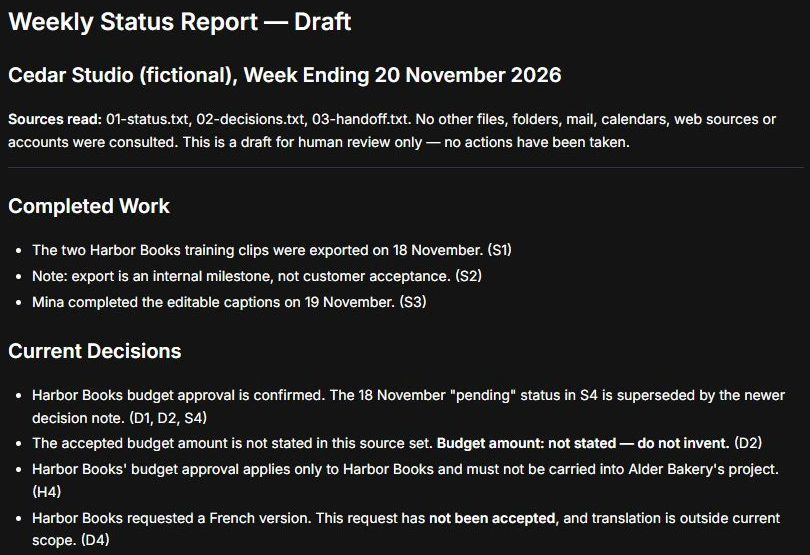
The generated report named all three source files and applied D1/D2 to replace the older pending budget. It did not invent the amount. It also kept the other project’s missing script separate from Harbor Books budget approval. The distinctions below were present in the downloaded Markdown as well as the canvas.
The report’s own statement that no other sources were accessed is not independent evidence of its internal processing. What we observed was a chat with these three attachments, Web search off and no connected accounts or Desktop tools used in the workflow.
| Review item | Observed result | Source |
|---|---|---|
| Budget status | Confirmed, replacing the older pending status | D1, D2, S4 |
| Budget amount | Not stated; no amount supplied by the draft | D2 |
| Clip completion | Exported, with customer acceptance still pending | S1, S2, D3 |
| French version | Requested but not accepted; outside current scope | D4 |
| Alder Bakery production | Blocked by missing approved script | S5, H3 |
| November 23 | Mina’s agreed handoff, not the customer’s review deadline | H1, D3 |
| Internal review | A proposal without an accepted time | S6 |
Download the report, then turn open decisions into separate actions
The result ended with three numbered human-decision items, but the third combined two different questions: a customer review deadline and the internal review meeting. That is a practical editing issue even though the factual distinctions were preserved. Split those questions before assigning owners; otherwise one numbered task can hide an unresolved decision.
The report’s phrase “scope impact unknown” also needs context. The known fact is that translation is outside the accepted scope. The price, effort and terms of any separately accepted French version remain undetermined. Keep the current exclusion visible when discussing a possible expansion.
Keep every source-backed fact unchanged. Split the final customer-review deadline and internal-review scheduling questions into separate items. State that translation remains outside accepted scope, while the cost and terms of any new French version are undecided. Do not invent owners, dates or a budget amount.- Open the canvas filename menu
Select Weekly Status Report Draft at the top of the canvas. Open Download, then choose Markdown .md. Download opens a format submenu; it is not itself the final format choice.
- Open the actual downloaded Markdown
Confirm that Completed Work, Current Decisions, Blockers, Agreed Next Actions and Proposals and Open Questions are present. Check D1/D2, the missing budget amount and the November 23 distinction in the file itself.
- Separate the decisions before sharing
Keep four separate questions: the French request, the script-request deadline, the customer review deadline and the proposed internal review. Make any new agreement explicit in the source notes before regenerating a report.
What changes if you later use Desktop?
Proton documents Connectors in Desktop for Windows, macOS and Linux. Its setup path is Customize → Connectors. Its per-action settings include Auto-approve, Ask human and Deny, and its documentation says connected tools are enabled by default in conversations. Review those settings before expanding access.
For a future folder test, start with a separate folder containing approved practice notes. A plain reporting task does not need mail sending, shell execution or message deletion. Check the actual functions and permitted data scope before connecting anything. We did not examine the folder-selection controls, verify a read-only boundary or test those permissions here.
A recurring report also introduces timing and ongoing access. This article created no schedule. First verify a one-off report and decide what a human must approve, then assess whether a scheduled task is appropriate.
Check owners and commitments in a customer follow-up →
Reuse writing rules without carrying facts between customers →
Sources & verification
Tested on November 20, 2026 in Lumo web with a signed-in Free account. We uploaded three original fictional TXT files, switched off Web search for the conversation and started with the Lumo 2.0 Max selector. The final composer shortened the label to Max. Creations remained on, so the report appeared in a canvas. We read that canvas, downloaded its Markdown file and compared the reported decisions with the three sources. We did not install Desktop, connect a folder, test connector permissions, create a schedule, access real customer material or send a report. Proton’s privacy statements below are vendor descriptions; this was not a security or offline-processing audit.
- Proton: Lumo web, accounts and current plan limits
- Proton: Desktop, Connectors, Schedules and Skills announcement
- Proton: Desktop connector setup and per-action permissions
- Official Lumo app installation page
Sources checked: 2026.11.20