- Match receipt and export records by transaction ID before summing.
- Keep a refund negative and different currencies out of an unsupported total.
- A text CSV can be useful when file generation fails, but label how it was saved.
Ask Gemini to reconcile transactions before adding them. Keep duplicates, refunds and unresolved currencies visible, then check the returned rows against your own control total.
Files for this exercise
AIHotple example files and prompts. Try the exercise before substituting real work data.
What you will make
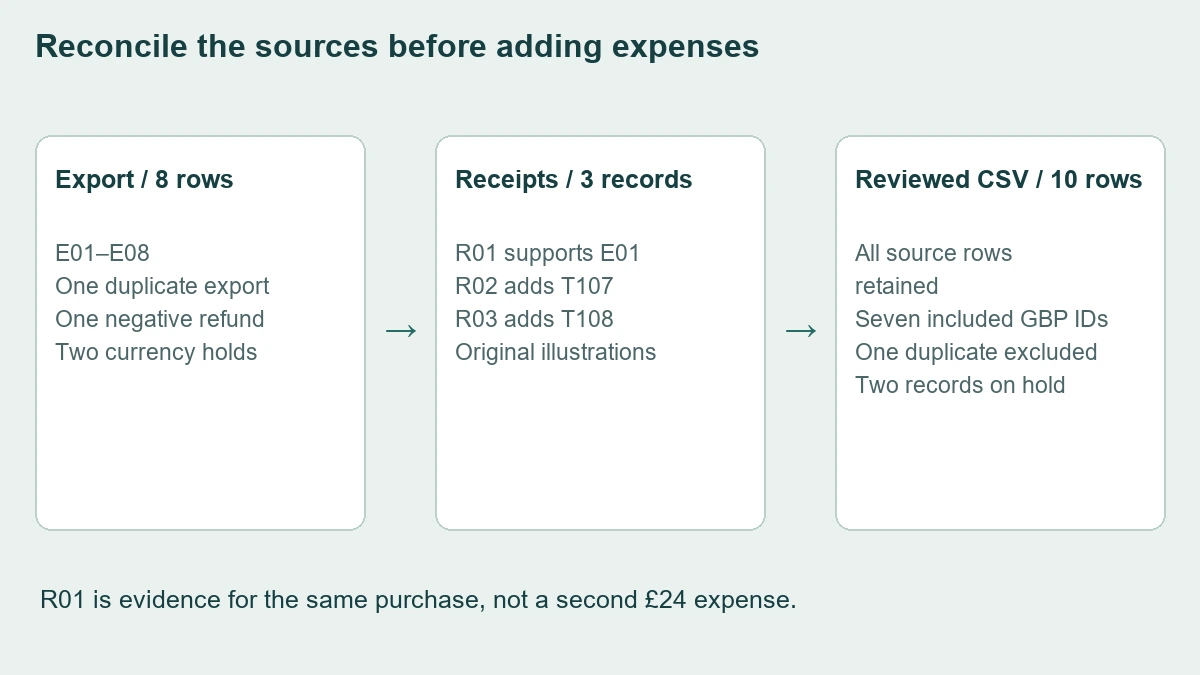
You have a monthly expense export and a few receipts. One receipt repeats a transaction already in the export, another export row is duplicated, and a refund reduces spending. A useful report preserves those records while making clear which ones contribute to the total.
Google’s 20 October small-business announcement highlights financial analysis from messy source material. This exercise tests a small, inspectable version of that idea in ordinary Gemini chat. It does not verify the newly announced business hub, a finance skill, a bookkeeping integration or the exact model behind Automatic mode.
Download the kit. expenses.csv contains eight original rows, including an £18 duplicate, a −£6 refund, a US-dollar purchase and an amount with no currency. R01–R03 are original receipt illustrations. receipt-notes.txt supplies their intended relationship to the export, so this fixture cannot establish independent receipt-reading accuracy.
1. Upload a small, clearly labeled batch
Open Gemini in a new chat. Click the plus or Uploads and tools control beside the prompt → Upload files. Choose expenses.csv, receipt-notes.txt and R01.png, R02.png and R03.png. Wait until the CSV/TXT labels and three image attachments appear before sending. Our interface used Korean labels; these are their English equivalents.
Use permitted, redacted records for your own trial. A transaction ID is more useful for matching than a vendor name alone. Two purchases from the same shop are not automatically duplicates, and the same purchase appearing in both an export and a receipt is not two expenses.
Google documents file-upload limits and rolling usage limits. A large batch can lose details, and organization accounts can restrict connected sources. This exercise uses local attachments and does not require enabling Drive or another account connection.
- Open a new chat
Keep unrelated spending records and previous examples out of the task.
- Attach the five inputs
Choose the CSV, source note and three receipt illustrations from the kit.
- Wait for the attachments
Confirm each file is present before requesting a reconciliation.
2. Define inclusion rules before asking for a file
Ask for one traceable ledger with statuses, evidence references and a separate review list. The important instruction is not “make an Excel.” It is the rule defining which transaction belongs in the GBP sum.
Our first request asked for CSV, Markdown and a formula-based XLSX. It failed, a retry failed, and a narrower two-file request also failed. One visible analysis output had read the CSV correctly; that did not prove a finished report existed. Google documents file generation, but we could not demonstrate a successful workbook export in this session.
We then stopped requesting files and pasted the exact small CSV with receipt transcriptions. The prompt below illustrates the working text path; the kit includes the full initial, revision and final requests. This final path does not verify reading the receipt images.
Use only the CSV and receipt transcription pasted below. Do not use tools, Canvas or connected apps. Return a CSV code block with source_row, transaction_id, date, vendor, amount, currency, note, status and evidence. Preserve every original row. Match receipt R01 to E01 without adding it again; add R02 and R03 as new transactions. Keep refunds negative. Use include_gbp, duplicate or hold_currency. Do not convert USD or guess missing currency. Show the included-GBP calculation and separate review rows. Do not claim to create an XLSX or downloadable report.

Paste the exact source CSV and verified receipt transcription here; the complete fictional example is in the kit.
3. Check the total by following the rows
The final text result contains ten ledger rows: all eight export rows plus R02 and R03. E01 links to R01.png as evidence. E05 remains in the ledger with duplicate status, and E07/E08 remain on hold. The seven included GBP transaction IDs are unique.
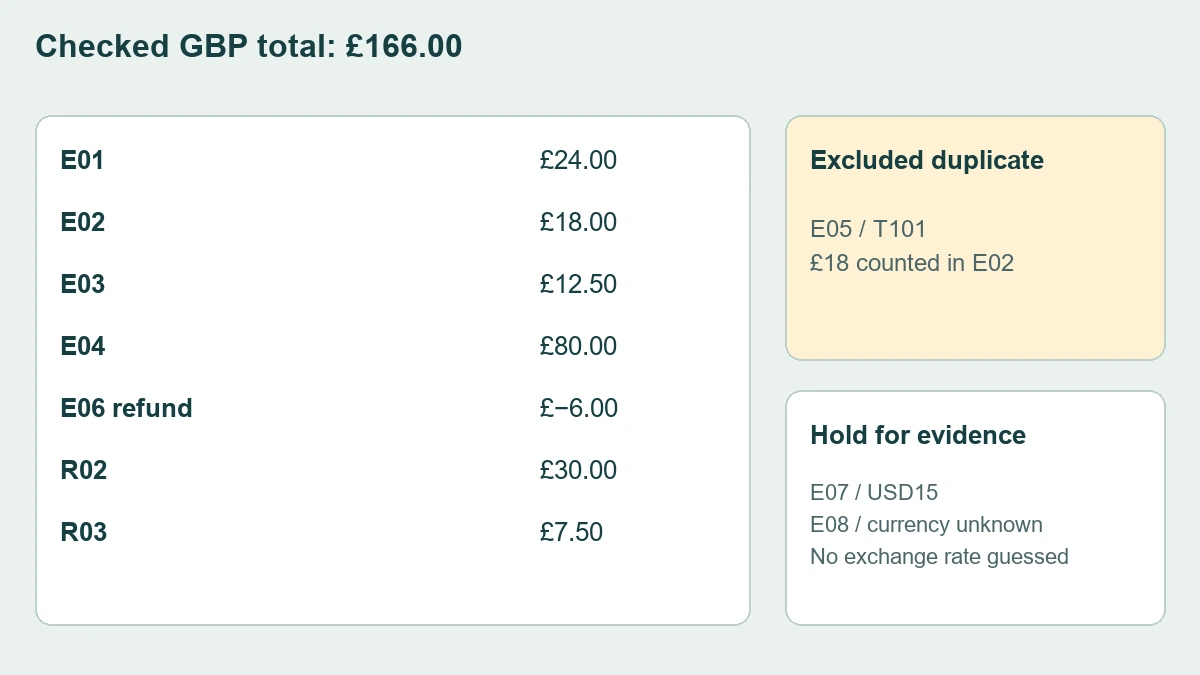
The independently checked calculation is £24 + £18 + £12.50 + £80 − £6 + £30 + £7.50 = £166. The USD15 and the currency-unknown 9 are not converted or quietly added. A missing currency is not a zero expense; it is unresolved evidence.
This total describes spending in the supplied fictional month. It does not establish profit, bank reconciliation, tax eligibility or the treatment of VAT. The original receipt illustrations are deliberately simple and the transcriptions were provided, so do not use this result as an OCR accuracy claim.
| Record | Treatment in the checked result | Reason |
|---|---|---|
| E01 / R01 | £24 included once | Same T100 transaction; receipt is supporting evidence |
| E05 | Duplicate; excluded | Repeats T101 from E02 |
| E06 | −£6 included | Refund reduces spending |
| R02 / R03 | £30 / £7.50 included | New T107 and T108 transactions |
| E07 / E08 | Held outside GBP total | USD without exchange rate / missing currency |
4. Bring the reviewed CSV into Excel
Use Copy code on the CSV block, not the copy button for the entire response. Save only the header and rows as a UTF-8 .csv file, without Markdown fences or explanatory paragraphs. Our kit provides this editor-saved copy of the actual displayed result, plus the complete response so you can compare them.
In Excel, use Data → From Text/CSV and inspect the comma delimiter, encoding and preview before loading. Keep transaction IDs as text. Review amount and currency as separate fields and preserve blank currency. These are suggested import steps; we did not test a native Excel import or workbook recalculation in this exercise.
For a control total, select only include_gbp rows and compare their sum with £166 in the fixture. In your own report, reconcile against an independent source total before using the numbers. If you later add rows or resolve a currency hold, recalculate and review the changed inclusion status rather than treating the original total as current.
When to stop and ask for better evidence
If receipt text is unreadable, ask for a clearer permitted source or transcribe and verify it yourself. If a supposedly duplicated row has a different transaction ID or amount, keep the conflict for review. Do not resolve it by matching only the vendor or date.
A failed file-generation request is not proof that the feature is unavailable to everyone, and a successful analysis-tool read is not a completed workbook. The useful fallback here was small enough to inspect line by line. For a large or consequential ledger, move to a controlled import and review process rather than expanding an unchecked chat transcript.
Continue this workflow
Cannot attach the source? Check Gemini upload and Drive access separately →
Compare the same five receipt images in ChatGPT, Claude and Gemini →
Sources & verification
Tested on 29 October 2026 in the signed-in Gemini web app, with Automatic mode displayed and English requests/results in a Korean interface. Eight fictional CSV rows, a note and three clean code-drawn receipt illustrations were uploaded. The initial file request, one retry and a narrower file request failed. A final text-only request supplied the exact CSV and editorial receipt transcriptions and returned a usable CSV code block. AIHotple saved that displayed text as a CSV and independently checked the original eight rows, two new receipt rows, seven unique included GBP transactions and £166 net spending. No native XLSX or downloadable report file was successfully generated. This is not an OCR, real-receipt, tax, deductibility or accounting-system test. No live account, payment, connector or permanent skill was changed.
- Google · new Gemini tools for small business owners, 20 October 2026
- Google · upload and analyze files in Gemini Apps
- Google · generating files in Gemini
Sources checked: 2026.10.29