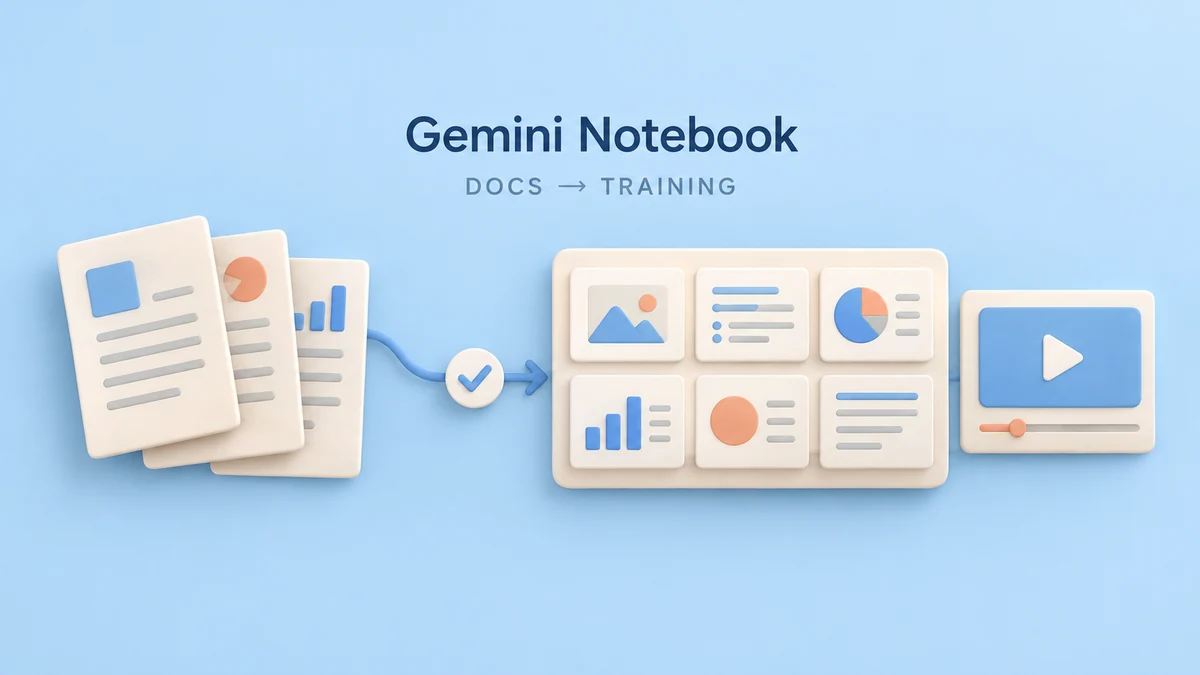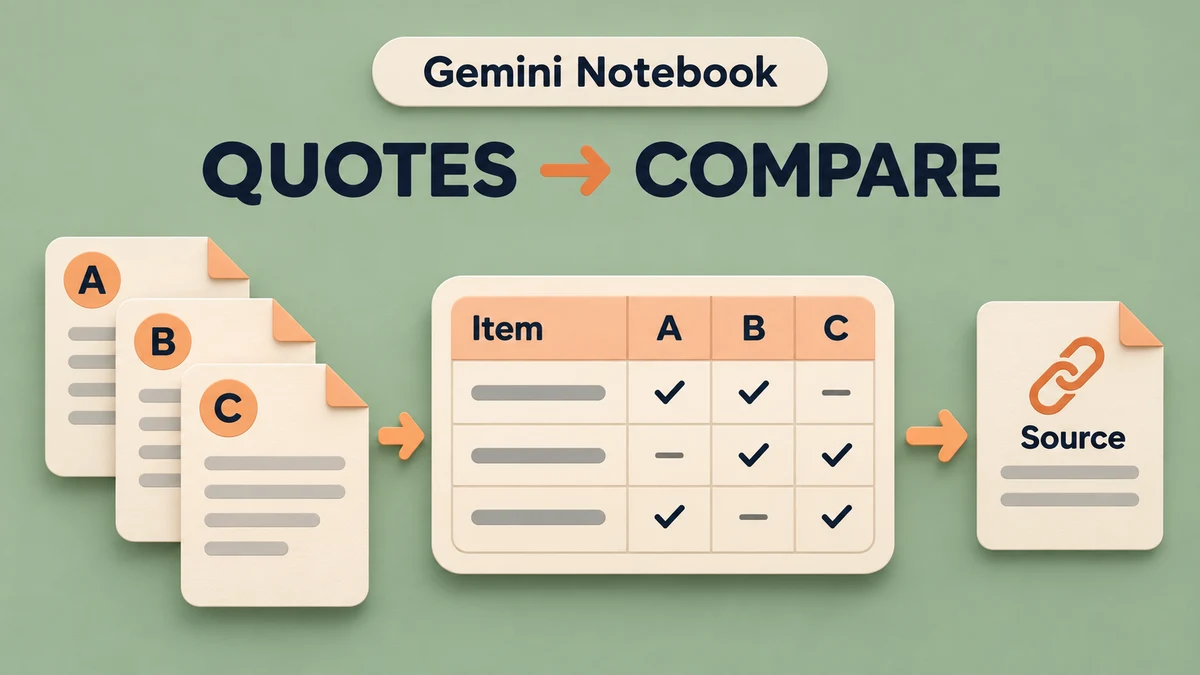
- Put section IDs and clear limits in the PDF before uploading.
- Test the interactive controls and check generated policy wording against the source.
- Review notebook access before sharing the result.
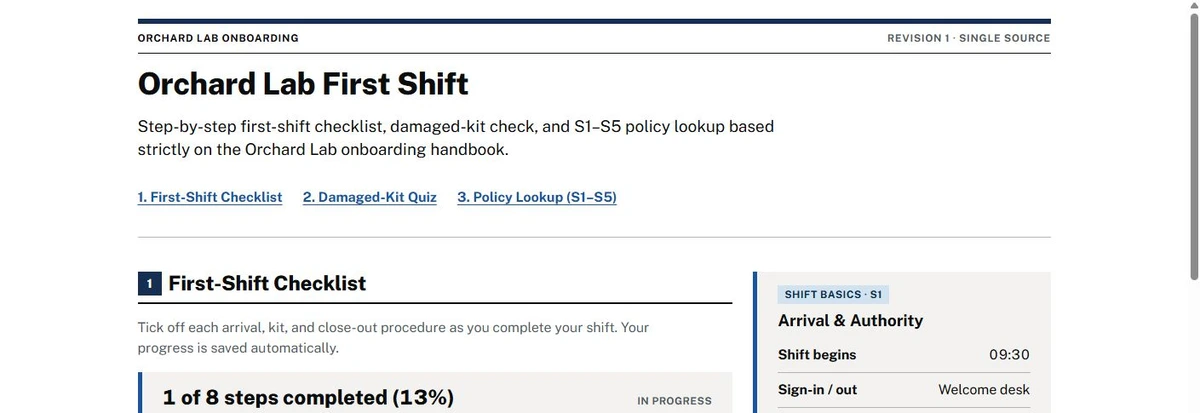
The generated site counted checked steps, marked two quiz attempts differently and found the handbook section that leaves the equipment replacement fee unspecified. We also found a small wording change worth correcting before sharing.
Files for this exercise
AIHotple example files and prompts. Try the exercise before substituting real work data.
Upload one PDF and request a site from Chat
Google documents site generation for users 18 or older with edit access to a notebook. The example uses a one-page handbook for a fictional workplace. Sections S1–S5 cover arrival, kit, damage, departure and what the handbook leaves unspecified. Those labels make it easy to check every rule on the generated page.
- Upload the one-page source
Open Gemini Notebook and create a new notebook. In Add sources, pick the file upload option and select orchard-lab-handbook.pdf. Confirm it is the only PDF listed in Sources and that it opens to sections S1–S5.
- Ask for a site in the notebook’s Chat
Paste the prompt below into Chat and send. It gives the site a name, specifies three interactive controls and tells Gemini how to handle information the handbook leaves out.
- Open the finished artifact from Studio
After the site appears in Studio, select Orchard Lab First Shift. Choose Open in new tab from the artifact controls to test the page. If a standalone tab stalls, return to the notebook and open the artifact from Studio again.
Make me an interactive site called Orchard Lab First Shift using only the uploaded orchard-lab-handbook.pdf. Use English. Create one mobile-friendly page with three clear areas: First-shift checklist (interactive checkboxes for arrival, kit and close out with a visible progress count), a one-question damaged-kit quiz with feedback, and a policy lookup or short FAQ with section IDs S1–S5. Include the 09:30 shift start, Mina as the only person who can approve late arrival or early departure, blue badge/protective glasses/tray, HOLD for damaged kit, orange means in use, and the close-out rules. If asked for a training pass mark or equipment replacement fee, say the source does not specify. Do not invent people, amounts, requirements, external links or an official passing score. Use no personal information and do not share the notebook.Test the controls against the actual handbook
We opened the site before using it as training material. The checklist and lookup responded, and the quiz showed different feedback for an incorrect and a correct choice. These three checks also exposed where interaction success and policy accuracy need separate review.
| Try this in the generated site | Observed result |
|---|---|
| Check the arrival step | Progress moved from 0 of 8 (0%) to 1 of 8 (13%). |
| Choose C and click Check answer. Then choose B and check again. | C showed an incorrect message. B was marked correct and cited S3 for tagging damaged equipment HOLD and telling Mina. |
| Search the policy lookup for replacement fee | The result pointed to S5. The source specifies neither a training pass mark nor a replacement fee. |
| Open the site again from the notebook | The check was still present in the same session. A reload of the first standalone tab stalled during our check. |
Audit the rules before training anyone
Use the PDF as the answer key. Check visible labels, quiz feedback and search results independently. Each of those controls can work while still carrying wording that goes beyond the handbook.
| Section | What to verify in the generated site |
|---|---|
| S1 · Arrival | Sign in at 09:30. Mina alone approves late arrival or early departure. |
| S2 · Kit | Blue badge, protective glasses and tray. The handbook says to keep belongings in the marked lockers. The generated sublabel added “only.” |
| S3 · Damage | Tag damaged kit HOLD, tell Mina and do not use it. An orange tag means in use. |
| S4 · Close-out | Return tray and badge to the desk, put glasses in the cleaning bin and sign out. |
| S5 · Missing details | Neither a training pass mark nor an equipment replacement fee is specified. |
Use the wording from S2 exactly for the locker checklist item. Keep the kit list, quiz feedback and S1–S5 lookup unchanged. Show the revised site so I can recheck the controls.Read the small print before sharing
To share a site through Gemini Notebook, Google directs you to Studio → More → Share. Viewers need access to the full notebook. Review the whole source list before inviting anyone. Google also says each viewer sees only their own site inputs, so a trainer looking for an attendance record would need a separate reporting workflow.
Google documents a Studio → More → Download option. We tested the private preview, including a narrow layout and a same-session reopen from Studio. File export and progress on a second device were outside this run.
Sources & verification
One actual private site generated in a signed-in Gemini Notebook web session on November 18, 2026, using one fictional PDF. We verified the interactions and checked the layout of the generated preview at a 375-pixel document width. Reopening from the notebook showed the previous check in the same session, while refreshing the first standalone tab did not finish loading during our check. Cross-device persistence, downloads of the site itself and public hosting were outside this test.
- Google’s interactive sites announcement
- Google’s Gemini Notebook site creation and sharing instructions
Sources checked: 2026.11.18