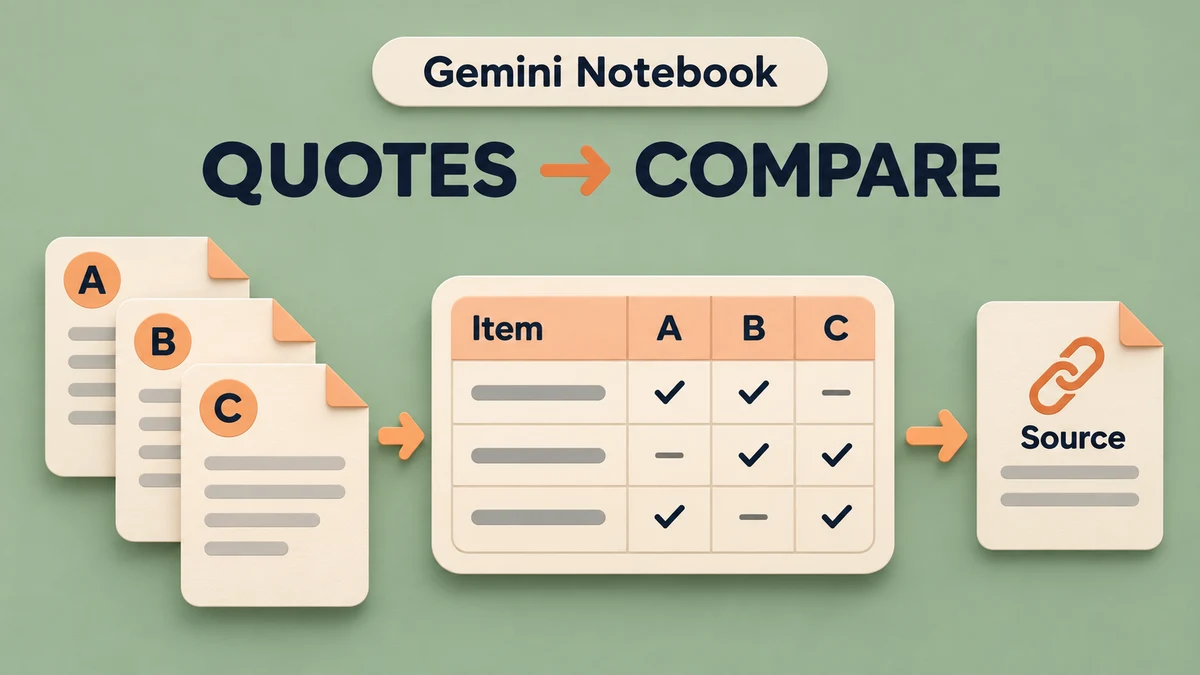
- Compare the same cost basis and keep missing terms visible.
- Open the cited PDF: an accurate number can have an inaccurate page reference.
- Keep the model export and editorial corrections separate.
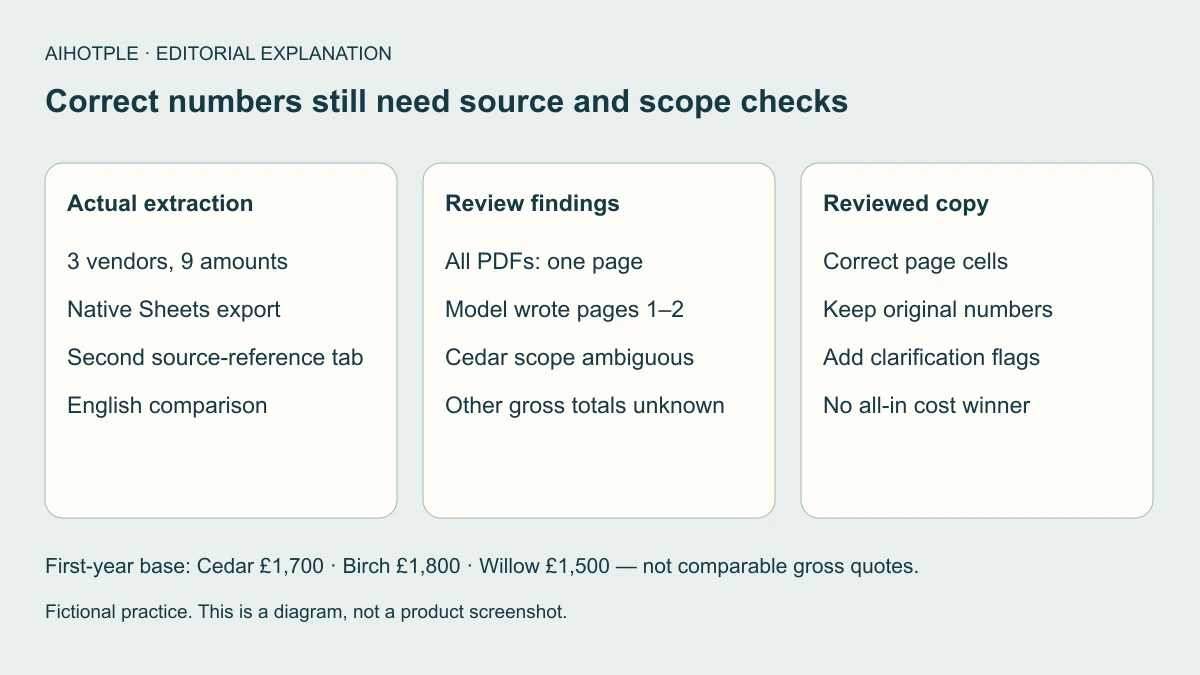
We uploaded three one-page fictional quotations, generated an English Data Table and exported it to Google Sheets. All nine displayed cost amounts matched the PDFs, but all three page references were wrong. Download the actual output beside a separate editorial review and see what to check before choosing a supplier.
Files for this exercise
AIHotple example files and prompts. Try the exercise before substituting real work data.
Use this when the information is inside documents you already have
A general web comparison can find public plans, but a supplier quotation has its own scope, payment trigger, validity date and exclusions. A useful table must retain those conditions instead of extracting one headline price per PDF.
This exercise uses Cedar Studio, Birch Web and Willow Digital quotations for a fictional five-page website. Each PDF has one page, explicit cost figures and different tax, delivery and inclusion terms. The names, prices and terms are original training data, not offers from real businesses.
Google’s current documentation calls the product Gemini Notebook; older tutorials use NotebookLM. The demonstrated feature is Studio → Data Tables, not a general Gemini chat response. The account must be eligible, and available limits can differ. We did not buy a plan or establish universal free access.
1. Create one notebook and upload only the relevant sources
Open Gemini Notebook and choose Create new notebook. Name it for the decision, then Add source → Upload files and select quote-A.pdf, quote-B.pdf and quote-C.pdf from the kit. Wait until all three source names are visible and selected.
Our interface was Korean: 새 노트북, 출처 추가 and 파일 업로드 were the corresponding controls. We used an English notebook name and did not use the web discovery search box. Keeping the scope to the three supplied PDFs makes the result easier to audit.
Before asking the model, open each PDF yourself. Check whether its text is readable and how many pages it actually has. Scanned or image-only quotations may require a different extraction check; this was a clean text-PDF exercise, not an OCR benchmark.
- Create a dedicated notebook
Use one project for this quote comparison rather than mixing unrelated documents.
- Upload all three PDFs
Confirm the filenames and completed source list; keep all three selected.
- Confirm the source facts
Each practice PDF has one page. Note the currency, issue date and exclusions before generating a table.
2. Customize the Data Table in English
In Studio, select Data Tables. Our current interface opened a customization dialog directly; Google’s help also describes a pencil control for customization. Select English in the language dropdown before entering the requested columns.
Ask for exactly one row per supplier, with one-off subtotal, first-year maintenance, the stated first-year base, tax treatment, delivery and trigger, revisions, payment, expiry, exclusions and source filename/page. The request below explicitly forbids replacing unknown terms with zero or ranking an all-in winner from incomplete costs.
Choose Generate now and open the completed artifact. Our table contained three supplier rows and thirteen columns including a separate Source field. It reordered the vendors to Cedar, Willow and Birch, so compare by supplier name rather than assuming input order is preserved.
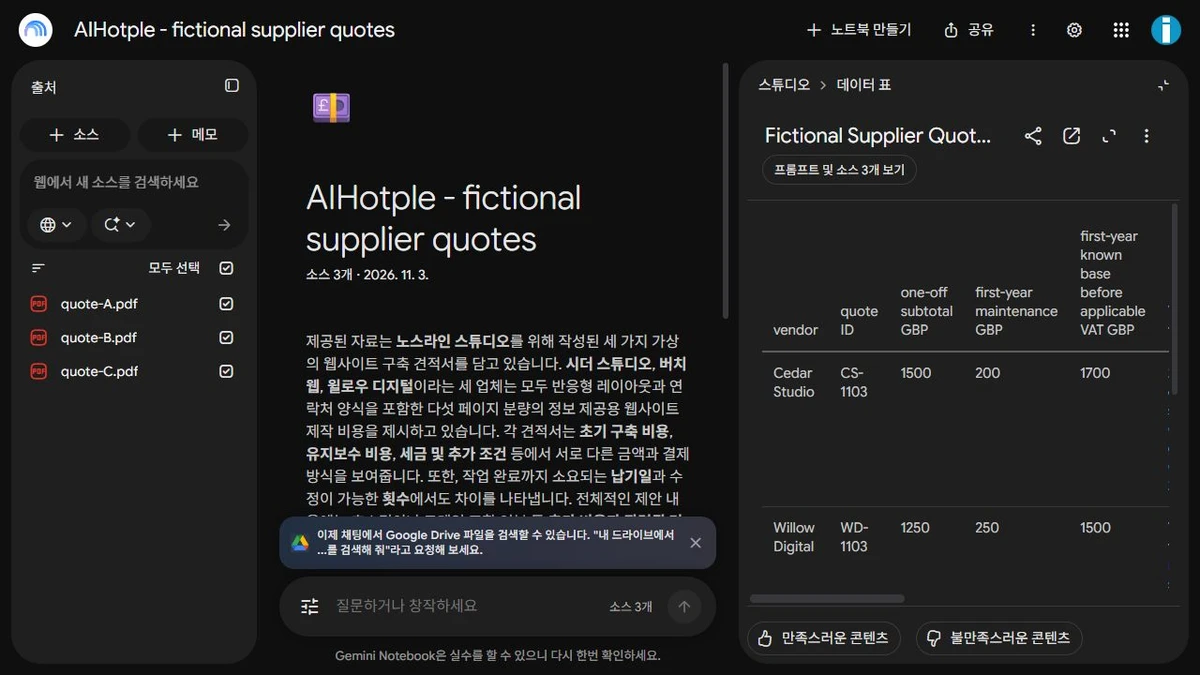
Use only the three uploaded fictional quotations. Output in English. Create exactly three rows, one per vendor, with columns: vendor, quote ID, one-off subtotal GBP, first-year maintenance GBP, first-year known base before applicable VAT GBP, VAT treatment, delivery and trigger, revision rounds, payment terms, validity date, exclusions/unknowns, source filename and page. Keep tax and hosting unknown when absent; do not turn them into zero. Do not compare delivery days as equivalent because business and calendar days differ. Do not rank a cheapest all-in supplier when costs are incomplete. Copy source amounts; do not invent a price or a total. Include source citations for every row. Do not use web research.3. Export through the table’s menu, then inspect both tabs
Open the generated table’s three-dot menu and choose Export to Sheets. We observed a new private Google Sheet with Table 1 and a source-reference tab. We then downloaded the actual workbook as XLSX; the file in the kit is that export, not a spreadsheet reconstructed from our prose.
Google documents the first tab as the table and the second as citations. In our export, the reference tab mapped 1 to quote-A.pdf, 2 to quote-C.pdf and 3 to quote-B.pdf. It contained filenames, not a self-contained copy of each source PDF or a guarantee of a correct page number.
Keep the original PDFs with your own review files. Google also states that edits in exported Sheets do not synchronize back to the original notebook and that sharing permissions do not carry over. An exported file needs its own access check. We left the cloud sheet private and did not share it.
4. Check comparable amounts without inventing a complete price
The table copied all nine subtotal, maintenance and first-year base amounts correctly. Cedar is 1,500 + 200 = £1,700 before the stated VAT; Birch is 1,350 + 450 = £1,800 before any applicable tax; Willow is 1,250 + 250 = £1,500 before any applicable tax. Those are copied source figures and simple checks, not a complete normalized total-cost model.
Only Cedar states VAT and a gross figure: 20%, £340 and £2,040. The other two explicitly leave VAT treatment unknown. Their gross totals must remain unknown; applying Cedar’s rate to them would invent a term that their quotations do not provide.
The delivery basis also differs. Ten business days after assets and deposit is not directly comparable with fourteen calendar days, and Birch’s seven-business-day wording leaves the deposit trigger unstated despite payment being due before work. A shortest number is not automatically a fastest confirmed delivery.
There is an ambiguity inside quote A itself: it lists £200 first-year maintenance but later says ongoing maintenance is excluded. The generated table repeats both statements without reconciling them. Our editorial review flags the scope for clarification rather than silently deciding which sentence the supplier intended. This input problem is separate from a model extraction error.
| Fictional supplier | Stated first-year base | Gross / scope check |
|---|---|---|
| Cedar Studio | £1,700 | £2,040 stated gross; maintenance scope ambiguous |
| Birch Web | £1,800 | VAT unknown; clarify trigger and domain cost |
| Willow Digital | £1,500 | VAT and hosting unknown; optional copy excluded |
5. Verify the source pages and keep a separate reviewed copy
Every practice PDF has exactly one page. The model nevertheless wrote pages 1–2 in the source-location field for all three suppliers. The filenames were right, but those page ranges were not. A source-reference marker beside a row is not proof that every cell has a correct source location.
The kit preserves notebook-original.xlsx and its CSV copy unchanged. A separate comparison-editorial-review.csv corrects the three page fields to page 1 and adds a review-status column. It keeps the source amounts and the unknown tax terms. That file is explicitly an AIHotple editorial revision, not an automatically repaired model export.
Open the original PDF for each high-impact field: subtotal, tax, exclusions, payment trigger, expiry and any promise you plan to rely on. If a date or term is missing, write a clarification question. For a real quotation, request an updated offer when it expires rather than treating this dated comparison as indefinitely current.
6. Turn the comparison into a useful next action
A reviewed table should make the remaining questions shorter. Ask Birch and Willow whether tax applies and for a gross total; ask Cedar what the maintenance charge covers; clarify hosting, domain and renewal costs before comparing a full year. These are questions for the fictional practice, not messages sent to suppliers.
When your decision needs a presentation, build slides from the reviewed rows and preserve unresolved terms in the deck. Do not let an attractive shortlist remove a condition that prevented a cost comparison in the spreadsheet.
Our Manus research article starts with public vendor pages rather than uploaded quotations. Our earlier notebook exercise creates onboarding materials from company documents. Both are useful follow-ups, but neither substitutes for checking this comparison against its own PDFs.
Continue this workflow
Compare this exact PDF set in ChatGPT, Claude and Gemini Notebook →
Sources & verification
Tested on 3 November 2026 in signed-in Gemini Notebook web, formerly NotebookLM. We uploaded only three original fictional PDFs, selected English, supplied a column-specific request and exported the generated Data Table through its Sheets command. The actual downloaded XLSX has three data rows and a second source-reference tab; source-tab labels reflect the Korean interface. No web research, supplier contact, quote acceptance, real procurement data, account purchase, native Excel application test or cloud-sheet editing was performed. The reviewed CSV is a local editorial correction, not a second model output or a synchronized notebook update.
- Google · create a notebook, Data Tables and Sheets export
- Google · work with grounded notebook responses
Sources checked: 2026.11.03