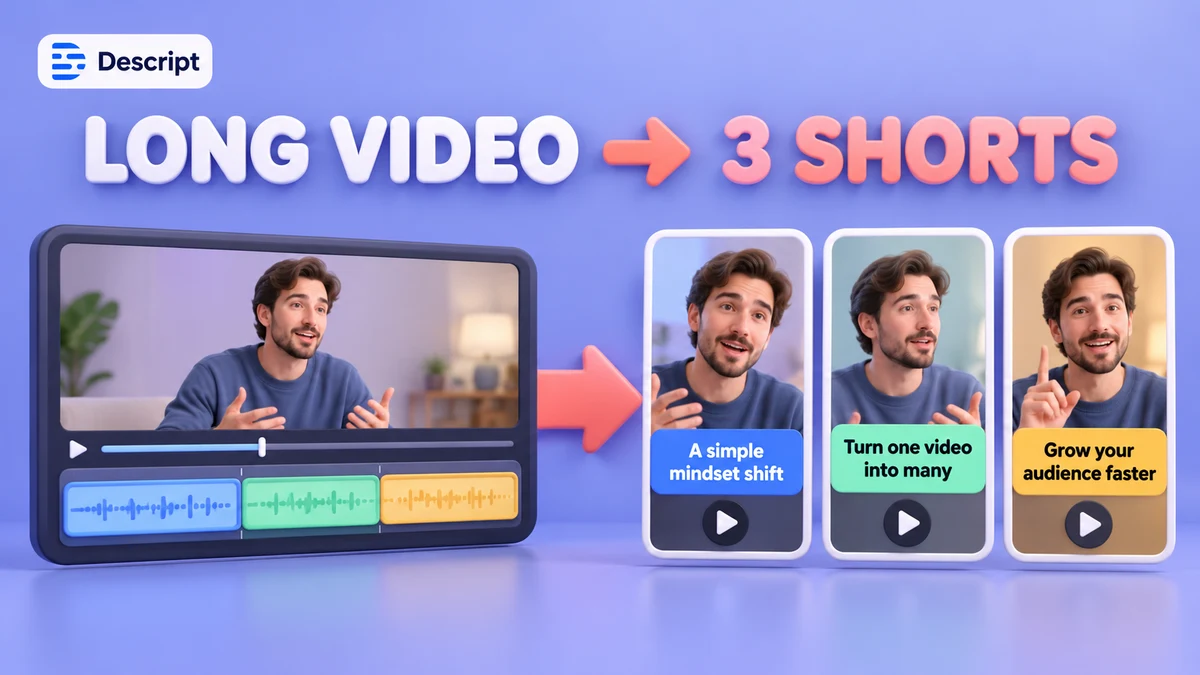
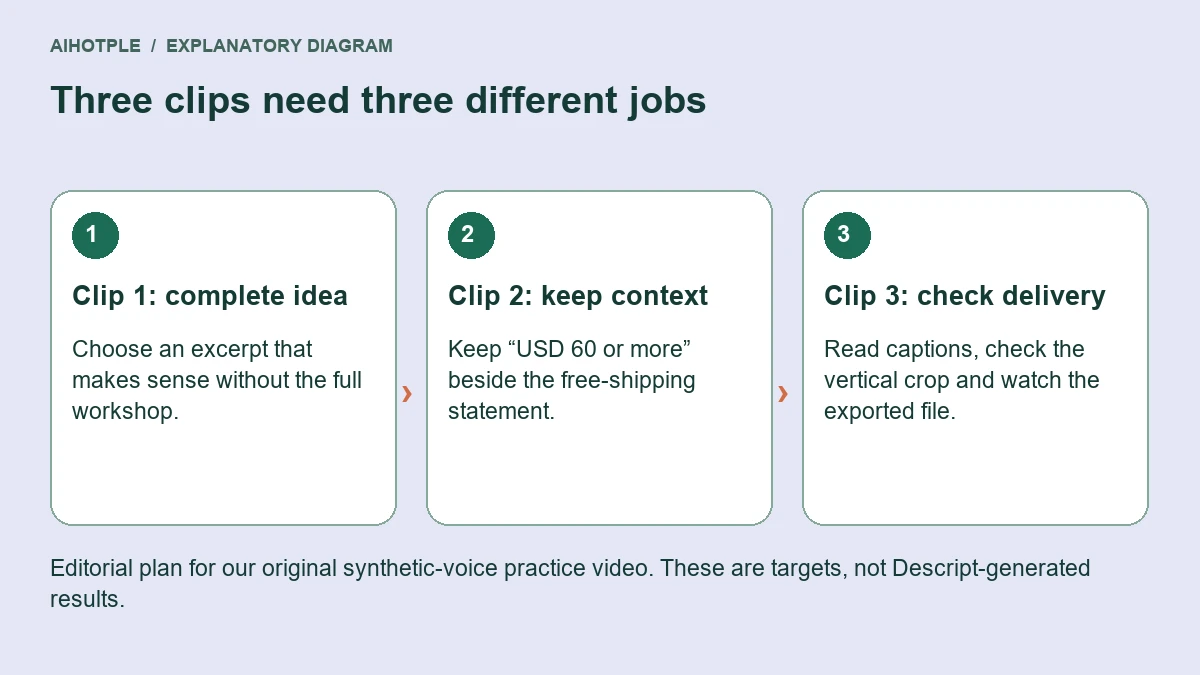
- Give each short a different editorial job instead of accepting three similar excerpts.
- Keep conditions and context, then review captions and the portrait crop.
- Watch the downloaded MP4 and record the plan limits actually shown in your account.
We generated three clips from an original 2:45 English practice video on a Free account. The source uses synthetic narration; it is not an interview or a human recording.
Files for this exercise
AIHotple example files and prompts. Try the exercise before substituting real work data.
How to turn a long video into shorts with Descript
Import a recording, open AI Tools → Repurpose → Create clips, choose a portrait layout and review each proposed cut before exporting. The AI selects excerpts from the recording you supply; it does not remove the need to check context, captions and framing.
For a first attempt, use our original practice video and the three completed MP4 examples. The source, prompt and rendered clips let you compare the full statement with the short result, including the shipping condition and a landscape-slide crop we had to correct.
Our source is an original 2-minute-45-second workshop about reviewing video clips. It contains a deliberate teaching example: shipping is free only for orders of USD 60 or more. That gives us a concrete fact to check after the AI selects a cut. The download includes the unchanged source and script so you can repeat the exercise without borrowing somebody else’s video.
We asked for three different jobs: explain a complete idea, preserve the shipping condition, and explain export checks. Descript produced three compositions with displayed lengths of 30, 29 and 29 seconds. Its suggested titles and scores are generated suggestions; they do not establish likely views, engagement or search demand.
1. Import a recording you have permission to use
Open Descript web, choose New project → Video project, then Upload file. Select a recording you own or have permission to edit. For this exercise, use aihotple-original-clipping-workshop.mp4 from the practice ZIP. Wait until both upload and transcription finish before starting Create clips.
Read the transcript once while checking it against the audio. Confirm names, numbers and important conditions before making cuts. To correct a word without cutting its audio, the official instructions say to double-click the word, choose Correct in the hover toolbar, enter the replacement and choose Correct or Correct All. Deleting a spoken passage is a different operation. This correction procedure is documentation-based; our actual edit in this exercise was the portrait framing.
In our account, importing the source changed the displayed media allowance from 60m to 57m. Your allowance, billing interval and available features may differ. Check the current account display and official plan table rather than assuming every Free account has the same credits or export options.
2. Open Create clips and give the selection a purpose
In the editor’s right-hand toolbar, open AI Tools. Under Repurpose, select Create clips. Set Number of clips to 3 and Length, called Clip duration in our recorded run, to a 30-second target. Leave Layout enabled and choose a portrait preset. A portrait preset sets the composition shape; it does not guarantee that your original picture will be framed correctly.
Use Topic to describe what separates the three clips. Our request below was actually submitted. It asks for different ideas and complete conditions, rather than promising that the AI can identify a viral moment.
Click Submit and wait for the results. The official instructions describe each result as a separate editable composition. In our run, the results appeared in the Create clips panel, and selecting one opened its own composition. Generation used 30 of the displayed AI credits in this account; treat that as an observation from this input, not a fixed price for every three-clip job.
- Open the source composition
Wait for transcription, then select AI Tools → Repurpose → Create clips.
- Set three distinct clips
Choose 3 clips, a 30-second target and a portrait layout. Explain the different idea each clip should preserve.
- Submit and inspect the results
Open each resulting composition, play its actual boundaries and check its picture before exporting.
Three distinct educational clips: (1) choosing a complete idea, (2) keeping the USD 60 free-shipping condition, and (3) reviewing captions and the exported file. Preserve conditions and complete sentences; do not claim viral performance.3. Check the first and last sentence against the source
Open each result and listen to the actual selected passage. Some transcript text may appear as surrounding context rather than included audio, so do not count every visible transcript sentence as part of the exported clip. Check the timeline and playback.
For the shipping clip, the useful passage includes “sixty dollars or more” with the free-shipping statement. A cut that keeps only “shipping is free” changes the meaning. If your result drops the condition, extend the selection or replace the clip before using it.
Also look for openings such as “this is why” or “the third one” that depend on information outside the clip. The source should identify what the viewer is being shown. Keep a complete ending; an approximate 30-second target is less important than finishing the explanation.
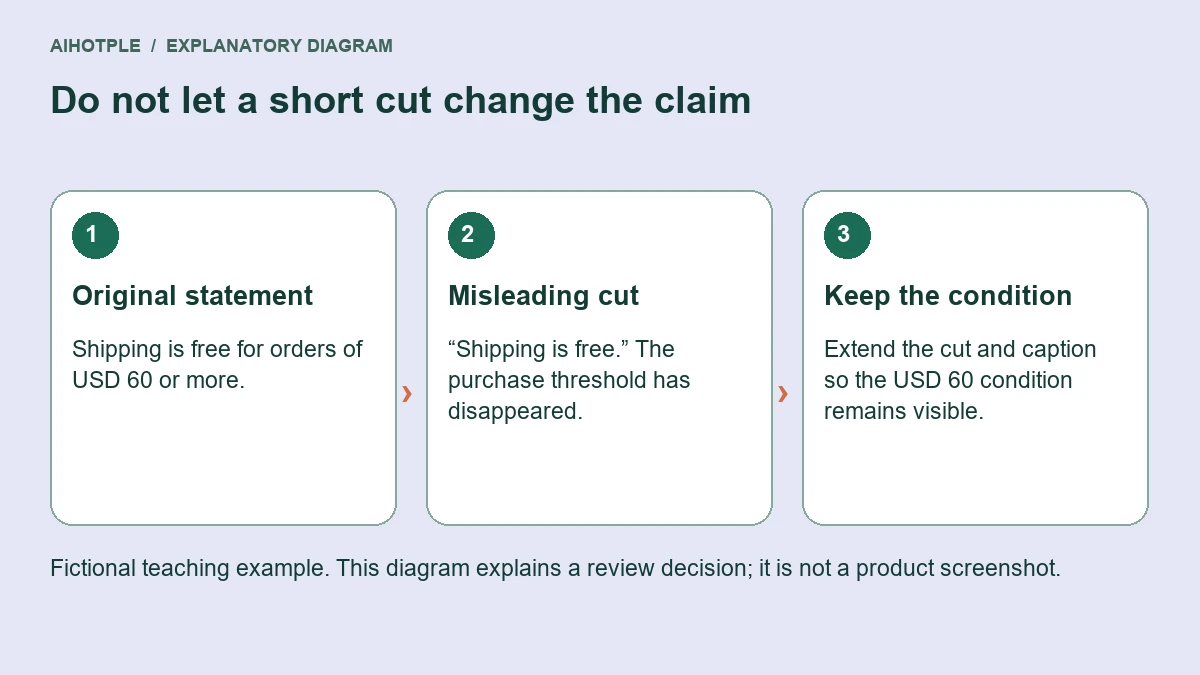
4. Fix the portrait crop before judging the finished result
Our first portrait layout filled the frame by cropping the wide slide video. It kept the large captions but cut off the slide’s sides. That is a real reason to inspect the picture instead of accepting a portrait badge as proof that a clip is ready.
For this specific 2160 × 3840 composition, we opened Properties → the Script layer, unlinked Width and Height, kept Width at 2160 and changed Height to 1215. That gives the landscape source a 16:9 frame inside the portrait composition. We then placed it higher using Y position 1200, leaving room below for captions. These numbers describe this canvas, not every video or layout.
For a person speaking to camera, retaining a full-width landscape image may make the face too small. Use a suitable portrait crop instead. For slides, demonstrations and spreadsheets, preserve the information the audience needs to read. Play through transitions because a frame that works on one slide can fail on another.
| What you see | What to inspect | Correction to evaluate |
|---|---|---|
| Slide edges are cut off | Source layer size inside the portrait composition | Fit the whole slide and leave readable space for captions |
| A talking head is too small | Subject position and portrait crop | Use a tighter crop that retains the speaker |
| Captions cover important content | Caption placement across the full clip | Move the captions or picture, then replay every scene |
| Only the first frame looks right | Scene transitions and changing source layouts | Check beginning, middle and ending rather than one still |
5. Export a file and review what the viewer will receive
Open Export → Video. For a file, choose Local export as the destination, Current composition, and a resolution available on your plan. Our Free account offered 720p and displayed an upgrade requirement to remove the Descript watermark. Do not hide or crop out a plan watermark while representing the file as an unchanged export.
Descript also offers a web-link export. Check Access before publishing a link. Project access required is different from Anyone with the link or Public; Public can make the page searchable. We used Project access required for the three review renders. After rendering, open the share page and use Download. If you revise the composition, use Update before downloading again: the share page serves its last exported version.
Our browser captured a direct Local export of the original, cropped shipping clip, but did not consistently capture subsequent file downloads. We therefore saved the three actual revised web-rendered streams as MP4 containers without re-encoding. The supplied files are those playback copies, not an invented native download result. Their checked durations are 30.07, 29.39 and 28.81 seconds, all 720 × 1280; the Descript watermark remains. Complete decoding and beginning, middle and ending frames passed our checks.
Open the actual file you plan to use. Check its beginning and ending, caption spelling, readable margins, synchronization and dimensions. A browser preview and an earlier download can be different versions. Keep the original recording and an edit checklist so a correction does not require starting over.
For YouTube Shorts, the current Descript YouTube-export documentation says to download the video and upload it manually; its direct YouTube export does not support Shorts. This is a documented distribution route, not an account connection or upload we performed. Keep the reviewed MP4 as the handoff file and check the destination’s current requirements before publishing.
Check Descript’s direct-export limits for YouTube Shorts ↗
| Check | What to look for |
|---|---|
| Meaning | The clip includes the subject, relevant condition and complete ending. |
| Captions | Names and numbers match the spoken words. |
| Framing | A slide, screen or face remains useful in the portrait layout. |
| File | The MP4 plays through with audio and the expected watermark. |
| Distribution | Only the intended people or platform can access the result. |
When this workflow is worth using
This is a good fit when a useful recording already exists and manual highlight selection is slowing you down. It is a different task from generating a new video from product photos. The AI helps propose cuts; the source, your editorial judgment and the exported file determine whether the result is usable.
For a first project, stay with one source and three distinct ideas. Correct the result before requesting more variations. If a plan limit blocks the next action, record the limit instead of promising an export you have not received.
Start from product photos instead of an existing recording →
Create clips troubleshooting: captions, crop and export
Use the symptom to choose the next check. Regenerating every clip is often unnecessary when the underlying problem is a frame layout or a share page that still contains an older export. Our source and three rendered examples are downloadable above.
| Question | What to check next |
|---|---|
| Why did Create clips select an incomplete explanation? | Play the boundaries against the source. Extend or replace the cut when a necessary condition or complete ending is missing. |
| Why is a landscape slide cut off in a portrait clip? | The source layer may be filling rather than fitting the frame. Inspect the layer’s dimensions; use our canvas-specific example as a demonstration, not a universal preset. |
| Why does the downloaded clip show an old edit? | For a web-link download, export the update first, then download again. A local export and the last published web-link version are separate states. |
| Why is the MP4 watermarked or limited in resolution? | Check the current plan and export panel. Our observed Free-account files retained a watermark and were 720 × 1280. |
| Can I send it straight to YouTube Shorts from Descript? | The current direct YouTube export does not support Shorts. Download and review the file, then use the platform’s upload route. |
Continue this workflow
Prepare another subtitle language without silently changing the timing →
Sources & verification
On 24 October 2026 we uploaded an original 165-second English slide video to Descript web, completed transcription, and used Create clips with three clips, a 30-second target and a portrait layout. The account displayed 100 AI credits before generation and 70 afterwards. All three compositions had their landscape-slide framing corrected and were rendered to web links with Project access required. The supplied 720 × 1280 MP4 copies contain the actual rendered streams, remuxed without re-encoding because browser file-download capture was inconsistent; they are not represented as three direct Local export downloads. Complete video/audio decoding and beginning/middle/ending frames were checked. No subscription purchase, voice cloning or social-account publishing was performed. This single example is not a performance or popularity benchmark. Official clipping, share-page and YouTube-export guidance was rechecked on 25 October 2026. No new generation, native download or social upload is claimed by this revision.
- Descript · Create Clips from your content
- Descript · Current plans and export limits
- Descript · Correct your transcript
- Descript · Export and publish with web links
- Descript · YouTube export and Shorts limitation
Sources checked: 2026.10.25