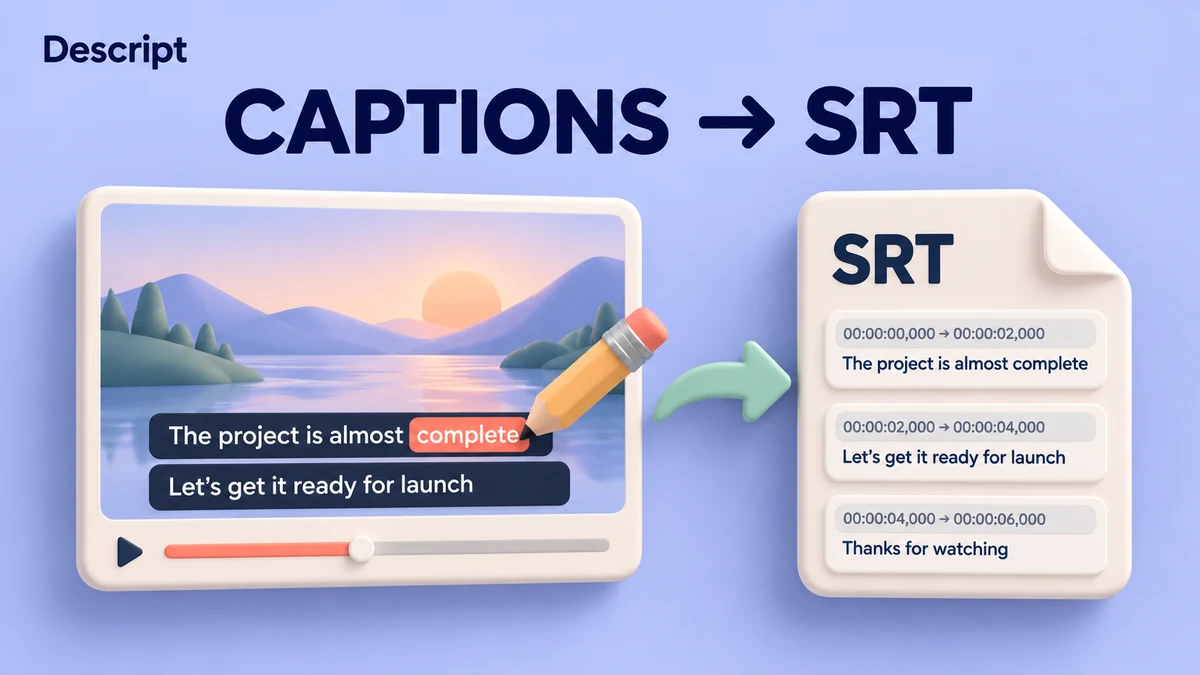
- Correct the transcript without accidentally cutting the spoken recording.
- Check the exported file’s actual line length and cue timing.
- Choose between visible video captions and a separate subtitle file.
Check meaning first, then line breaks and timing. A separate SRT file does not put visible text into your MP4; captions embedded in the video and selectable subtitle tracks are different deliverables.
Files for this exercise
AIHotple example files and prompts. Try the exercise before substituting real work data.
Choose what the viewer needs to receive
If your viewer needs words visible whenever the video plays, use on-video captions and review the resulting MP4. If a player or publishing platform will accept a separate selectable text track, export subtitles as SRT or VTT. Delivering an SRT next to a video does not automatically make every application display it.
This exercise concentrates on the subtitle file. We reused our original English workshop, duplicated its composition and exported two settings. You can compare those files without uploading your own recording or buying more generation credits. The full original source is available in our earlier clipping-practice ZIP.
The spoken example matters: free shipping applies to orders of sixty dollars or more. A subtitle can be visually tidy yet misleading if it drops that condition. Start your review with names, amounts, negatives and qualifying phrases, then worry about style.
Get the original workshop recording and compare the three actual short clips →
1. Preserve the composition before changing text
Open the project’s Project panel. Right-click the source composition and choose Duplicate. Give the copy a clear name, then leave the original alone. In our account the working copy was named AIHotple caption review; the recording stayed about 2:45 long.
When checking a suspected transcription error, listen to the source rather than replacing an unfamiliar word with a plausible guess. Descript’s official correction workflow distinguishes correcting displayed text from deleting spoken material. Select the word, choose Correct or press C, type the correction and decide whether it applies once or everywhere.
For repeated text correction, the official guide lists Alt+C on Windows and Option+C on Mac to enter Correct mode. These word-correction steps are documentation guidance here. Our measured comparison changes the export line settings; it does not claim that we reproduced a transcription mistake and fixed it in the editor.
| Review item | Question to answer |
|---|---|
| Money or quantities | Does the text preserve the actual amount and threshold? |
| Names and terminology | Does the source support the spelling? |
| Negation | Did a missing “not” reverse the statement? |
| Clip ending | Does the last displayed sentence finish the idea? |
2. Export a subtitle file with explicit line settings
Open Export at the top right, then choose the Subtitles tab. In our signed-in account the panel offered SubRip Titles (.srt) and Video Text Titles (.vtt), along with speaker and line controls. We used SRT with Show speakers off and Max lines per card set to 2.
For the first file, Max characters per line was 42. For the second, we entered 32 and kept the two-line setting. Those are comparison inputs, not a universal accessibility standard. A phone-sized frame, speaker pace, language and destination platform can call for a different choice.
Click Export and finish the browser’s download or save step. If a save dialog appears, complete or cancel that dialog before starting another export. A dialog that is still open can block the next request. Confirm the file exists on disk; an available Export button is not a completed download.
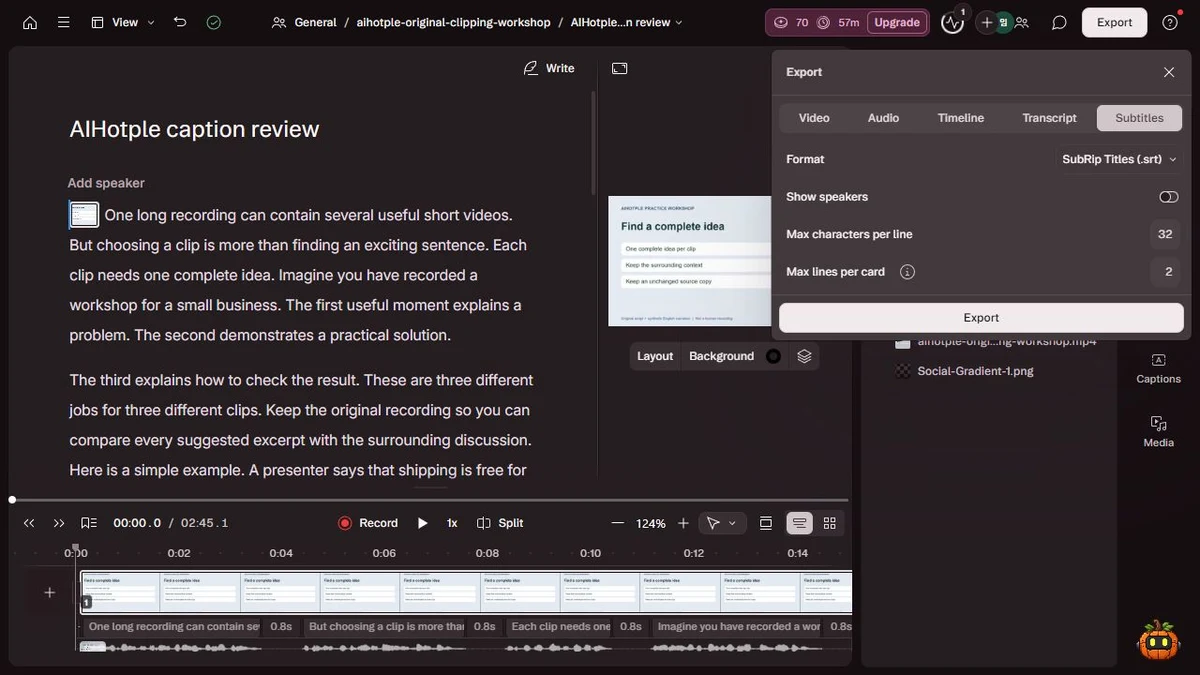
- Open Export → Subtitles
Choose the subtitle file tab, not Video or Transcript.
- Select SRT and record settings
Our second file used 32 characters per line, two lines per card and no speaker labels.
- Finish saving, then inspect the file
Use a new filename for each comparison. Check the saved file instead of assuming the export worked.
3. Check what changed in the two actual SRT files
Download the subtitle-review ZIP and open the two SRT files in a text editor. Each cue has a number, a start and end timestamp, then the displayed text. Keep a blank line between cues. SRT uses a comma for milliseconds; the supplied browser VTT copies use a period.
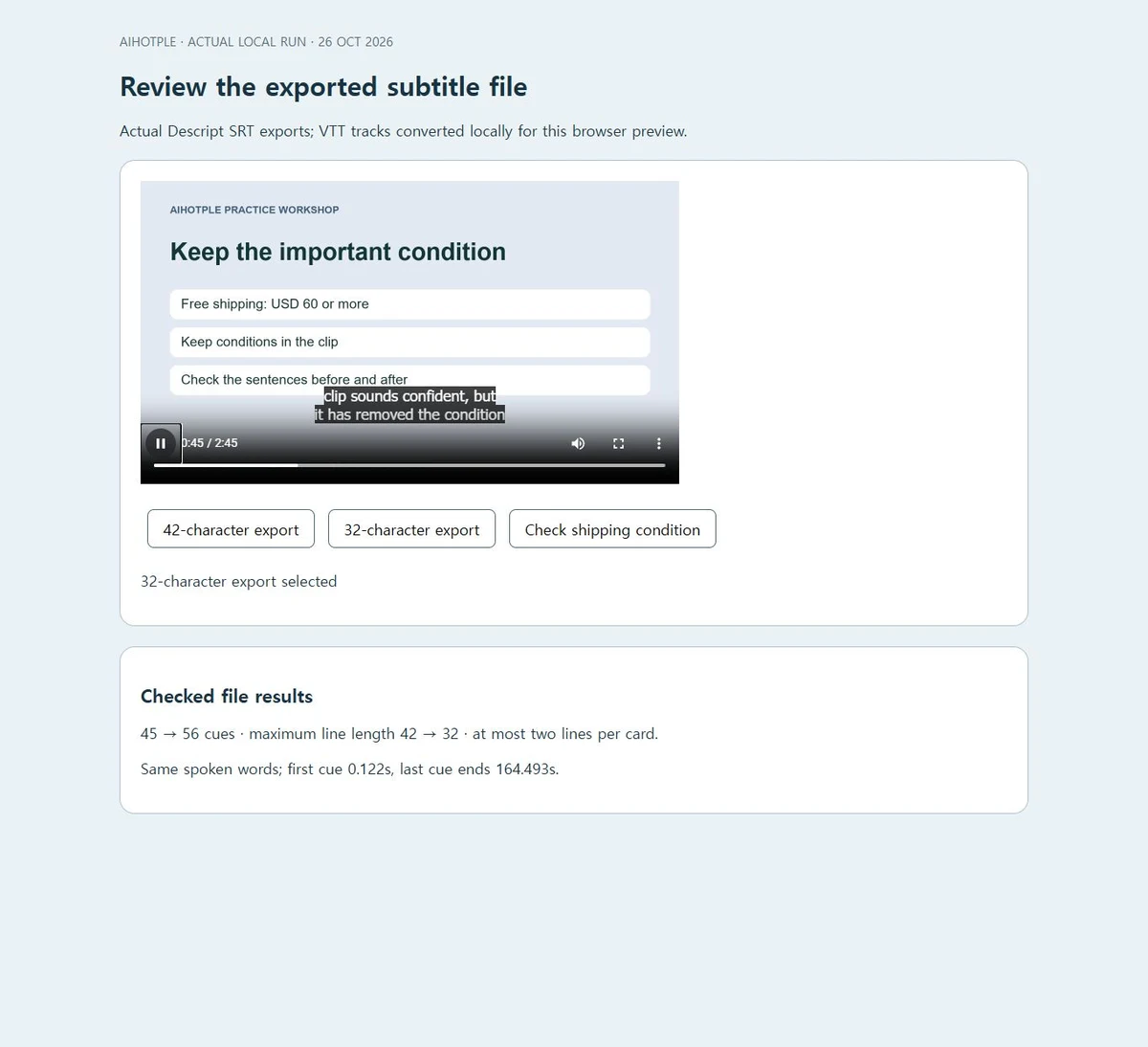
Our 42-character export contained 45 cues. The 32-character export contained 56. The measured maximum line lengths matched those settings, and the second file used no more than two lines per card. More cues were created because the same spoken material needed different wrapping.
The combined word sequence matched in both exports. The first cue began at 0.122 seconds and the last ended at 164.493 seconds in both. That check supports preserved words and outer boundaries; it does not establish that every cue has identical timing or that the subtitles are perfectly synchronized throughout.
| Measured file property | 42-character export | 32-character export |
|---|---|---|
| Cue count | 45 | 56 |
| Longest text line | 42 characters | 32 characters |
| Maximum lines per card | 2 | 2 |
| First cue begins | 0.122 seconds | 0.122 seconds |
| Final cue ends | 164.493 seconds | 164.493 seconds |
| Combined word sequence | Matches | Matches |
node check-subtitles.mjs4. Preview the actual words at the size viewers will use
The ZIP includes locally converted VTT copies of both actual SRT exports. It also contains preview.html, which can play the original workshop when you place source.mp4 beside it and serve that folder over localhost. The README explains the source download and the small local-server command. These VTT files are conversions, not a claim that a second native VTT download succeeded.
Switch between the two tracks and play the same passage. Look at reading pace, the last cue before a cut and the sixty-dollar condition. A shorter line can look better on a narrow display, while too many rapid cue changes can make a passage harder to follow. Let the recording and intended player guide the choice.
A browser preview is another check, not a substitute for the final publishing platform. If your MP4 needs embedded captions, render and open that actual video too. This exercise did not make a new burned-in-caption MP4.
Troubleshoot the handoff before calling the video finished
If subtitles do not appear, confirm that the player supports a separate subtitle track and that the track is selected. If the timing is wrong only after editing the video, re-export from the final composition rather than attaching an older subtitle file to the new cut.
Keep the media filename, subtitle filename and checked date together in the handoff. Include the reviewed amount or name when it was the reason for a correction. Our worksheet provides a small list of those decisions so another reviewer can check the meaningful parts without rereading every cue.
This file-focused workflow complements clip selection. The earlier guide decides which excerpt to use; this one checks the text a viewer reads. Both still need a final playback check in the intended destination.
| Symptom | Next check |
|---|---|
| SRT exists but no words appear in the MP4 | Use a supported selectable track or render embedded captions. |
| A sentence flashes too quickly | Inspect cue duration and spoken pace, not just line length. |
| The text changed but the recording was cut | Use Correct mode for transcription corrections; review the duration. |
| Export does nothing | Finish any already-open save dialog, then verify the file on disk. |
| Subtitles drift after a new cut | Export again from the final composition and test the actual pair. |
Continue this workflow
Translate the SRT with ChatGPT while protecting cue IDs and timestamps →
Sources & verification
Checked on 26 October 2026 in a signed-in Descript Free account using our original 165-second English workshop recording. A duplicate composition preserved the source. Two actual SRT files were exported: a 42-character/two-line setting and a 32-character/two-line setting. Independent checks found 45 and 56 cues, matching spoken words and matching outer cue boundaries. VTT tracks were converted locally from those SRT files for a browser preview, not claimed as native VTT downloads. Transcript-correction instructions are based on Descript’s official guide; no successful in-editor word correction, new transcription, burned-in-caption render, translation or social upload is claimed in this exercise. No additional payment was made.
Sources checked: 2026.10.26