- Give the source facts and template invariants before asking for slides.
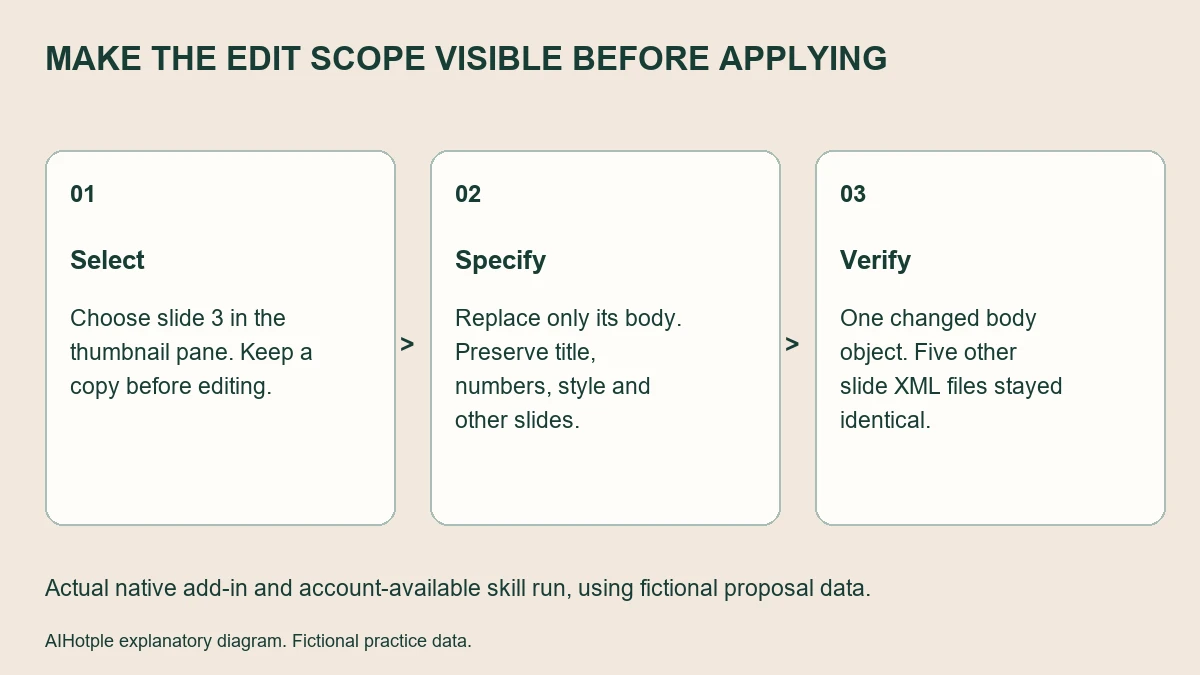
- Select the intended slide and state which object may change.
- Compare the actual exported deck rather than relying on the assistant’s completion message.
Start from an editable branded template, approve source-based copy and select the slide you want changed. Our native run filled six slides, then changed one body object while the other five slide XML files stayed identical.
Files for this exercise
AIHotple example files and prompts. Try the exercise before substituting real work data.
A practical proposal you can inspect
A proposal often needs the same structure each time: problem, scope, fees, timeline and next step. The useful job for an assistant is to fill that structure from approved facts while keeping the client template readable. A new layout on every slide can make the result harder to review.
We used an original fictional Cedar Studio template with six slides, editable title/body boxes, Arial, a cream background, a dark-green brand line and an orange rule. The brief describes a three-week content pilot for Cedar Office: audit 20 product pages, write 20 descriptions and hand over an editorial checklist for GBP 2,400 excluding VAT. It contains no measured sales improvement, confirmed start date or named approver.
Claude filled the six existing slides inside PowerPoint. We then selected slide 3 and used an available deck-refresh skill to clarify its three deliverables without changing the numbers. The exported result changed exactly one body object. The other five slide XML files were byte-identical to the earlier native export; all six slide notes and 24 protected brand/footer/page objects passed our separate checks.
1. Check access and open a copy of the template
Anthropic’s current documentation lists Claude for PowerPoint for Pro, Max, Team and Enterprise, with supported web and desktop PowerPoint environments. A Microsoft login and a Claude subscription are separate requirements. Account or administrator restrictions may affect installation. Our run used existing access and did not require a new purchase; that does not make the feature free for every reader.
Open PowerPoint for the web and upload the supplied cedar-proposal-template.pptx, or open a working copy of your own approved template. Keep the untouched original outside the editing session. In our interface the add-in was under Home → Add-ins. Search for the official Anthropic listing rather than a similarly named third-party presentation tool, add it and sign in to Claude.
Review any authorization screen yourself. We skipped optional role questions and extra app installation, and used no connectors. A sidebar that is signed in proves access; it does not yet prove it can read or modify this deck. Confirm the six slide thumbnails and the intended template before sending the brief.
Our editor menus were Korean because of the existing account environment, while the source, prompts and slides were English. Labels such as File, Home and Add-ins may appear in your interface language. We describe the English action names and the observed route rather than implying every screen has identical wording.
- Open a working template copy
Upload the six-slide PPTX and confirm the slide count before editing.
- Open the official add-in
Use Home → Add-ins, find Claude by Anthropic for PowerPoint and sign in.
- Confirm the intended file
Check the open deck and slide thumbnails. Keep external connectors out of this fictional practice.
2. Give Claude a fact sheet and preservation rules
Paste the brief and specify the allowed changes. We asked Claude to read the deck, fill existing title/body boxes, preserve the six slides and leave brand elements, dimensions, type, colors, footer and notes alone. We explicitly prohibited connectors, other files, web search, email and calendar access for this practice.
The first response proposed copy for all six slides without applying it. That gave us a concrete review point: 20 pages, 20 descriptions, one checklist, GBP 2,400 excluding VAT, three weeks and one consolidated revision round. We checked the exclusions and kept the start date and approver unconfirmed. An attractive sentence promising a conversion increase would have been unsupported.
After review, we approved the proposed title/body edits. The add-in requested edit permission. Keep the scope clear when granting it and restore your preferred approval mode afterwards. During our run an individual permission control and the editor menu became unresponsive; after the edits were saved, reopening the document restored normal menu behavior. We did not interpret an unresponsive click as a completed export.
Use only the supplied fictional brief and the currently open six-slide template. Read the deck first. Fill the existing title/body objects and keep six slides, dimensions, fonts, colors, brand rule, footer, page numbers and notes. Keep text editable. Do not invent benefits, dates, people or results. Do not use connectors, web search, other files, email or calendar. Show the full proposed copy before applying. Facts: audit 20 product pages, deliver 20 rewritten descriptions and one reusable editorial checklist; GBP 2400 excluding VAT; three weeks; one consolidated revision round. Exclude photography, website development, paid advertising and guaranteed sales results. Start date and approver remain unconfirmed.3. Inspect the actual slides, including line breaks
Read the slide itself after the edits, not just the chat response. Check that the title stays inside its box, the body does not cover the footer and every important qualifier remains visible. A preserved font size is not sufficient if a longer sentence now overflows.
Our template inherited Korean line-breaking behavior, which split some English words across lines. Claude identified this on slides 2 and 4 and switched the relevant text boxes to English line breaking. The words remained the approved copy. This is a useful reminder that a template’s language settings can matter as much as its colors.
We downloaded the saved proposal, rendered all six slides and checked their text, notes, editable shape count and dimensions. That independent read confirmed the original fictional notes were still present, even when the web thumbnail indicator did not make them obvious. We did not test complex master inheritance, animated content or native charts in this small deck.
4. Use a skill with a tightly bounded selected edit
In the PowerPoint sidebar, type / or choose an available skill. Current Anthropic documentation says the relevant skills enabled on your Claude account appear in the add-in. Our account showed /deck-refresh, /competitive-analysis and /ib-check-deck. Their presence in this run is not a promise that a new account will show the same set.
We selected slide 3 in the thumbnail pane and chose /deck-refresh. It asked which section to update, where to get the new information and whether dependent figures should also change. We selected the scope section, chat-supplied changes and flagging dependent figures rather than changing them automatically. No connected source was used.
Then we supplied the exact edit below: only the existing slide-3 body should change. The count stays at 20, the fee stays at GBP 2,400 and the timeline stays at three weeks. This specificity prevents a broad “refresh” request from becoming an unnecessary rewrite of the entire proposal.
If you do not have this skill, use the same bounded request directly and keep the review checklist. A reusable instruction recipe can help you repeat a process, but a named skill is not evidence that its result is correct. We did not install a new custom skill or change the user’s connected data sources.
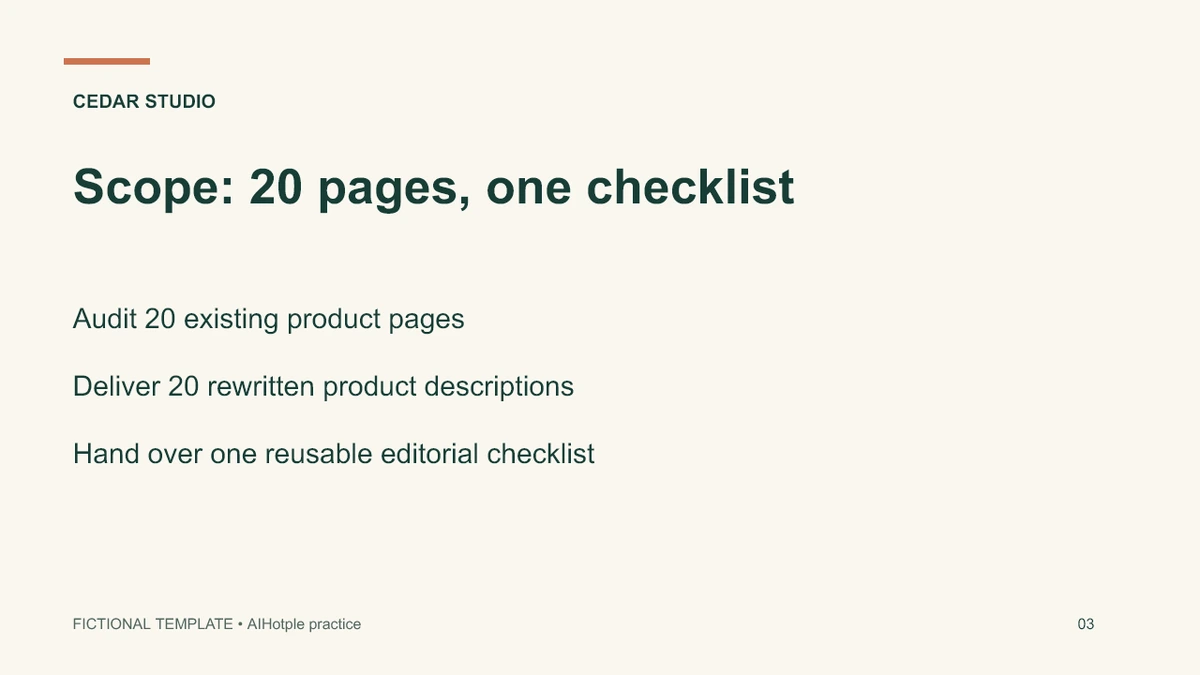
Use only the currently selected slide 3 and this fictional brief. Change only its body text to three paragraphs, with a blank line between them: Audit 20 existing product pages. Deliver 20 rewritten product descriptions. Hand over one reusable editorial checklist. Keep the slide-3 title, every other slide, all geometry, fonts, colors, footer, rule and notes unchanged. Keep the fee at GBP 2400 excluding VAT and the schedule at three weeks. Do not use connectors or other apps. Apply this bounded update and report exactly which slide/object changed.5. Compare exports before calling it finished
Download a copy before the focused edit and another after it. The current PowerPoint web route is File → Create a copy → Download a copy, followed by its download control. In our browser that route did not produce a captured local file, so we retrieved both saved versions through OneDrive: My files → select the intended PPTX → Download. A download preparation dialog alone was not counted as a saved file.
The separate file comparison found one changed object: slide 3’s body, named body. Slides 1, 2, 4, 5 and 6 had identical slide XML before and after the focused change. We also checked the six original notes and the geometry of all 36 editable shapes. These are concrete checks for this simple deck, not a general guarantee about every corporate template.
The public kit includes the untouched original template, both actual proposal versions, the fact sheet, prompts and a compact check result. We removed the account-specific add-in association from the shared copies so they do not carry this account’s Claude file link. Their slide, note, layout, master and theme parts were not altered by that packaging step.
For your own work, compare the claims as carefully as the styling. If the brief has not confirmed a start date, approver, tax rate or expected benefit, keep it unresolved. Share or send a proposal only after its responsible person has reviewed the actual file; no client message or order was sent in our exercise.
| Check | Our observed result | Still outside this test |
|---|---|---|
| Selected edit | One body object on slide 3 | Arbitrary complex-deck edit reliability |
| Other slides | Five slide XML files unchanged | Every possible PowerPoint feature |
| Template | Six slides, 36 editable shapes, original notes and dimensions | Complex corporate master fidelity |
| Data access | Fictional brief only, no connectors | Live CRM or company-file access |
| Download | Actual native PPTX before/after in the kit | Desktop Office rendering/compatibility |
Continue this workflow
Start from official vendor research and review a comparison deck with Manus →
Sources & verification
Tested on 27 October 2026 in PowerPoint for the web using the official Claude by Anthropic for PowerPoint add-in and an existing Claude subscription. We uploaded our original fictional six-slide Cedar Studio template, applied reviewed title/body copy, then invoked an account-available /deck-refresh skill for a bounded slide-3 revision. That skill name and its availability are specific to the observed account, not guaranteed for every account or asserted to be a universal Anthropic built-in. The downloaded native PPTX files were checked independently. Our public copies remove only the account-specific add-in association; slide, notes, master, layout and theme parts remain byte-identical to the native downloads. No real client, connector data, message, payment, presentation playback or desktop Office compatibility test was involved. This simple shape-based template does not test complex corporate masters or native chart editing.
- Anthropic · Use Claude for PowerPoint
- Anthropic · Connectors and Skills in Microsoft 365
- Microsoft Marketplace · Claude by Anthropic for PowerPoint
Sources checked: 2026.10.27