- A valid number can be wrong when a SUM range omits a row.
- Keep formulas live and approve only the changes you intend.
- Change and restore a driver, then inspect the saved workbook independently.
Ask Claude to trace the workbook, repair only the affected formulas and explain the exact cells. Then change one driver and restore it. Our native Excel test repaired two defects, preserved the inputs and recalculated the budget from £561 to £612 and back.
Files for this exercise
AIHotple example files and prompts. Try the exercise before substituting real work data.
The two defects in this small budget
The fictional workbook has Summary, Assumptions and Costs sheets. Four cost rows are £270 for photos, £120 for a menu design, £100 for printed menus and £20 for delivery. Their correct base total is £510. A 10% contingency adds £51, making the full budget £561.
We seeded two different problems. Costs!D10 sums D5:D7 and silently leaves out the delivery row D8, so £490 looks plausible but is wrong. Summary!B5 contains =B4*#REF!, breaking the contingency reference and propagating an error into the final total.
Start with northline-budget-broken.xlsx from the kit, not the answer workbook. The error warning in the file is intentional. This exercise demonstrates a small dependency repair; it is not evidence that an assistant can audit every workbook or decide whether a budget is commercially sound.
1. Open the official Claude add-in in Excel
Anthropic currently lists Claude for Excel for Pro, Max, Team and Enterprise accounts, including Excel for the web. Its documentation gives separate desktop version requirements and notes that organization controls can restrict installation. This exercise used an existing signed-in session and bought no additional subscription.
Open the fictional workbook in Excel. Find Add-ins from the ribbon; if it is hard to locate, the command search at the top can find Add-ins. Search the marketplace for Claude for Microsoft 365 and check the official listing before adding it. Our listing matched Microsoft product ID WA200010725.
The Claude pane appeared on the right. We kept Ask before edits selected. If installation requires new account permissions or your organization blocks it, review that with the account owner or administrator. Do not substitute an unrelated add-in merely because its name contains Claude.
- Open a copy of the broken workbook
Use Excel for the web or a supported desktop version. Confirm the three sheet tabs and the visible #REF! error.
- Find the official add-in
Open Add-ins, search Claude and inspect the publisher/listing. In our Korean web interface, 추가 기능 was also available through command search.
- Keep edits reviewable
Open the Claude pane and keep Ask before edits enabled. Paste the repair request only after the intended workbook is active.
2. Ask for a diagnosis before accepting formula edits
The request below names the full job: read every sheet, identify both errors, preserve inputs and other formulas, explain exact cells, test the driver and restore it. It does not reveal which two cells are broken.
Claude first read all three sheets, identified both defects and proposed the formula changes. We approved the specific formula writes with Allow once. Its later temporary driver changes also required individual approvals. We did not choose Always allow.
The returned explanation correctly distinguished the valid-looking wrong SUM from the broken reference. Check the proposed ranges yourself before approving: including a subtotal, blank section or excluded cost can create a different error.
| Cell | Before | Repair / expected result |
|---|---|---|
| Costs!D10 | =SUM(D5:D7) → £490 | =SUM(D5:D8) → £510 |
| Summary!B5 | =B4*#REF! | =B4*Assumptions!B4 → £51 |
| Summary!B6 | =SUM(B4:B5) → error | Formula retained → £561 |
This is an original fictional Northline Studio budget workbook for an AIHotple tutorial. Read all three sheets first. Diagnose the two seeded formula defects, including any wrong total that is a valid number. Repair only the affected formulas. Preserve all input values, labels, other formulas and formatting. Explain exact cells and before/after formulas, then verify the repaired base totals. Finally change Assumptions!B4 from 0.10 to 0.20, show recalculated totals, then restore B4 to 0.10. Do not replace formulas with static values, use external data or send anything.3. Verify the actual workbook, not only Claude’s answer
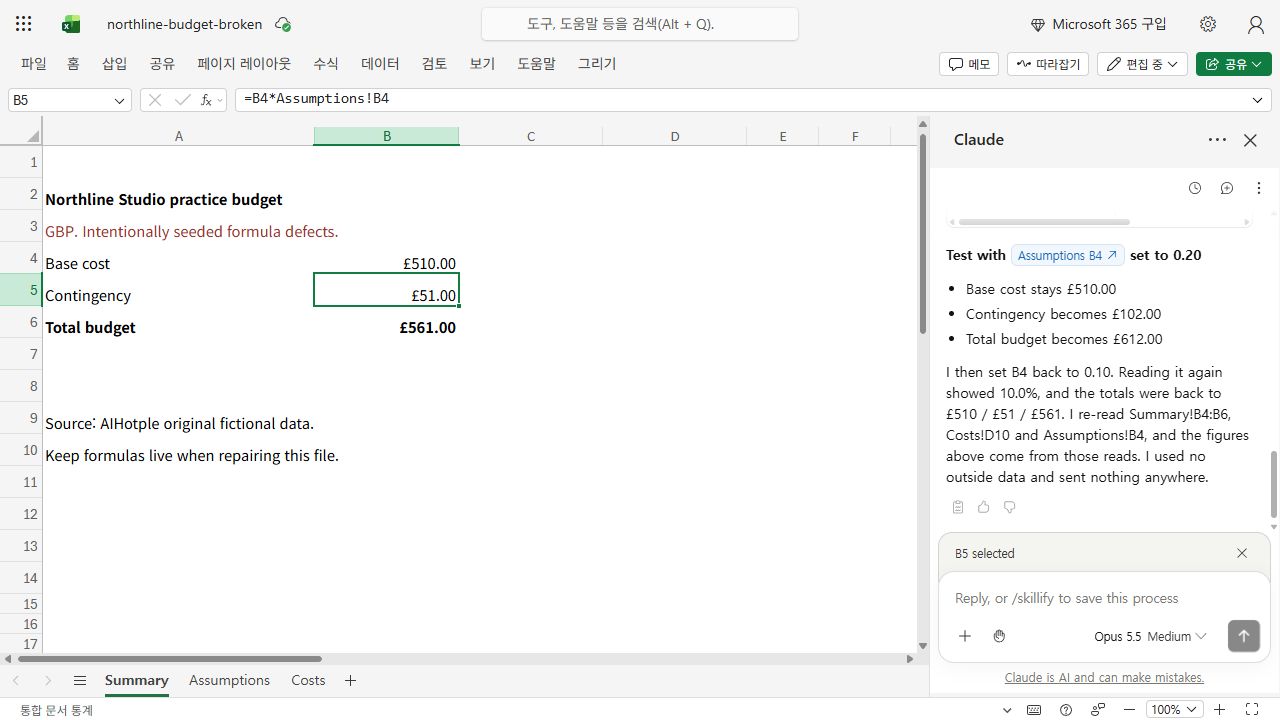
The native Summary sheet showed £510 base cost, £51 contingency and £561 total. Selecting B5 exposed =B4*Assumptions!B4 in the formula bar. The screenshot below captures that real sheet and the Claude explanation together.
A saved workbook was still needed for independent checking. The in-editor Copy → Download a copy action produced no captured download in our browser. We used the saved fictional file in OneDrive → My files, selected it and chose Download. That returned the actual XLSX; it was not recreated from Claude’s prose.
Our source-versus-result inspection found two substantive repairs. The saved file also changed ='Costs'!D10 to =Costs!D10, an equivalent reference with optional quotes removed. Fifteen number formats gained escape characters for literal parentheses. Input values and labels stayed unchanged, other formulas retained their meaning, and inspected font/fill/alignment/border/protection properties matched. This is more precise than claiming the file was byte-for-byte unchanged.
4. Change the rate, check the total, then restore it
A correct displayed £561 could still be a static replacement. To test the dependency, set Assumptions!B4 to 20%. The base cost should stay £510 while contingency becomes £102 and the total £612. Restore the cell to 10% and confirm £51 / £561 again.
Claude performed that sequence and reported read-back values. We independently repeated it in native Excel: selected Assumptions!B4, entered 0.20, returned to Summary and observed £612, then restored 0.10 and observed £561. This verifies a live dependency on this driver in this workbook.
The downloaded file’s cached values were also £510, £51 and £561, with Assumptions!B4 stored as the numeric 0.1 and the repaired cells still containing formulas. A cached value alone would not prove recalculation; the native input-change test provides the additional evidence.
Base: 6 × 45 + 1 × 120 + 50 × 2 + 1 × 20 = 510
At 10%: 510 + 510 × 0.10 = 561
At 20%: 510 + 510 × 0.20 = 612
Restore Assumptions!B4 to 0.10 before finishing.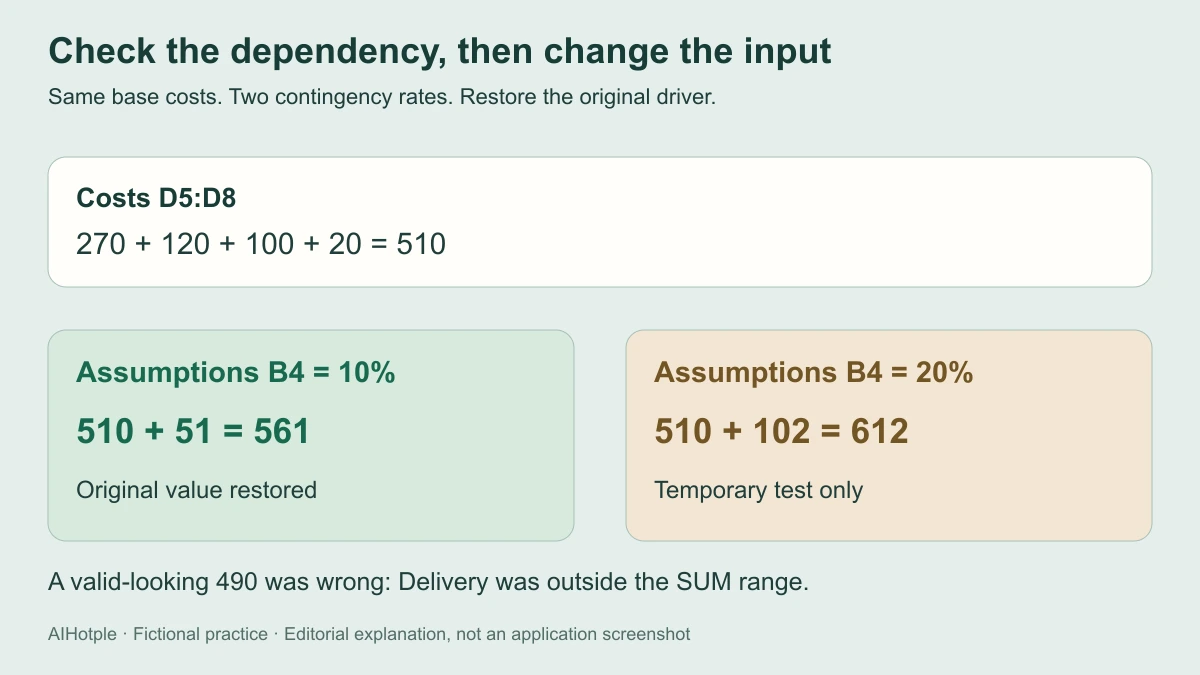
5. Keep a small repair record with the file
The kit includes the intentionally broken source, the actual repaired workbook, the exact request, Claude’s response and independent check results. Only Office author and private add-in file-association metadata was redacted from the public result; every worksheet byte matches the native download. The saved result is a practice answer, not a template for your real finances.
For your own workbook, record the affected cells and why the formula changed. Keep an untouched original and test a driver that exercises the repaired dependency. If the assistant wants to overwrite inputs, substitute values for formulas or modify unrelated sheets, stop and narrow the request.
This test does not cover macros, external data refresh, large-workbook performance or all Excel features. Anthropic’s current documentation lists limits including VBA/macros and Data Tables. The reliable outcome here is specific: two seeded formula defects were repaired and the restored workbook still recalculated as expected.
Continue this workflow
Before spreadsheet repair: compare how three AI workflows extract a quote table from PDFs →
Sources & verification
Tested on 31 October 2026 in Excel for the web using the official Claude for Microsoft 365 add-in, Opus 5.5 Medium displayed. We uploaded an original three-sheet fictional XLSX, kept Ask before edits enabled and used Allow once for the formula and driver writes. Claude repaired Costs!D10 and Summary!B5, changed the contingency rate from 10% to 20% and restored it. We independently repeated that driver change in native Excel and observed £612 then £561. We downloaded the saved XLSX from OneDrive after the in-editor download produced no captured event. Independent inspection confirmed unchanged inputs/labels and other formula behaviour, final cached values £510/£51/£561 and restored 0.10. Excel normalized Summary!B4 by dropping optional sheet-name quotes and escaped literal parentheses in 15 number formats; font, fill, alignment, border and protection properties matched. The public copy redacts only Office author and private add-in file-association metadata, with all worksheet bytes unchanged from the actual download. No live finance data, macro, external source or financial account was used.
- Anthropic · Claude for Excel documentation
- Microsoft Marketplace · official Claude for Microsoft 365 add-in
- Anthropic Academy · inspect and fix a headcount planning workbook
Sources checked: 2026.10.31