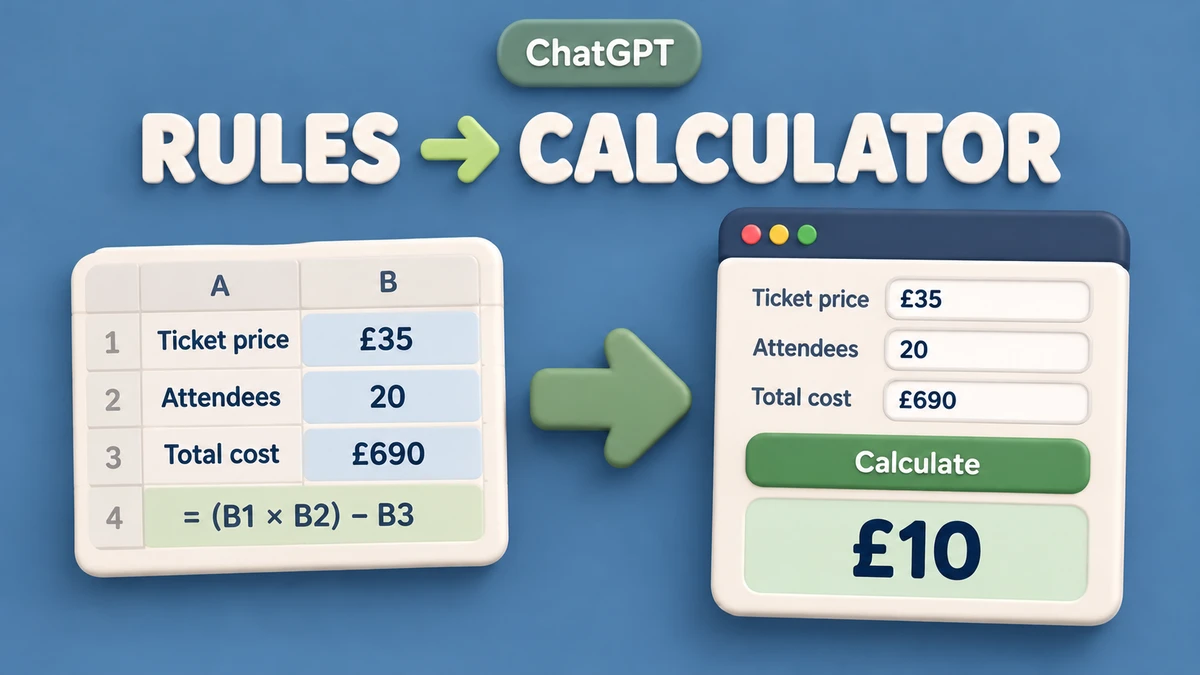
- Supply a worked answer before asking for a polished interface.
- Separate validation, calculation and display decisions.
- Test currency boundaries and clear stale results after edits.
Give ChatGPT formulas, units, allowed inputs and known answers before asking for a calculator. Download the result and test changed, empty and boundary inputs—not only the default example.
Files for this exercise
AIHotple example files and prompts. Try the exercise before substituting real work data.
Choose one small calculation worth reusing
Suppose you run a fictional workshop and keep changing ticket price, attendance and costs in a spreadsheet. A small calculator can make those assumptions visible and easier to change. You do not need an account system, a database or a public website to find out whether that tool is useful.
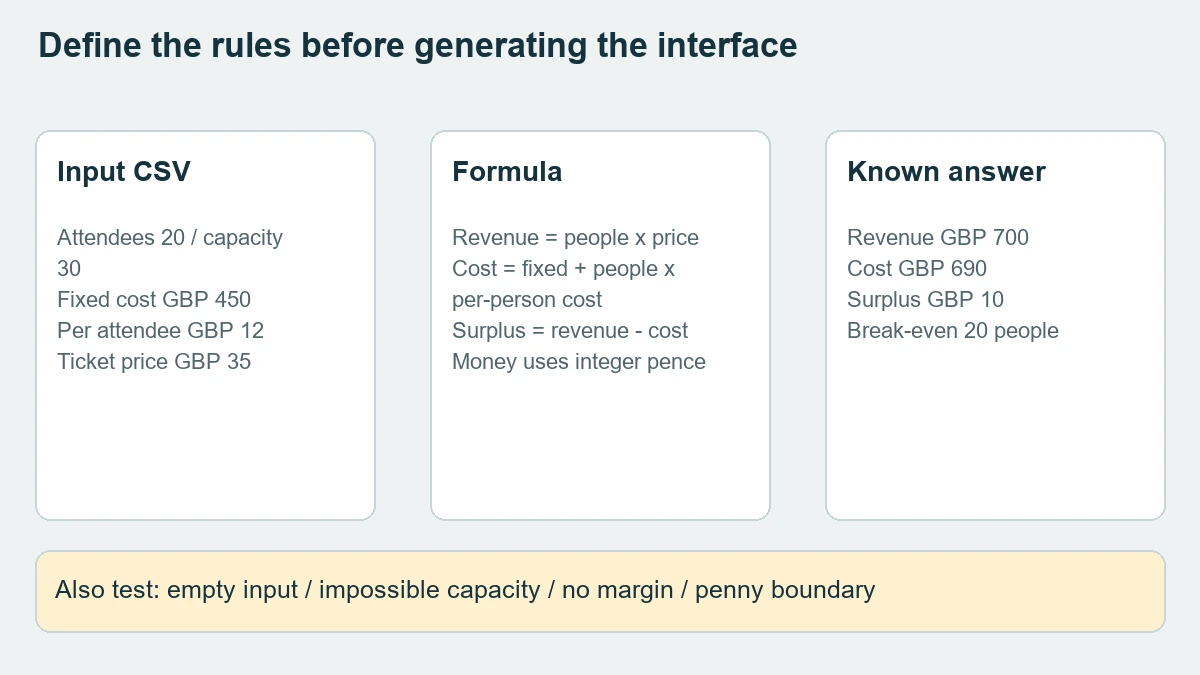
Our input is budget-rules.csv: fixed cost GBP 450, variable cost GBP 12 per attendee, ticket price GBP 35, 20 attendees and capacity 30. The brief defines revenue, total cost, surplus and break-even attendance. The CSV is a simple spreadsheet export; we did not open or modify native Excel in this exercise.
The expected answer is revenue GBP 700, cost GBP 690 and surplus GBP 10. Each ticket contributes GBP 23 toward the fixed cost, so the break-even attendance is 20. Give ChatGPT that answer up front: it becomes a checkable requirement instead of something inferred from the screen design.
1. Define allowed values and incomplete inputs
List which fields people may edit and the units of each field. Our attendees and capacity must be whole numbers; attendance may be zero but cannot exceed capacity. Capacity must be between 1 and 300. Costs and ticket price cannot be negative.
An empty field must show an error, not quietly become zero. A changed input should hide the old result until the person calculates again. Otherwise a plausible result may remain on screen while its assumptions have already changed.
Also define the case where ticket price is no greater than the variable cost per attendee. Our tool shows “Not reachable from ticket sales” for break-even rather than dividing by zero or presenting a negative attendance target. It separately flags a positive break-even count above the room’s capacity.
2. Ask Work for a downloadable HTML file
Start a new Work task and attach budget-rules.csv and calculator-brief.txt using the attachment control. Ask for one self-contained HTML file with inline CSS and JavaScript. Request a real file, not only a code block, and specify that it must not publish anything or fetch remote resources.
You can inspect the finished file without setting up Node or a framework. Download the kit, extract it, read the README and open calculator-fixed.html in a current browser. Our independent screen checks used a local HTTP server; direct file opening was not separately tested. Neither route creates a public website.
OpenAI also documents calculators as a Sites use case. A shared site adds hosting and access decisions. This exercise deliberately stops at a local HTML deliverable, so a working file here is not evidence of a Sites deployment.
Use budget-rules.csv and calculator-brief.txt to create an actual downloadable single-file calculator.html plus README.md. Use labeled inputs, GBP units, a Calculate button and an accessible error summary. Implement the supplied formulas and worked example. Blank, invalid, negative and out-of-range inputs must show errors; clear old results after input changes. Show 10/20/30-attendee scenarios only within capacity. No libraries, remote resources, tracking, storage, signup or publishing. State which checks you actually ran and whether you used a browser.3. Test the default, then change one thing
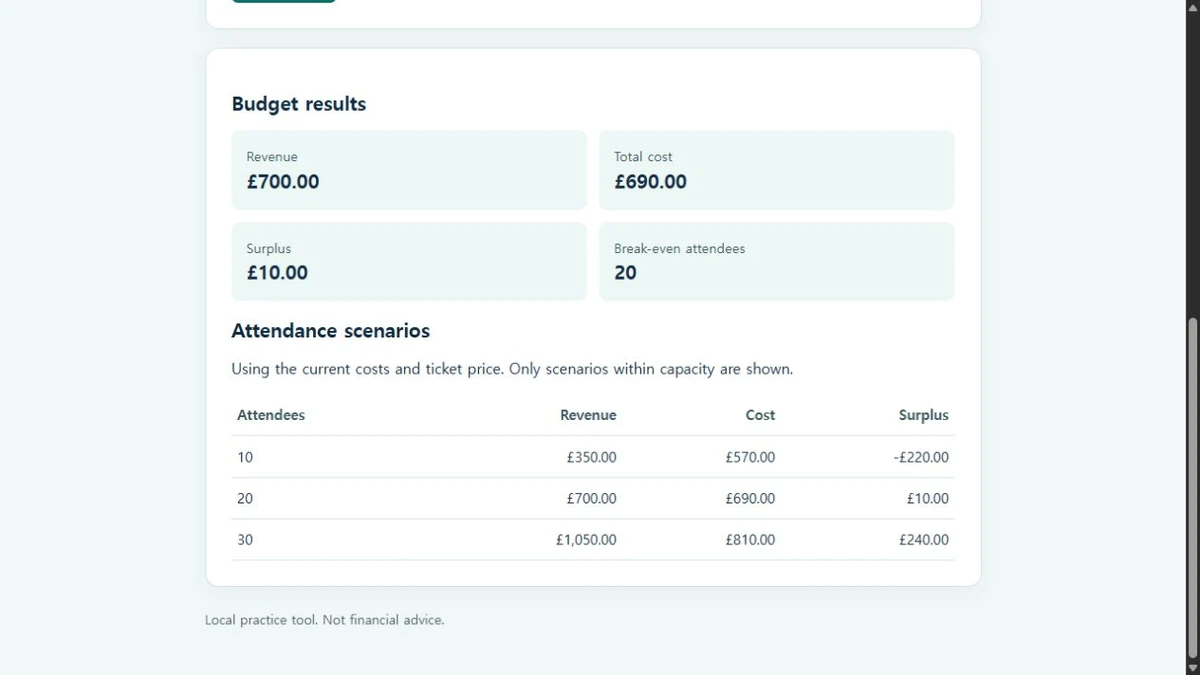
In the downloaded tool, select Calculate with the default values. Check GBP 700 revenue, GBP 690 total cost, GBP 10 surplus and 20 break-even attendees. The scenario table should show 10, 20 and 30 attendees using the same costs and ticket price.
Change attendees to 30. The old results should disappear before you press Calculate again. The new expected revenue is GBP 1,050, cost GBP 810 and surplus GBP 240. Leave attendees blank and submit once more: the tool should show a useful error and hide the previous results.
These are behavior checks, not a visual preference test. A good-looking input card is not sufficient when it accepts an impossible attendance value or leaves yesterday’s answer visible beside a new price.
- Calculate the supplied example
Confirm all four outputs against the known answer.
- Change attendance to 30
Check that old output clears and the recalculated surplus becomes GBP 240.
- Submit an empty field
Confirm an error appears and stale results remain hidden.
4. The small currency case that exposed a bug
Our first file returned 8 break-even attendees for a GBP 0.07 fixed cost, zero variable cost and GBP 0.01 ticket price. The correct count is 7. Ordinary floating-point division can produce a number just above seven, which a round-up operation then turns into eight.
We asked ChatGPT to keep the same design and field names while fixing money arithmetic. The revised file validates amounts to at most two decimal places, converts them to integer pence and computes the break-even ceiling from those integers. It rejects unsafe amounts and derived totals rather than silently displaying an unreliable number.
The corrected download returned 7 in both independent logic checking and the browser. We retained the initial HTML and exact revision request in the kit so you can inspect this specific failure. This does not certify the tool for real accounting or establish that every possible numeric edge case was tested.
Keep the existing design and input names. The case fixed_cost=0.07, variable_cost_per_attendee=0, ticket_price=0.01 must give breakEven=7, not 8. Validate at most two decimal places, calculate currency in integer pence and reject unsafe values or derived totals. Preserve the worked example, existing validation, scenario table and stale-output clearing. Return a corrected downloadable HTML and updated README. Explain the new validation rule and do not claim an unperformed browser test.5. Check the tool you will actually keep
Use calculator-fixed.html as the main file; the initial calculator.html lives separately under initial for the documented bug example. Try a ticket price equal to the variable cost, an attendance value above capacity, a negative cost and a currency value with three decimal places. Check the message and that no old result is still presented as current.
On a phone, make sure each input has a readable label, the error summary is reachable and the results remain understandable. Our output stores nothing; reloading returns the original defaults. That is intentional here, not proof that saved scenarios or account synchronization work.
For your own calculator, replace the brief with your real formula and an independently calculated example, then repeat the same review. If you later want sharing, saved data or payments, define and test those as additional features rather than treating a downloaded HTML file as a complete service.
When to keep the spreadsheet instead
A calculator is useful when a small, stable set of rules deserves a clear input screen. A spreadsheet may remain the better working file when you need many rows, frequent formula changes, detailed audit trails or collaboration already handled by your existing tools.
Start with one formula, one known answer and one useful result. The important milestone is a tool whose behavior you understand—not the number of screens or the fact that an AI wrote its source.
Sources & verification
Tested on 29 October 2026 in ChatGPT Work on the web, with GPT-6.1 Terra and Light selected. The inputs were an original fictional CSV and text brief, not a native Excel workbook. The first downloadable HTML passed 22 of our initial 23 independent calculation cases but returned 8 instead of 7 for a GBP 0.07 / GBP 0.01 break-even example. A bounded second request produced the corrected HTML with integer-pence calculations and explicit money validation. The final calculation and browser results are included in the kit. AIHotple tested the downloaded file through a local HTTP server, including input changes, error display and narrow-screen layout. The model itself stated it had not run a browser test. No Sites build or deployment, hosting account, data storage, live financial data, payment or external submission was created.
- OpenAI · get started with ChatGPT Work
- OpenAI · review and download generated files
- OpenAI · calculator inputs and validation patterns in Sites
Sources checked: 2026.10.29