- Separate the current task table from historical notes, so a preserved old owner is not mistaken for a failed update.
- Keep unknown owners, dates and budget approval visibly unknown.
- Verify both the saved Page and exported copy; a polished chat explanation is not enough.
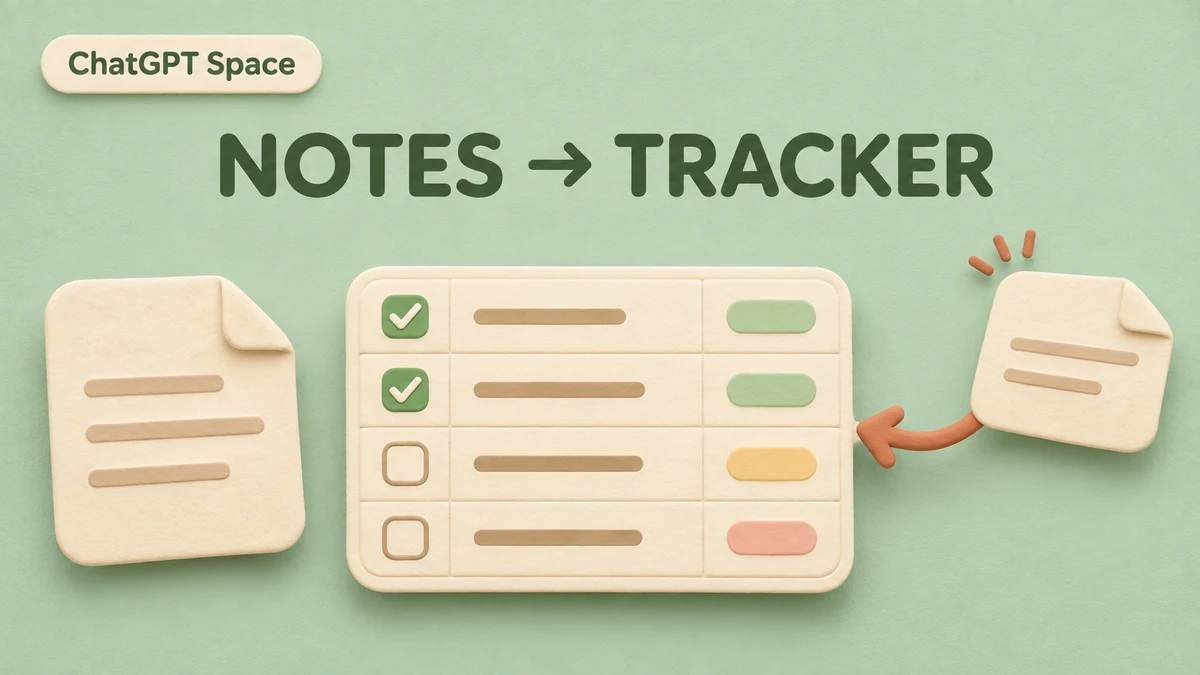
Our actual Space Page updated all four current task rows correctly after a change note, retained the historical source notes and kept the changes after reload. It was an editable table. We did not test a drag-and-drop board, connected-app synchronization or scheduled updates.
Files for this exercise
AIHotple example files and prompts. Try the exercise before substituting real work data.
What this tracker is useful for
A project plan becomes unreliable when a new message changes a deadline but the old table still looks authoritative. Our exercise deliberately changes three things at once: a proposed launch becomes confirmed on another date, a blocked task gets a new owner and due date, and a completed storyboard is reopened. Two other tasks must remain unchanged.
The goal is a Page you can inspect and edit, with a clear route from each current value to its source. This differs from our Notion connection guide: here the assistant works in its own native Space Page using supplied notes. There is no external workspace search or automatic feed of new decisions.
Check access before preparing the project
OpenAI announced a global Space rollout to Plus users aged 18 and over on November 20. Its release notes also describe access requirements for shared Pages and say public links are unavailable. A rollout announcement does not establish access for every account: check whether Space appears in your own sidebar before relying on this workflow.
In our web interface Space replaced Library. We opened Space, chose Create, then Page. The result had separate Page title and Page document fields plus a side assistant labelled Work with this page. The wording in our account was Korean; the English labels below describe the corresponding controls. If you only see ordinary chat, do not assume a chat answer has created a native Page.
Create one private Page from a deliberately incomplete brief
Download the kit and read project-brief-v1.txt first. Source B records a fictional Harbor Books window-display project. The proposed launch is November 30, not an agreed commitment. A $480 suggested ceiling is neither an approved budget nor a supplier quote. Those distinctions are part of the exercise.
Use a table if that is what the native editor supports. A board-like illustration or a chat that says “done” is not evidence of a working interactive board. Our actual result used the Page editor’s native table.
- Open Space → Create → Page
Choose a new private Page. Enter Harbor Books project tracker in the Page title field. Do not select a template that connects to real workplace sources.
- Use the assistant attached to that Page
Click Work with this page beside the open document and paste the creation request below. It tells the assistant to fill the existing Page and use only the fictional brief.
- Wait for the document itself to change
Check the Page document, not just the side-chat response. Expect four task rows with ID, task, owner, due date, status, blocker and source, followed by decisions and source note B.
- Read the unknown fields before accepting the baseline
T3 has no agreed due date; T4 has neither an assigned owner nor an agreed date. The launch remains proposed and budget approval remains pending. Correct any invented commitment before moving on.
Fill this currently open new private Page in ChatGPT Space. Its title should be Harbor Books project tracker. Do not create a second Page. This is a fictional AIHotple exercise. Use only the source note below; do not inspect other pages, files, memory, connected apps, email, calendar or websites. Do not share, invite anyone, create schedules, send messages or publish a Site.

Make a useful project tracker with: a concise current-status introduction; a task table with ID, Task, Owner, Due date, Status, Blocker and Source; a separate Decisions and open questions section; and the original source note at the bottom for verification. Keep source IDs beside substantive claims. Use Unassigned and Not agreed where information is absent. Keep a proposed launch distinct from an agreed date, an unapproved ceiling from an agreed price, and a completed storyboard from customer acceptance. Do not add tasks or commitments. Make it easy to update this same Page when I provide a later change note. If an interactive task board is not supported, use a native editable table and say so.

SOURCE NOTE B
B1. Launch on 30 November 2026 is proposed, not agreed.
B2. T1 storyboard: Mina; Done; completed 20 November 2026.
B3. T2 caption draft: Eli; due 25 November 2026; Blocked because the approved script is missing.
B4. T3 product photo approval: Noah; due Not agreed; Awaiting approval.
B5. T4 accessibility check: owner Unassigned; due Not agreed; Proposed.
B6. A $480 budget ceiling is suggested. Budget approval and a quoted price are both pending.
B7. Translation and hosting are outside the agreed scope.
The baseline gives you something concrete to compare
The initial Page matched the four source tasks below. It also kept the launch proposal, unapproved budget ceiling and scope exclusions outside the task table. We captured the visible baseline text before changing it; that file is labelled as a text capture in the kit, not a native export.
Done describes the storyboard task in this brief. It does not mean a customer accepted the work or that the whole project is finished. The Page explicitly left customer acceptance unrecorded.
| ID | Baseline owner / date | Baseline status | Source |
|---|---|---|---|
| T1 — storyboard | Mina / new due date not agreed | Done; completed November 20 | B2 |
| T2 — caption draft | Eli / November 25 | Blocked; approved script missing | B3 |
| T3 — photo approval | Noah / not agreed | Awaiting approval | B4 |
| T4 — accessibility check | Unassigned / not agreed | Proposed | B5 |
Apply a change note to the same Page
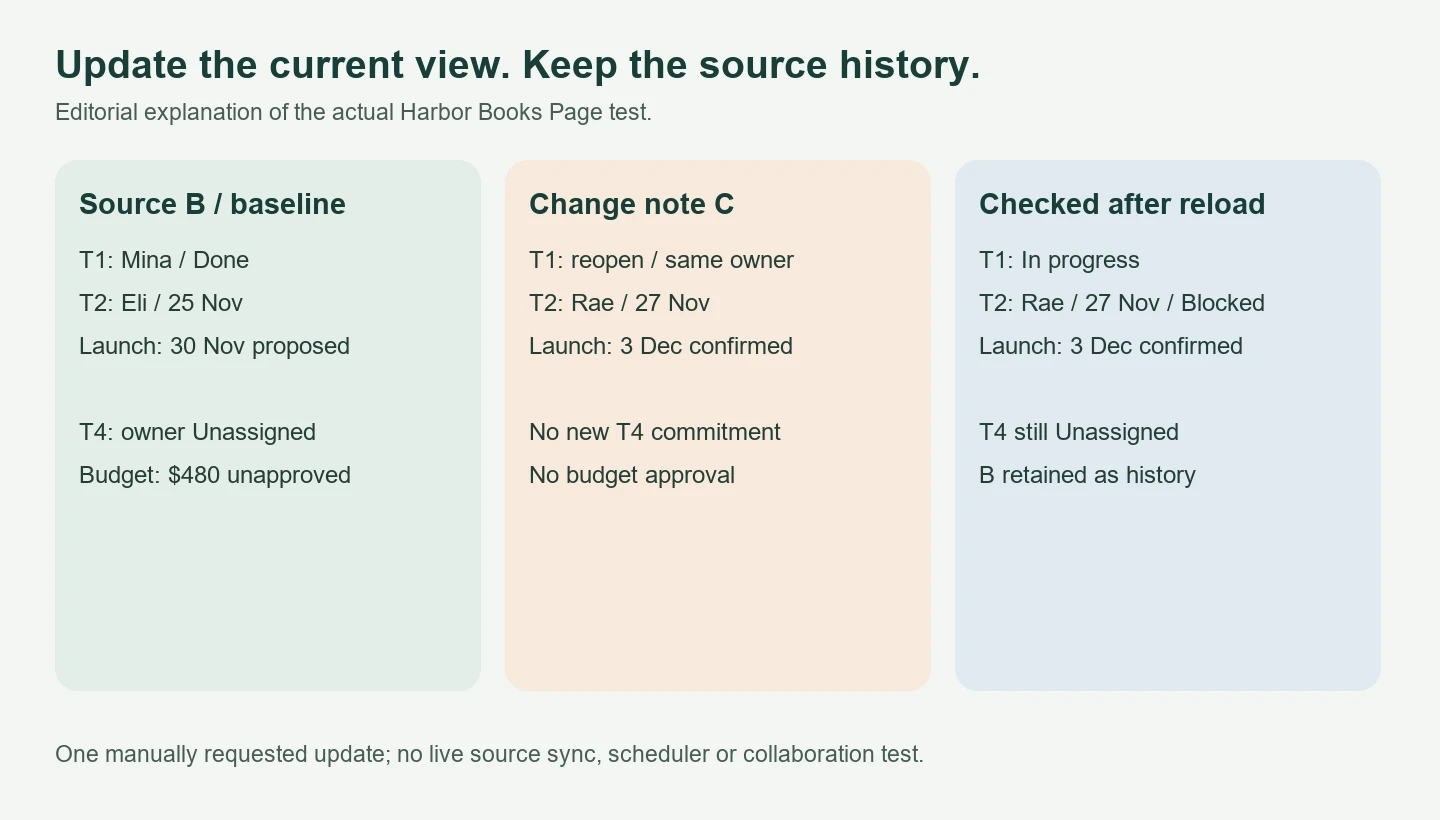
Keep the same Page open and paste the update request into its attached assistant. Source C changes only the stated fields: launch on December 3 is confirmed by Noah, Rae takes over T2 with a November 27 due date, and T1 returns to In progress with Mina still responsible. No new storyboard deadline is supplied.
The crucial instruction is to update the current view while preserving source B as history. A blanket request to remove every old name or date would destroy evidence. Conversely, appending C without changing the table would leave an obsolete plan.
Update the existing Harbor Books project tracker Page, not a new Page. Use only change note C below and source B already in that Page. Apply C where it explicitly replaces B, preserve unaffected rows and keep the original source note B as historical evidence. Add C to the source notes. The current tracker must not retain superseded owners, dates or Done status. Preserve unknown dates and owners; do not invent new commitments. Do not use connected apps, create schedules, share, invite, publish a Site or send anything.

C1. Noah confirmed launch on 3 December 2026, replacing B1's proposed 30 November.
C2. T2 caption draft: Rae replaces Eli; agreed due date is 27 November 2026. Approved script still missing; remains Blocked.
C3. T1 storyboard reopened after a product-label wording change. Mina remains owner; status In progress; new due date Not agreed.
C4. T3 and T4 unchanged. T4 stays Unassigned with due date Not agreed.
C5. $480 remains an unapproved ceiling, not an agreed price. Translation and hosting remain excluded.

After updating, briefly list what changed and what still needs a human decision. Do not claim automated synchronization; this is one manually requested update.
What changed in the actual saved Page
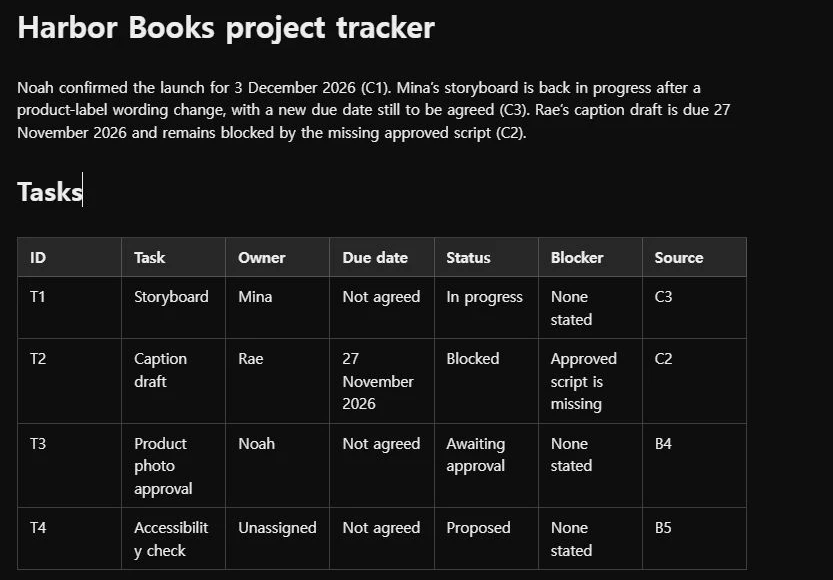
After the assistant updated the document, we reloaded the same Page. T1 was In progress with Mina and no agreed new due date. T2 showed Rae, November 27, Blocked and the missing-script blocker. T3 and T4 retained their original values. The opening summary and launch decision both used the confirmed December 3 date.
Source note B still contained Eli, November 25 and the earlier Done status; change note C followed it. Those historical mentions were expected. Our check examined the current task table separately rather than declaring failure because an old string appeared somewhere in the document.
The $480 ceiling remained unapproved, the quoted price was still pending, and translation and hosting stayed excluded. This was one successful manual revision of a four-task fictional project, not a measurement of performance across real projects.
Export the checked version, then inspect the copy
Click the Page title/actions menu and choose Download. Our account downloaded a Markdown file containing the task table, decisions, source B and change note C. The kit includes that native export unchanged. The separate native Page title was not included as a top-level Markdown title in this export, so add a title to a working copy if your handoff requires one.
Open the exported file in a text or Markdown editor and confirm the same four rows. Check that source references survived and that the current table contains no superseded owner, date or Done value. An export is a snapshot: a later Page edit does not by itself update a file you already downloaded.
- Check the current table first
Look for Rae / November 27 / Blocked in T2 and Mina / In progress / Not agreed in T1. T4 must still say Unassigned.
- Check the historical sections second
B should preserve the original facts; C should explain the replacements. Do not silently rewrite the original note to make the history match the current plan.
- Check decisions that are still unresolved
Budget approval, quoted price, the new storyboard deadline and T4 assignment still require a human decision. The assistant should not fill these simply to complete the table.
If the Page or update does not behave as expected
If you only receive a chat table, return to the native Page and use its attached assistant. Name the existing Page explicitly and ask for an edit rather than another document. If a row remains stale, identify its ID and the source that replaces it; preserve unaffected rows and read the table again before exporting.
If the assistant invents a date or owner, replace it with Not agreed or Unassigned and add the missing decision to the open-questions list. If a deadline changes without its blocker changing, keep the blocker: assigning a date does not supply an approved script.
OpenAI describes connected and scheduled updates as additional Space capabilities. They need their own source permissions and execution checks. Our manual test does not demonstrate them, and an instruction to update a Page is not an always-running project assistant.
Compare this native Page with a source-linked Notion status workflow →
Turn a meeting note into explicit owners and open questions →
Sources & verification
Tested November 22, 2026 in ChatGPT on the web through the ChatGPT in-app browser. We created one private Page using an original fictional bookshop project, requested one manual update, reloaded that same Page and downloaded its native Markdown export. The chat selector displayed Medium; the backend model was not independently established. No real project, connected app, invitation, external message, public Space link or schedule was used. Screenshots show the actual account interface, with personal controls excluded from the body crop.
Sources checked: 2026.11.22