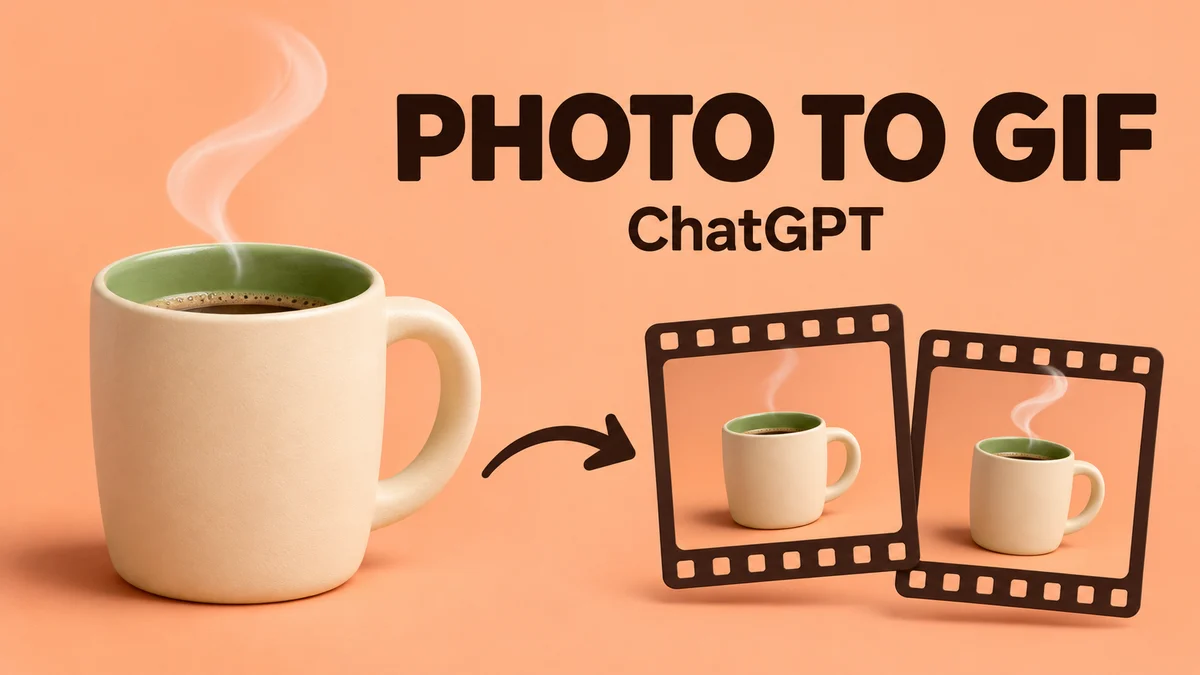
- Ask one thing to move while specifying what stays fixed.
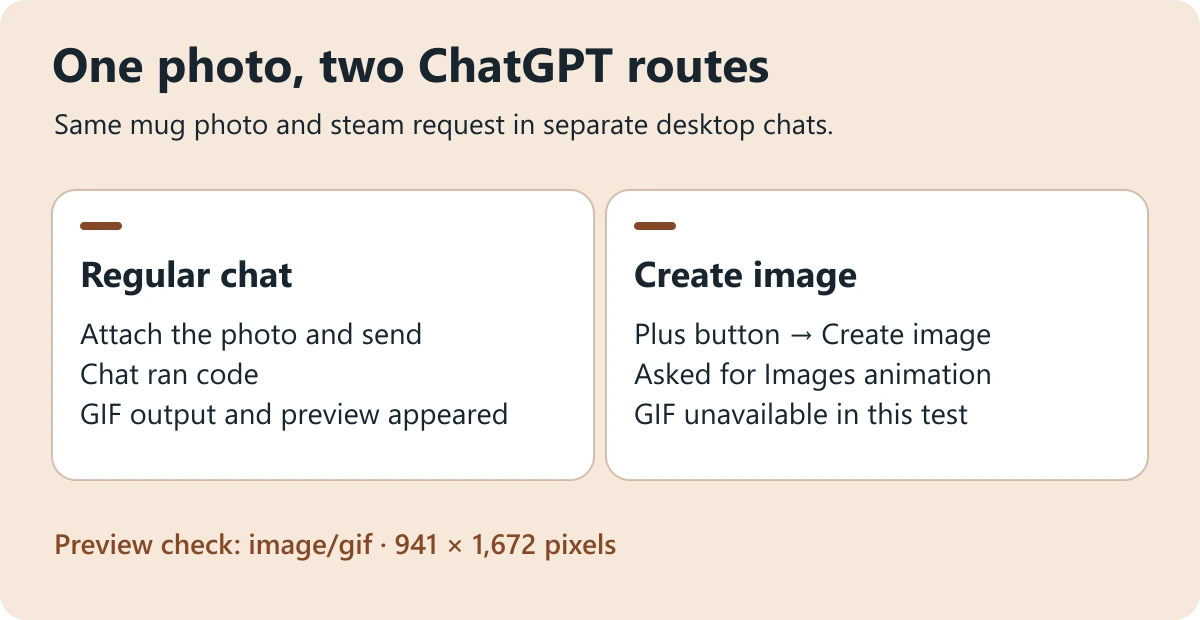
- Regular chat produced a 941 × 1,672 GIF preview through code execution.
- Use the output file controls in your own session and check the file before you publish it.
If you want a product GIF today, try regular chat with a single photo and a narrowly defined motion. Look for an actual .gif in the response. The same request can take a different route when you explicitly select Create image.
Files for this exercise
AIHotple example files and prompts. Try the exercise before substituting real work data.
Upload a photo and specify one moving area
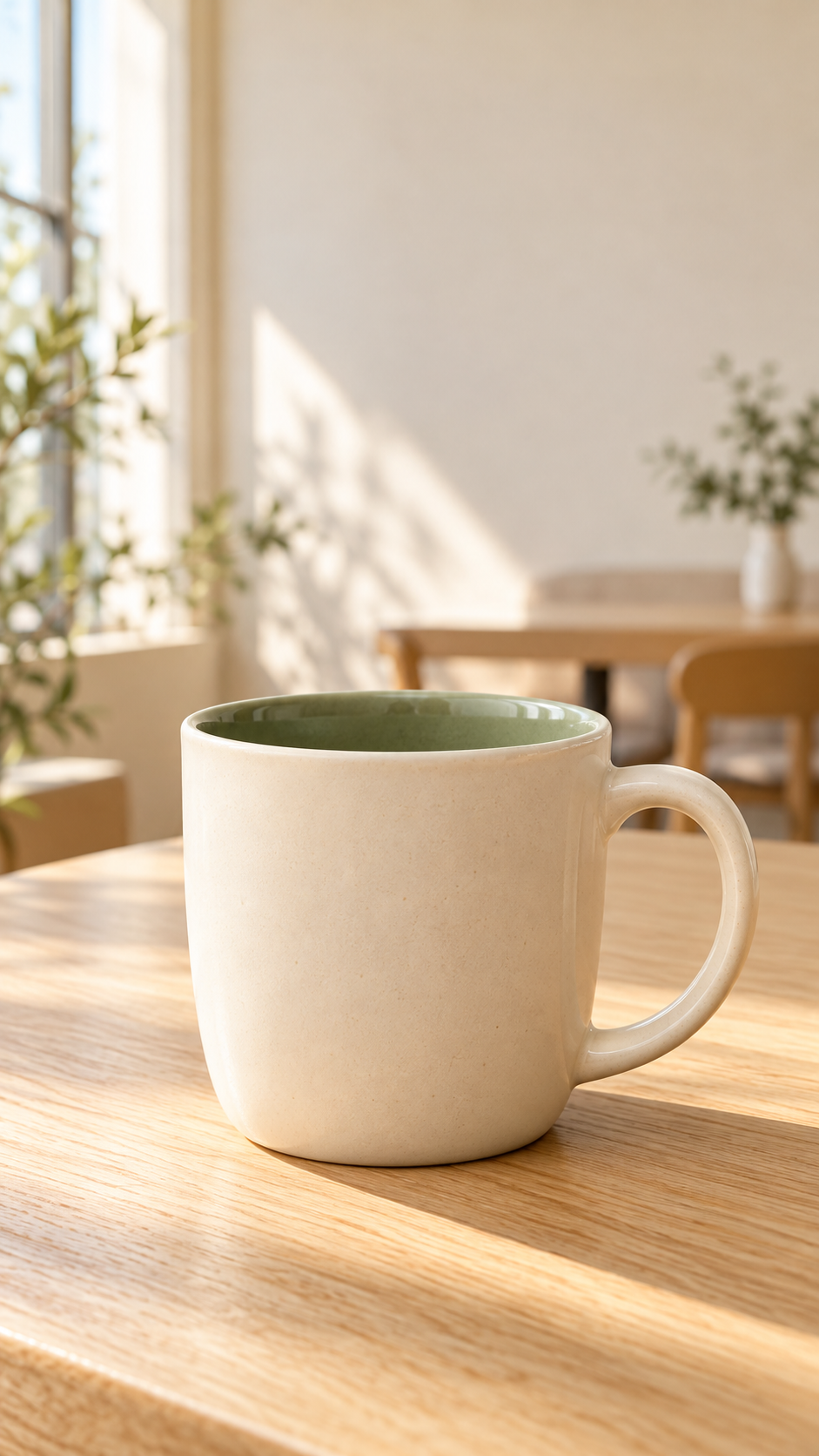
On the ChatGPT website, start a new regular chat. Use the plus button by the message box to attach the practice mug photo, or upload a single photo of your own. Look for the attachment thumbnail, then send the prompt below.
Our sample leaves open space above the rim. That makes the request easier to describe: a thin curl of steam should rise in that space while the mug, handle, table and framing stay fixed. For a bottle or book, choose equally localized movement, such as a small reflection or a soft shadow. Specify the desired loop length and output format.
Create a downloadable animated GIF from this attached product photo. Make a seamless 2-second loop. Animate only a soft, thin curl of steam rising above the mug. Keep the cream mug, green interior, handle, wooden table, window light, crop and camera fixed. Do not add text, logos, new props or camera movement. Let the steam fade back into the opening state. Return the animated .gif file.Find the GIF output in regular chat
Our chat showed command execution, then named an output mug-soft-steam-loop.gif and displayed an inline preview. The preview used image/gif, had a GIF header and retained the 941 × 1,672 dimensions of the source. Those checks establish the preview format. ChatGPT described a two-second repeating loop, which we did not verify independently.
If your chat produces a file, open its output card or use the download control beside the filename. If it only sends an image or instructions, follow up with “Run the conversion here and return the .gif as a file.” A file output depends on the tools available in your session. The downloads below include the input photo and prompts.
Try Create image when animation is available to you
Open a separate chat, choose the plus button and then Create image. Attach the same photo and send the original prompt with the extra line in the prompt download. That line asks for the Images animation feature and tells it to report if GIF output is unavailable.
In our session, Create image reported that it could not return an animated GIF and produced no file. OpenAI’s Images 2.6 announcement describes GIF creation as a gradual rollout. If your account offers animation in Images, use the available control and verify its actual export format.
Check the loop before putting it on a page
On your saved copy, check that the file type is GIF and that it contains multiple frames. Inspect the first and last frames for a jump in lighting, framing or steam position. At the size you intend to publish, compare the logo or product details against the original photo if those details matter.
Check the file size against the limit of your website or email tool. If it is too large, ask for a smaller pixel width, a lower frame rate or a tighter crop, then inspect the new export. Pick the smallest version that still makes the intended motion clear.
Sources & verification
One signed-in desktop account on November 16, 2026. We checked the preview’s format and dimensions in the browser. The GIF file was not downloaded during the test, so its file size, exact timing and loop metadata remain unverified. The practice photo is an AIHotple illustration.
Sources checked: 2026.11.16