- Set the length in Vids as well as in the prompt.
- Give each action a visible end state before the next begins.
- Compare the support and the base across frames before using the clip as instruction.
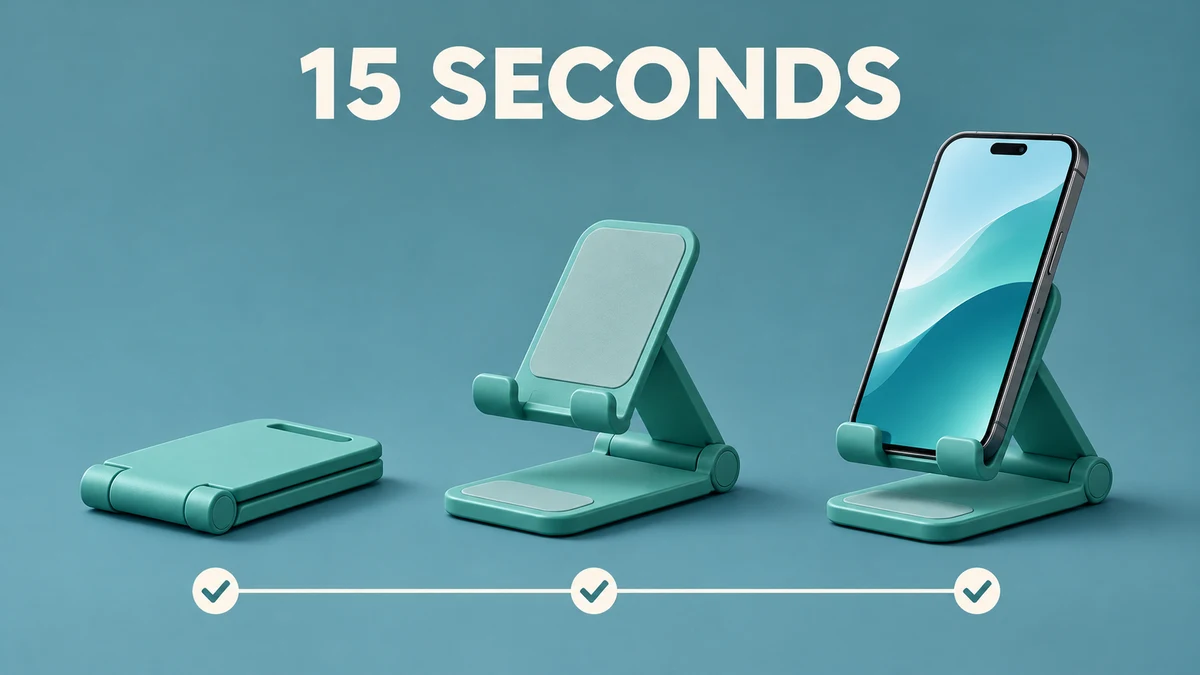
A folding phone stand makes a good test subject because its moving hinge and fixed base have different jobs. If the whole stand slides while the phone stays at the same angle, the picture may look convincing while the instruction fails.
Files for this exercise
AIHotple example files and prompts. Try the exercise before substituting real work data.
Choose the clip controls before writing the prompt
Open Google Vids and choose Create an AI video, or open a blank video and select Generate video from the side panel. In the Create tab, expand the prompt box if you see only the example gallery. Open the Omni settings pill beside the prompt. Our first setting was 10 seconds. Move the duration slider to 15, choose Landscape and select 720p.
Google lists eligible Workspace subscriptions and its Workspace Experiments program. Check for the duration control in your own editor before planning the shoot. If it stops below 15 seconds, write a shorter demonstration or use two scenes. Typing “15 seconds” alone does not establish the selected duration.
Write three actions that a viewer can distinguish
Start folded so the viewer can see the change. Keep the lower lip in frame while the phone is placed on it. A hand touching the phone is ambiguous; ask for the hand to release it. For the final movement, keep the desk edge and the base visible as references. We used the following prompt with no uploaded product image.
Single continuous 15-second side view of one dark teal folding phone stand on a pale desk. Fixed camera. 0–5 s: one hand opens the folded stand until the base rests flat. 5–10 s: place one plain phone upright in its lower lip and release it. 10–15 s: tilt the hinge back slightly, keeping the phone supported and base stationary. Hold the final pose. Daylight, no text, no music, no cuts.Insert the result and check the actual export
Select Generate once. When the preview is ready, select Insert before closing the tab. Our result card read 720p and 0:15, and the timeline then showed one 15-second scene. In File, choose Download and then MP4, or Export to Drive for a separate video file.
The source setting and exported dimensions serve different purposes. Our exported file measured 1920 × 1080, while the generation setting was 720p. Report both if your review discusses resolution. An export at a larger size does not establish that the generated detail increased.
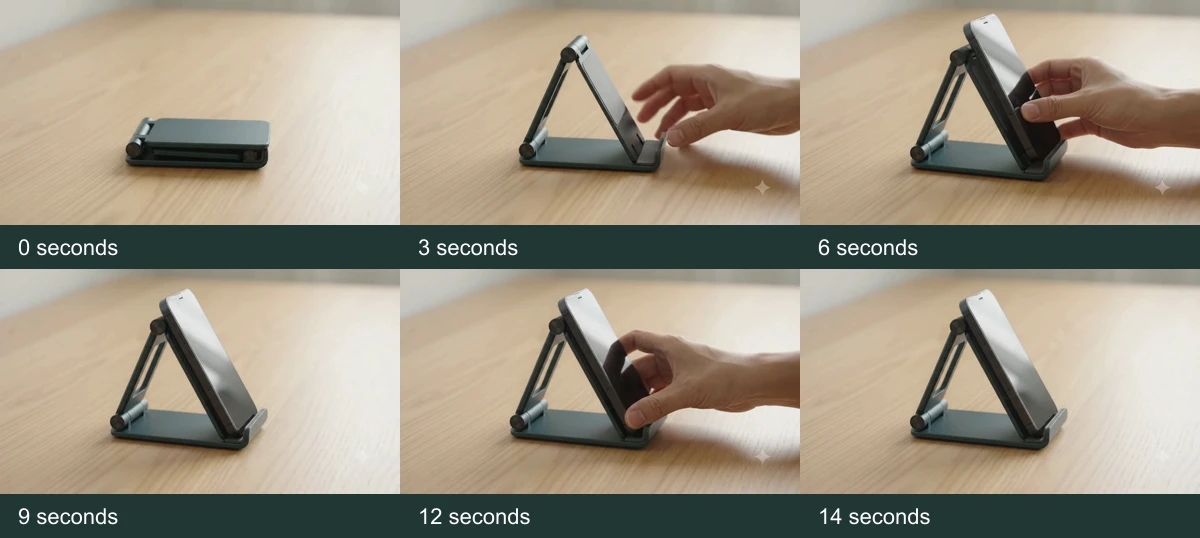
Decide which instructions the six frames support
At 0 seconds the stand is folded. At 3 seconds it is open. At 6 seconds a hand is positioning the phone, and at 9 seconds the phone remains upright without the hand. Those pairs give a reader recognizable before-and-after states.
At 12 seconds the hand returns; at 14 seconds it is gone again. The difference in tilt is too small in these samples to use as a clear demonstration of adjustment. For a publishable setup guide, keep the first two actions and replace the last shot with a side-on close-up that shows two distinct angles. For a specific real product, check the direction of travel against the actual hinge.
Sources & verification
The Vids control showed Omni, landscape, 720p and 15 seconds. Google identifies the 15-second rollout as Omni 1.2 Flash; the interface did not display a model build. The exported composition is 1920 × 1080 H.264 at 30 fps, with an AAC track and a container duration of 15.093 seconds. We inspected stills and metadata without playing the video or auditing its sound.
- Google on Gemini Omni 1.2 Flash and native clip duration
- Google Vids Help on generating clips and choosing duration
Sources checked: 2026.11.07