- Use a readable product name and a second, smaller marking as controls.
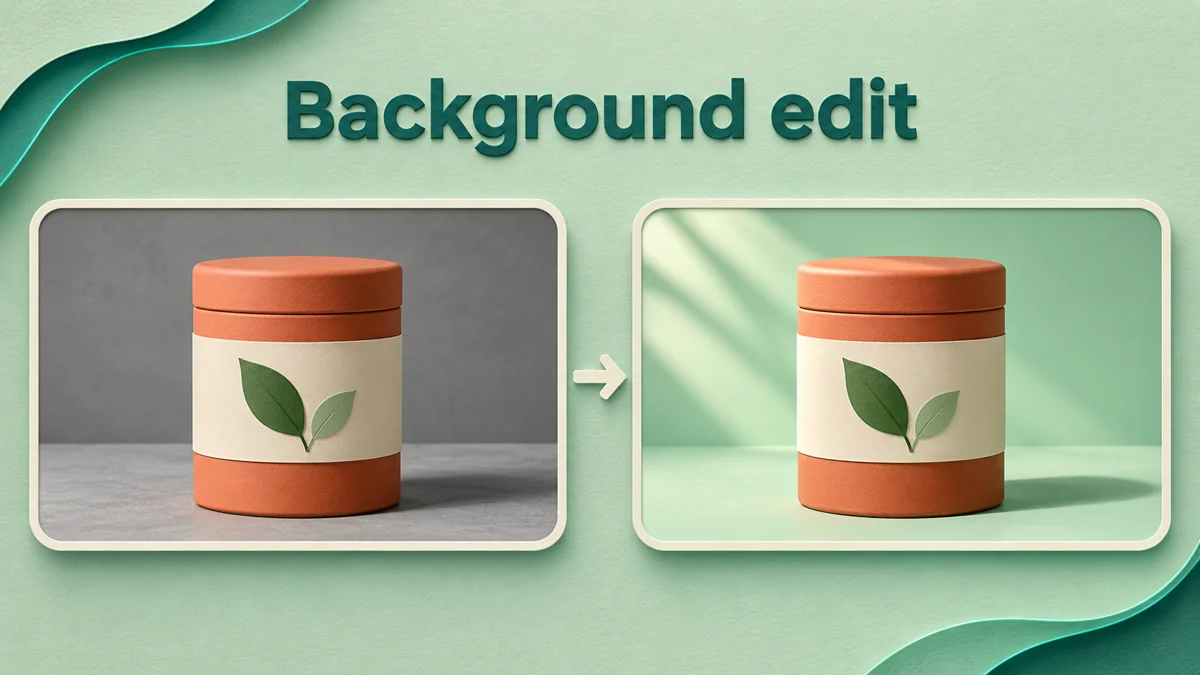
- Ask for one background change and specify what must stay fixed.
- Match timestamps and compare positions as a fraction of frame width.
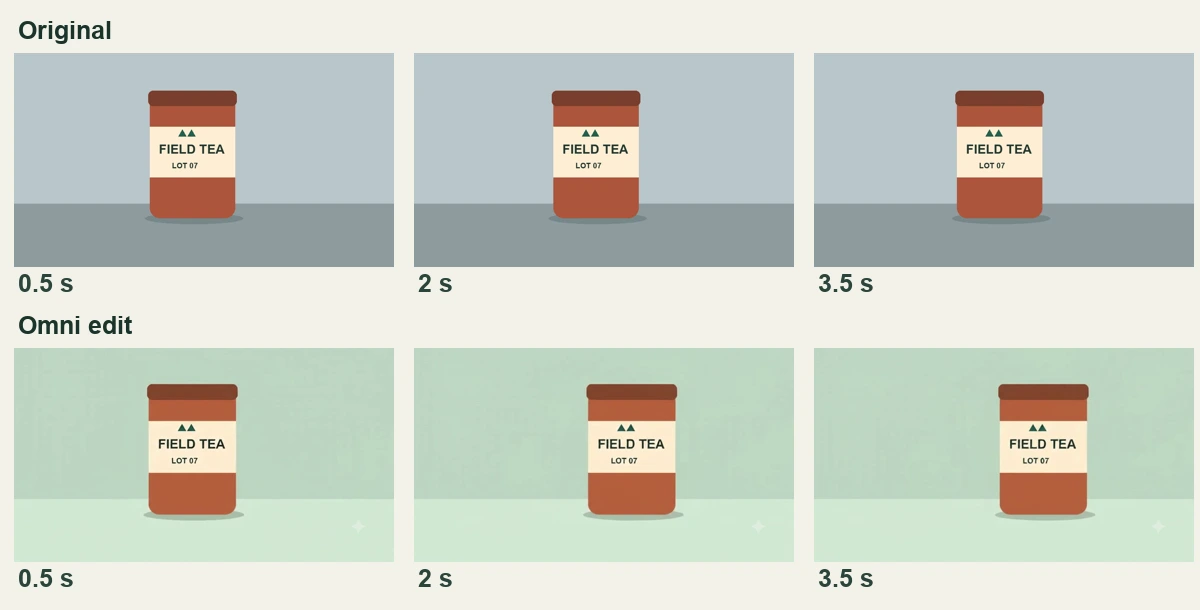
The edit turned the grey set mint and kept FIELD TEA and LOT 07 legible at all three sampled times. It also pushed the tin further to the right. For a post with text beside the product, check the space you need at the end of the shot.
Files for this exercise
AIHotple example files and prompts. Try the exercise before substituting real work data.
Start with a clip you can score
The practice clip is a flat animation of a terracotta tea tin moving gently right. Its label has two green triangles, the name FIELD TEA and a smaller LOT 07. A flat-colour set makes it easy to see whether an edit spills onto the package. A phone shot with foil, reflections or a hand covering the label is a harder test.
Download the original at the end of this article or use your own short landscape clip. Write down the exact label text before opening the editor. Pick three times where the label faces the camera. Here they are 0.5, 2.0 and 3.5 seconds.
Open the existing clip in Flow
In our account, Create video in the Gemini app led to an upgrade screen. Google Vids also marked editing an existing video as Premium. Google documents separate plan and regional rules for its apps. In particular, Gemini Apps Help lists restrictions on uploaded-video edits in the UK, EEA, Switzerland and some US states. Check the surface you intend to use before buying anything.
Our working route was Google Flow. Open a new project, open the add-media menu and choose Upload. Select the MP4 you have rights to use. After the thumbnail appears, open the add-asset control beside the prompt and select that video. Its thumbnail should now appear inside the prompt box.
Turn off Agent to choose the generation settings directly. Select Video, the attached asset, Omni 1.2 Flash, 16:9 and one output. We used 360p and the four-second source duration. Our screen quoted four credits for that request. We used the available allowance without a purchase. Check your own on-screen quote before generating.
Ask for only the background change
Paste this request with the source thumbnail still attached. Generate once. When the result appears, use its options menu and download the original-size MP4. Keep a separate copy of the source so you can compare the same instant in both.
Edit the attached four-second clip. Replace only the grey wall and tabletop with a pale mint studio wall and matching tabletop. Keep the terracotta tin, its two green triangles, the exact lettering FIELD TEA and LOT 07, cream label position, and original sideways motion. Keep the framing and duration. No cuts, new lettering, music or speech.Compare the same three moments
Read across each row to follow the motion. Then read down each column to compare one instant. The wall and tabletop changed to two mint tones. Both triangles and both lines of text were recognizable at all three sampled times. The label remained across the middle of the tin. Its body still looked terracotta, though a sampled body pixel at two seconds changed from RGB (172, 85, 60) to (180, 94, 60). These are decoded file values, not a calibrated product-colour measurement.
The largest difference was movement. At 3.5 seconds, the centre of the tin sat at 48.8% of frame width in the original and 60.4% in the edit. To compare different resolutions, we located the midpoint of the reddish body along a horizontal line about two-thirds down each frame and divided by frame width.
| Time | Original centre | Edited centre |
|---|---|---|
| 0.5 s | 46.9% | 47.0% |
| 2.0 s | 47.9% | 57.3% |
| 3.5 s | 48.8% | 60.4% |
Decide whether the edit fits the placement
For a loose social post, the background and readable label may be enough. For a catalog colour reference, a layout with a fixed price badge, or a sequence that must align with the next shot, check the actual placement and colour before delivery. If the pack must match pixel for pixel, preserve the original foreground with a mask in your editor and change the layer behind it.
The original file was 960 × 540 at 24 fps with no audio stream. The downloaded edit was 640 × 360 at 24 fps, with a container duration of about 4.03 seconds and a stereo AAC track. We did not listen to the track. If the delivery must be silent, inspect or remove the audio track during export. Three matching labels in three frames are only a spot check; inspect the intervening frames for any placement where lettering is critical.
Start from still product photos to build a promotional MP4 →
Sources & verification
One completed Flow edit of a four-second fictional product animation created by AIHotple. We inspected decoded stills and file metadata without playback. The cover is an illustration. The six-panel figure below shows the actual files.
- Google introduces Gemini Omni 1.2 Flash
- Gemini Apps Help on video editing and regional availability
- Google Vids account and feature availability
- Google Flow credits and models
Sources checked: 2026.11.07