- Start with a narrow label, message ID, processing states and a stop procedure.
- Generate reviewable drafts without inventing a price, booking confirmation or refund promise.
- A passing sample is not proof that permissions, real services or a recurring trigger work.
ChatGPT writes the code; the resulting Apps Script uses fixed English keyword rules. It does not call an AI API or reason about each message. Real Gmail/Sheets processing and recurring triggers were not run in this exercise.
Files for this exercise
AIHotple example files and prompts. Try the exercise before substituting real work data.
Define the job before asking for code
A small business may receive similar booking or pricing questions repeatedly. This example records selected inquiries in a sheet and prepares a neutral reply draft for human review. It does not decide availability, quote prices, approve refunds or send the answer.
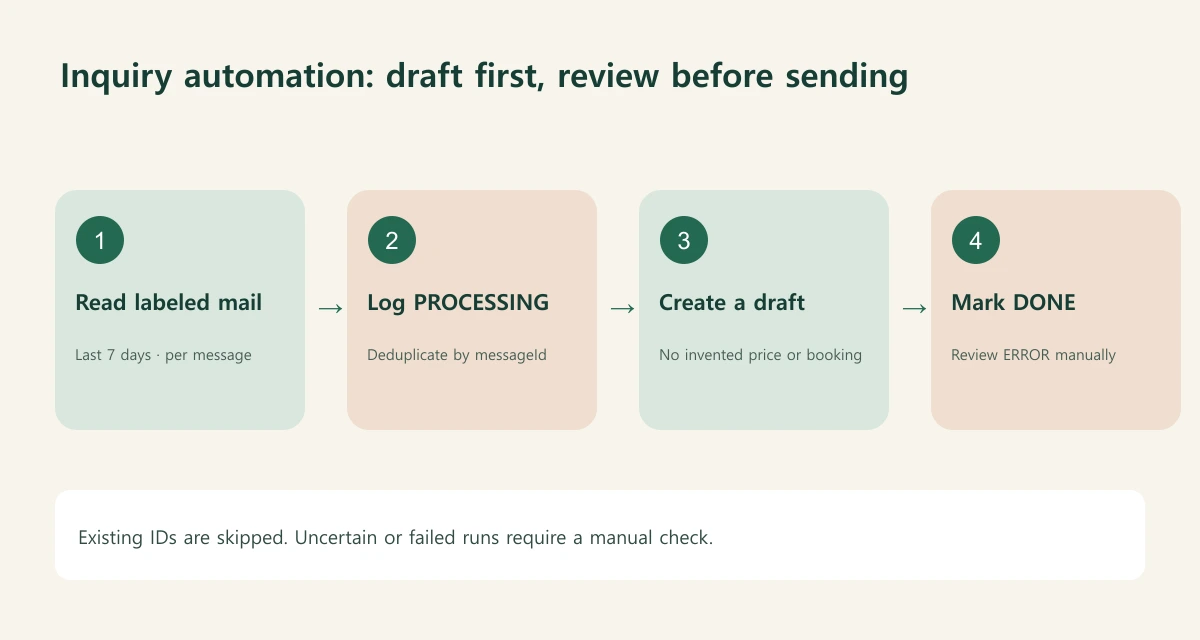
The routing is deliberately simple: reservation/booking terms select Booking; price/pricing/cost/cancel/refund terms select Pricing; everything else selects Other. Booking takes precedence when both groups appear. Mixed or nuanced messages therefore need review. This is a rules-based workflow built with AI, not an autonomous AI customer-service agent.
1. Begin with fictional messages and explicit limits
Download the English practice ZIP. DEMO-001 asks whether four people can book on November 7, 2026 at 2pm. DEMO-002 asks about the price and cancellation terms for four people. The .invalid addresses are tutorial values and must never be used as real recipients.
The correct outcome is a request awaiting staff verification, not “your booking is confirmed” or an invented amount. The service-free sample lets you inspect classifications and draft language without granting inbox access.
| Sample | Category | Required draft boundary |
|---|---|---|
| DEMO-001 | Booking | Availability is being checked; no booking confirmation |
| DEMO-002 | Pricing | Amount and cancellation terms still need verification |
2. Ask for failure handling as well as the happy path
Specify the label, time window, row fields, disabled default and duplicate key. Ask for a sample-only file separately from the service-connected code. The files supplied here preserve the reviewed message-level eligibility, completion label and candidate-snapshot design.
A short script can still have important failure cases. A draft may be created before its final status is saved; two executions may overlap; a message can share a subject with a different inquiry. Define how these cases should be handled before enabling anything.
Write English Google Apps Script for incoming messages from only the last seven days labeled AIHotple-Inquiry-Practice. Log messageId, time, sender, subject, category, draft text and status in Sheets. Prepare draft replies but never send. Default to disabled. Include message-ID deduplication, PROCESSING/DONE/ERROR states, a script lock, formula-injection protection, a completed-message label and candidate snapshots before changing labels. Leave prices, bookings and refunds for human verification. Provide a separate service-free SampleOnly.gs with two fictional messages and a twice-run test, plus Code.gs and English setup/stop instructions. Do not call an AI API, grant permissions or create a trigger.3. Run the sample in the Apps Script editor
Open Google Apps Script and choose New project. Give it a recognizable test name. Open Code.gs, replace the default myFunction with only SampleOnly.gs from the ZIP, and choose Save project to Drive. Do not paste both files into the same project: they define the same sample functions.
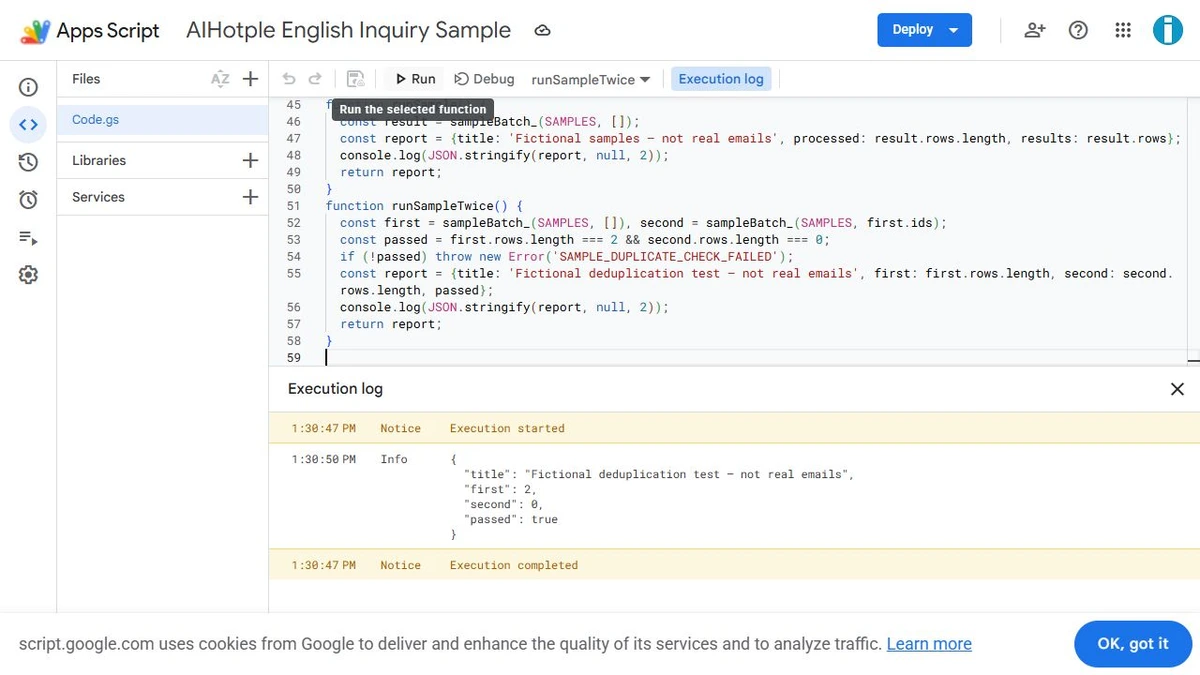
In the function selector beside Run, choose runSampleTwice, then Run. Open Execution log if it is not already visible. The actual English-editor run reported first:2, second:0, passed:true. You can run runSample separately to inspect the Booking and Pricing drafts.
The sample-only file does not use Gmail or Sheets services. A full file that includes service functions can prompt for authorization even when a sample function is selected. If a permission request does not match this sample-only exercise, stop and inspect the file rather than bypassing it.
4. Keep completed work separate from uncertain failures
The production template identifies each message by its messageId, not its subject or thread. It records PROCESSING before draft creation and DONE after the draft and completion-label operations. A DONE message is skipped on later runs.
PROCESSING or ERROR can mean that a draft already exists. Inspect the sheet row and Gmail drafts before any manual retry. Deleting the row and running again could duplicate a draft. The example intentionally does not auto-retry uncertain cases.
The completed label AIHotple-Inquiry-Done prevents a window of already-finished recent messages from repeatedly hiding older pending ones. Candidate IDs are collected before labels are changed. Fourteen fake-service tests passed, including 45-message pagination, a 120-message backlog processed as 100 then 20, a failed draft and a post-draft state-write failure. These are adapter tests, not real inbox throughput measurements. A window filled with unresolved errors still requires manual attention.
| State | What to do |
|---|---|
| DONE | Skip the same message ID |
| PROCESSING | Check whether a draft already exists |
| ERROR | Inspect the failure and existing drafts before manual recovery |
| No row | Validate as a new candidate |
5. Treat live Gmail and Sheets setup as a separate stage
Only after reviewing the code and sample, replace the sample-only contents with the full Code.gs. In the editor, choose Services → Add a service → Gmail API, version v1, with identifier Gmail. A standard Cloud project also needs the corresponding API enabled. These are configuration instructions, not live steps we executed.
Run setupSheet only if you intend to create a real test spreadsheet. It creates “AIHotple Inquiry Practice - Test Only”, with an Inquiries tab, and stores INQUIRY_SHEET_ID in script properties. Do not substitute an unrelated document. In Gmail, create AIHotple-Inquiry-Practice and apply it only to approved test messages.
Review the Google permissions yourself. The code’s label filter does not restrict the account authorization to that label. Once authorization and the two test inputs are reviewed, set CONFIG.enabled=true and save for a manual processInquiries test. Check the row, draft, absence of sent mail and a second run before considering a trigger.
6. Schedule only after the manual live test succeeds
For a periodic run, the documented editor path is Triggers → Add Trigger → processInquiries → Time-driven → Minutes timer → Every 15 minutes. The trigger runs using its creator’s authorization. It is polling, not an instant incoming-email event, and quotas or failures can interrupt it.
We did not create or run this trigger. The script also does not install one automatically. Start with a small test account and inspect real results before using operational messages. To stop, save CONFIG.enabled=false and remove the relevant trigger. Existing drafts, rows and completion labels remain.
When to extend the workflow
If you want live AI classification, pricing lookup or booking availability, that is another integration. Define which data leaves the account, which source is authoritative, what it costs and how failure is handled. Adding more keywords does not establish those capabilities.
For the first version, the useful result is smaller: selected messages become a visible queue and reviewable drafts, with duplicate checks and an explicit stop path. Confirm that narrow job before expanding it.
Review one email and its reply before building a recurring workflow →
Sources & verification
On October 21, 2026, an English ChatGPT request produced the English edition of a previously reviewed script. AIHotple inspected the downloaded files, ran the service-free sample in Google Apps Script with an English editor interface (first=2, second=0, passed=true), and passed 14 independent Node VM cases using fake Gmail/Sheets adapters. The tests include pagination, a 100+20 backlog and partial failures. No Gmail/Sheets authorization, real mail reads, real spreadsheet or draft creation, email sending or timed trigger was performed. The source README describes the model’s local checks; AIHotple’s subsequent checks are documented separately.
- Google · GmailApp reference
- Google · Installable and time-driven triggers
- Google · Apps Script quotas
- Google · Gmail API message list
- OpenAI · Create work and files with ChatGPT
- Google · Enable advanced services
Sources checked: 2026.10.21