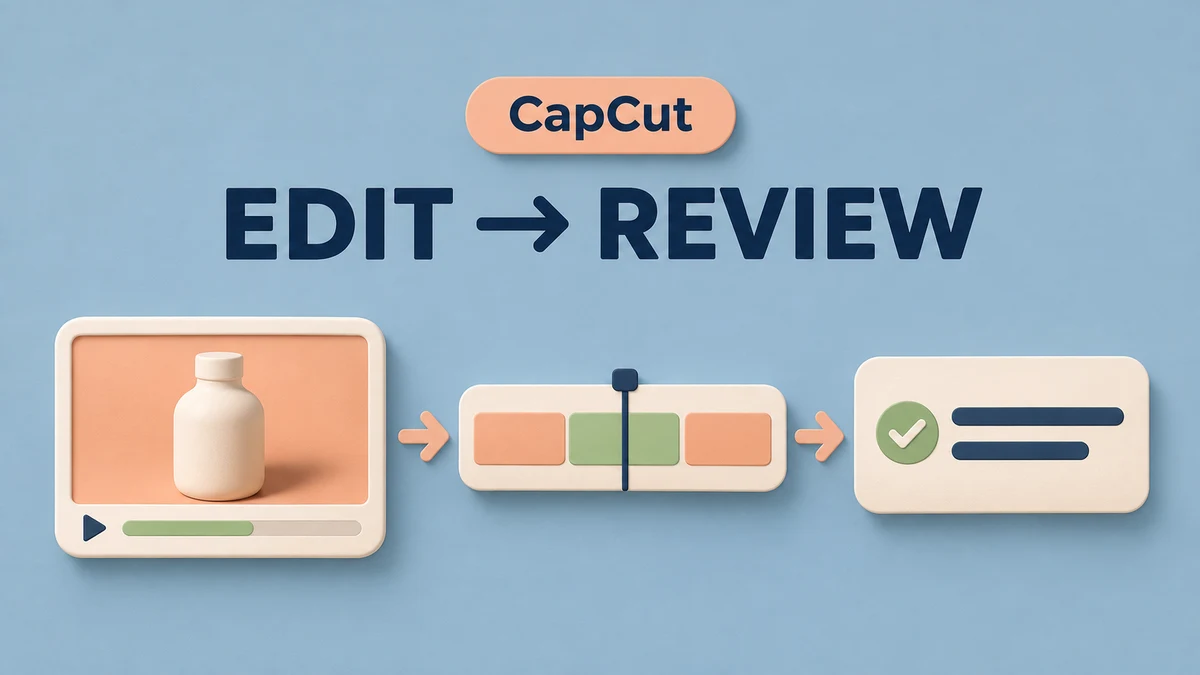
- Start with existing footage and mark lines the edit must retain.
- Ask for one edit at a time, then inspect the timeline.
- Check caption meaning separately from layout and timing.
EditPilot is CapCut’s desktop assistant for supported natural-language edits. This document-based walkthrough shows how to prepare footage, request one focused change, inspect captions and check export readiness. A downloadable caption exercise demonstrates why removing an overlap and preserving a negation are different review tasks.
Files for this exercise
AIHotple example files and prompts. Try the exercise before substituting real work data.
What EditPilot does—and which announcement is still future
CapCut describes EditPilot as an assistant inside its PC desktop editor, with English-first, voice-led footage as its launch focus. Its documented tasks include filler-word cleanup, rough trimming, captions and speech polishing. This is a workflow for editing existing material, rather than generating a finished documentary from one sentence.
The 27 October CapCut World announcement also describes a ChatGPT plugin arriving in coming months. That announcement is not proof that the plugin is already available in your ChatGPT account. This article uses the documented desktop EditPilot route and does not claim to have connected the future integration.
Before preparing a large project, check the official CapCut PC entry page and your desktop version. Look for EditPilot in the actual editing workspace. If the assistant is absent, confirm current rollout and eligibility rather than hunting for an identically named browser tool. We have not established a universal Free-plan entitlement.
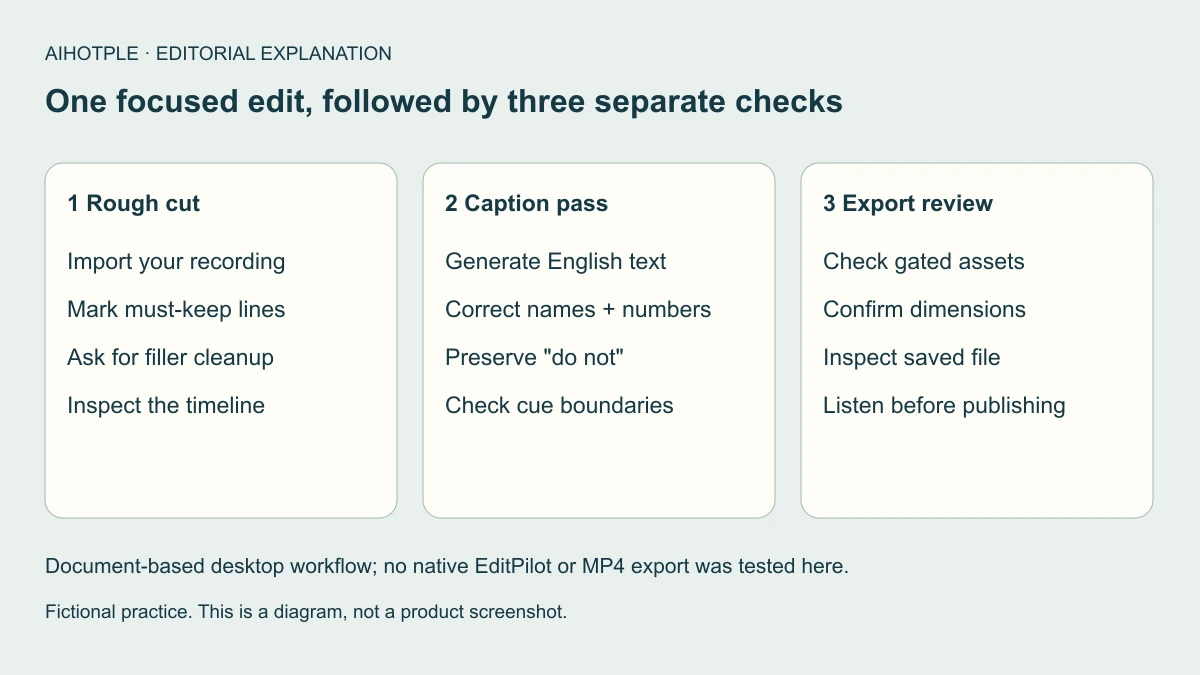
1. Prepare a brief that protects the point of the video
Use footage you own or have permission to edit. For a first attempt, choose one clear speaker or a simple narrated demonstration. Separate the main explanation from optional repetitions, and write down any factual or safety statement that must remain.
Our fictional Cedar desk timer example has a tap-to-start instruction and a long-press reset warning. The brief also says there is no app, subscription or wireless connection. Those are exercise facts, not real product claims. A shorter version that reverses one of them is not an acceptable edit.
The timecoded script in the kit is a 48-second planning fixture, not a recorded media file. You can use it to rehearse the decision process before filming your own demo. Do not assume its timecodes will match your real delivery or the eventual edit.
- Write the audience and purpose
For example: a short product explanation for a first-time viewer, using your own recording.
- Mark must-keep statements
Protect numbers, negations, conditions, warnings and any spoken action the viewer must follow.
- Separate the first pass from final delivery
Ask for a focused cleanup; do not let a target duration silently override the facts.
2. Import footage and request one focused timeline change
In CapCut PC, create a project, import the recording and place it on the main timeline. CapCut’s official EditPilot walkthrough recommends a starting rough assembly before issuing an editing request. Use a separate working version so you can compare the cut with the source.
Open EditPilot where it appears in your current desktop build and paste the first-pass request below. The expected result is an editable timeline change you can inspect. The location and available controls can vary with the release; this article does not provide an invented fixed button position from an untested installation.
Start with filler and pause cleanup. Inspect which clips were removed before asking for captions, reframing or extra assets. If a must-keep sentence disappears, undo or revise that change and request a narrower operation. Avoid combining duration, translation, music, generation and visual changes into one opaque instruction.
Tighten this English product-demo recording while preserving the order and meaning of each instruction. Remove obvious fillers and empty pauses only. Keep the long-press reset warning, no-app/no-subscription statement and cleaning caution. Do not add claims or stock music. Make a first pass on the timeline and identify any wording you could not preserve. Do not assume the goal duration overrides a safety or factual statement.3. Generate captions, then correct the words
For the desktop caption route, CapCut’s help describes Text → Auto Captions, choosing the language and audio track, then Recognize. To edit wording, double-click a caption block or use its Edit Captions command. Confirm those labels in the installed build rather than applying web or mobile instructions blindly.
Request English captions, then inspect names, numbers, units and negations against the recording. A clean two-line layout can still say the opposite of the speaker. In our exercise, Hold the button changes the intended reset warning, while It has an app and subscription reverses the source’s exclusions.
After correcting wording, inspect segmentation. A cue can be hard to read even when every word is right. CapCut documents desktop timeline splitting with Ctrl+B on Windows and Cmd+B on macOS; confirm the selected clip and playhead position before using a split command. Keep the caption style consistent rather than adding decoration to hide a poor break.
Create English captions from this recording. Preserve negations, numbers and the distinction between tap and long press. Use at most two lines per cue where the editor supports it, then leave captions editable for manual review. Do not claim that caption generation checks factual accuracy.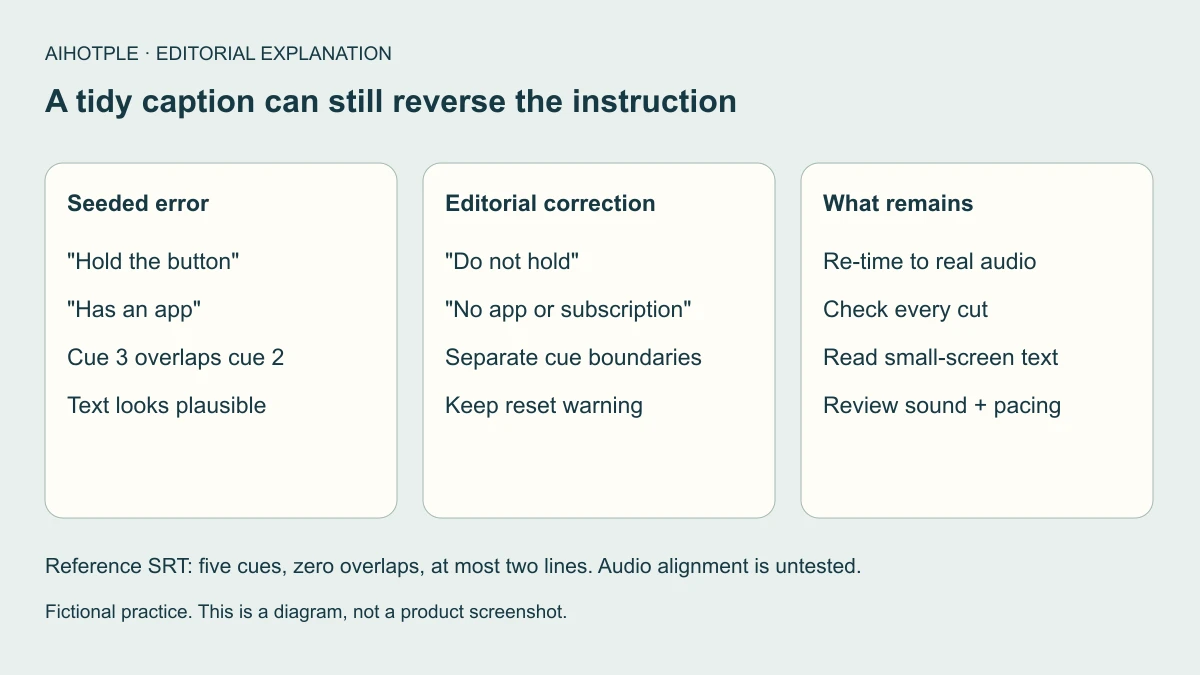
4. Try the downloadable SRT review before editing a real recording
The seeded SRT contains five cues. Cue 2 ends at 10.000 seconds, but cue 3 begins at 9.500 seconds: a half-second overlap. A structural check can detect that boundary conflict; it cannot determine whether the spoken word belongs at either time.
The editorial reference moves the next boundary to 10.000 seconds, restores Do not hold and No app or subscription, and retains the dry-desk and cleaning cautions. It has five positive-duration cues, no overlapping boundaries and at most two lines per cue. Those are local text-file checks, not a successful CapCut render.
The reference is a compressed illustrative 29-second cut of the planning material. Its times must be rebuilt against your actual final recording. Do not attach it to the uncut 48-second script or another video and assume synchronization.
Our subtitle workbench can help inspect a subtitle file before importing it. Keep the separate human meaning check: automated format validation does not know whether a removed not changes an important instruction.
| Review | Seeded issue | What a text check establishes |
|---|---|---|
| Timing | One overlapping cue pair | Reference has zero overlaps |
| Meaning | Hold vs do not hold | Requires source comparison |
| Meaning | Has an app vs no app | Requires source comparison |
| Layout | Reading density | Reference has at most two lines |
| Audio | No recording in this exercise | Synchronization remains untested |
5. Inspect export requirements before you commit to the edit
Open the actual project’s Export panel and check dimensions, orientation, frame rate and any feature or asset restrictions shown for your account. A timeline can contain an effect, font, generated element or audio asset with separate requirements. Do not infer export access from the ability to preview an effect.
For a vertical social clip, 1080 × 1920 is a possible delivery choice when your source and target support it; it is not a universal setting. Review the crop at the actual chosen size and keep captions clear of important objects and interface overlays. For a horizontal tutorial, preserve a suitable landscape frame instead.
After export, confirm that the saved file exists, has the intended duration and dimensions, and includes the expected audio stream. A playable MP4 container still does not prove intelligible narration, correct pacing or synchronized captions. Before publishing your own work, review the complete sound and motion. We did not perform playback or a native export in this exercise.
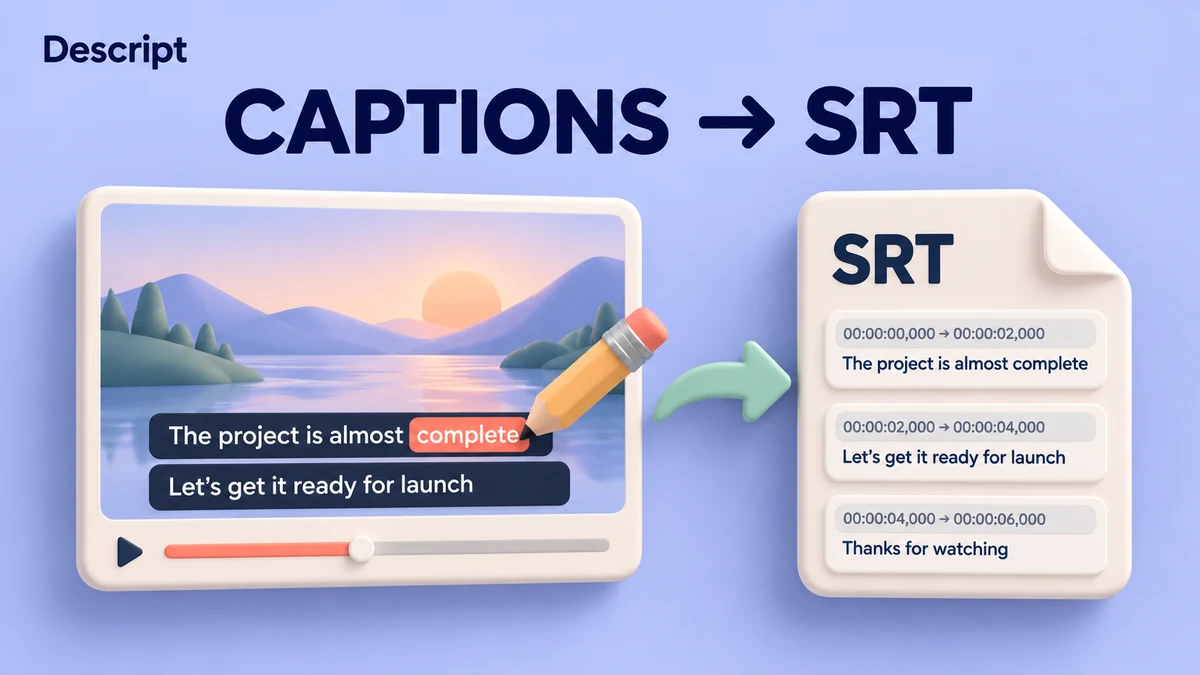
If you need an example with actual downloaded short-video outputs rather than this documented CapCut route, use the Descript or caption-export exercises below. Keep their tested product and account conditions separate from EditPilot.
Sources & verification
Official CapCut documentation checked on 3 November 2026. CapCut desktop was not installed in our working environment; we did not install it, run EditPilot, transcribe audio, create a recording or export an MP4. The supplied timed script, seeded-error captions and corrected reference are original fictional editorial fixtures, not CapCut outputs. Local checks verify five reference cues, zero overlaps and at most two lines per cue; they do not verify sound, pacing or audio alignment. Account, region, version, free access and any paid export requirement must be checked in your actual application.
- CapCut · EditPilot desktop scope
- CapCut · using EditPilot on PC
- CapCut · correcting automatic captions
- CapCut · October 2026 announcements
Sources checked: 2026.11.03