- Choose one small task with an observable finished state.
- Turn vague click labels into decisions a new reader can follow.
- Review screenshots and sharing access before distributing the procedure.
We replayed the fictional task and checked the signed-in Scribe entry point. The test profile did not detect the capture extension, so the Scribe capture, editing and sharing instructions follow official documentation.
Files for this exercise
AIHotple example files and prompts. Try the exercise before substituting real work data.
Document one completed task, not an entire working day
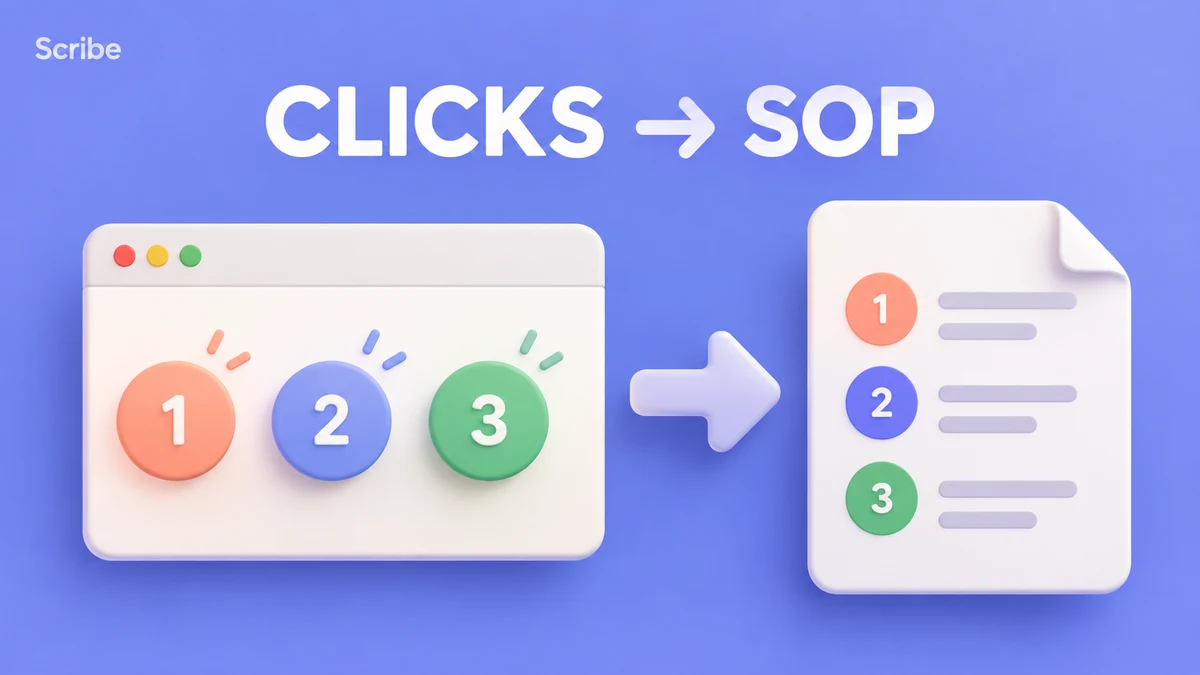
When a colleague asks the same “where do I click?” question for the third time, a screenshot procedure can be more useful than another long explanation. Scribe captures a demonstrated browser process and turns it into steps. Your job is to make those steps safe, meaningful and repeatable.
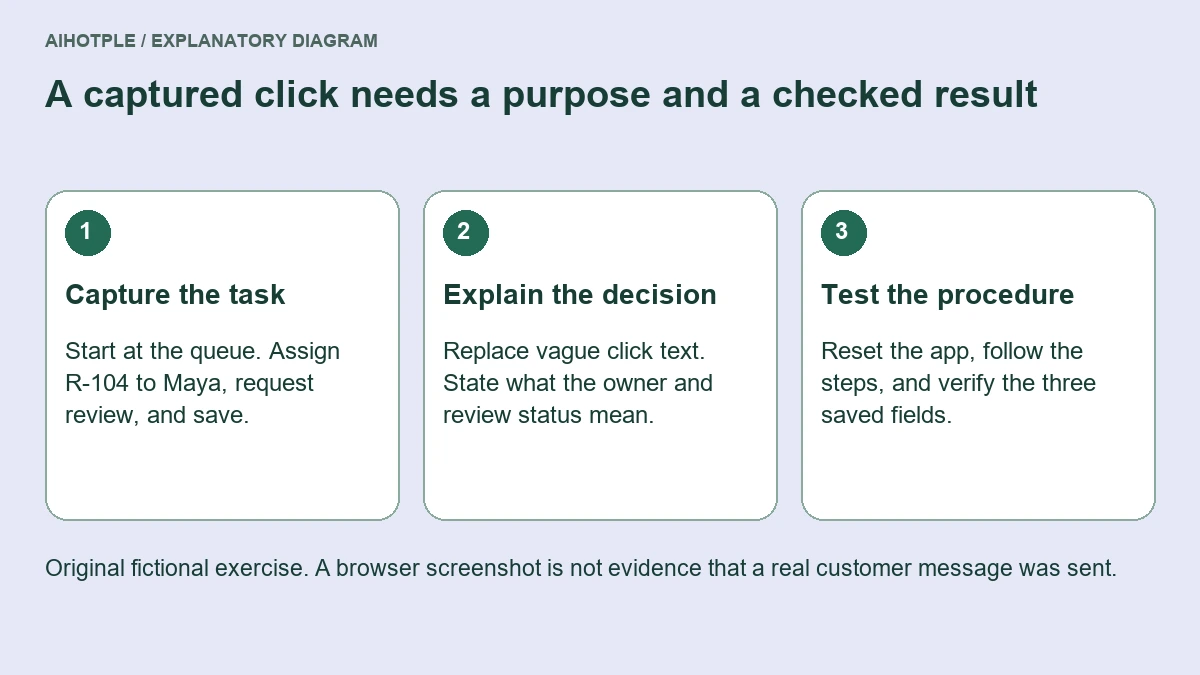
For a first SOP—standard operating procedure—pick a task that starts and ends in one place. Our example assigns one fictional support request to Maya, marks it Needs review, and saves an internal note. It does not send a reply. That narrow result makes it possible to check whether the instructions actually worked.
Avoid beginning with a real inbox, billing account or administrator console. A capture can contain more than the button you meant to explain. Our account-free Cedar Desk app uses an example.test email address and fictional requests, so the whole exercise can be repeated without exposing a customer.
1. Prepare a clean starting point
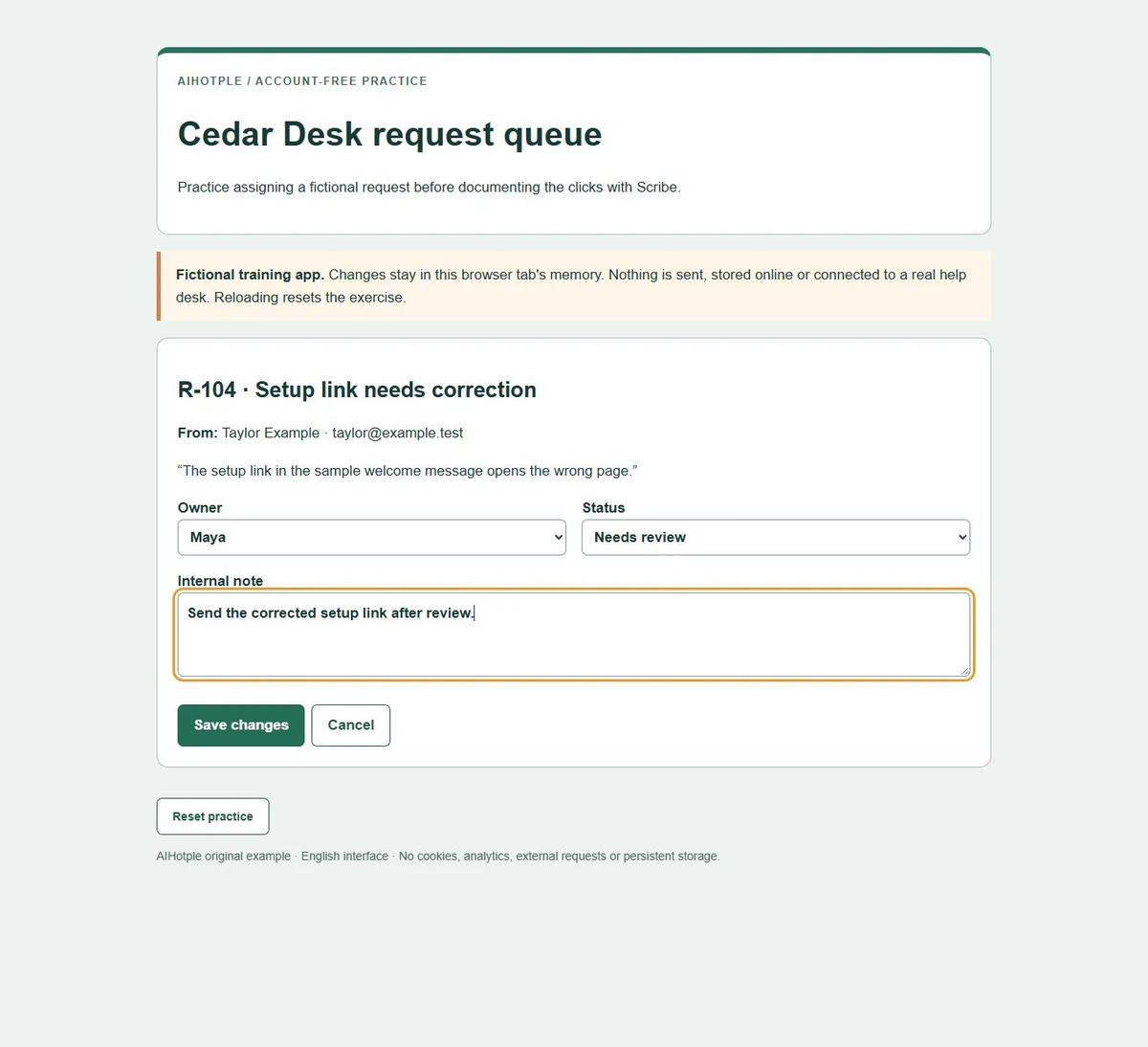
Download and extract the practice ZIP. Keep its HTML, JavaScript and CSS files together, then open scribe-practice.html in Chrome or Edge. You should see Open requests with R-104 unassigned and New. The page does not require a login or connect to a help desk. Changes exist only in the current tab’s memory.
Read completed-sop.md once before capturing. Then click Reset practice. The intended outcome is Owner Maya, Status Needs review, and the note “Send the corrected setup link after review.” Keep these expected values visible in your brief instead of trying to reconstruct them from the capture afterwards.
Before using Scribe, close unrelated pages and notifications, use a readable browser zoom, and arrange the app so the target control and its context fit on screen. Start before the first action you want the reader to perform. Do not record a password or a real customer’s information just to make the example feel realistic.
Open Scribe’s official browser-extension installation page ↗
2. Capture the demonstrated browser task
Install the official Scribe browser extension and sign in to your account. The official getting-started instructions describe Start Capture as the beginning of a targeted capture. Use that deliberate task capture for this exercise; organization-wide Autocapture is a different feature and is not required.
The remaining capture instructions in this section are documentation-based. Our signed-in account showed New → Capture a Scribe → Browser, but required the extension before a capture could run. With the practice queue open and the extension ready, start the capture, choose Open R-104, select Maya under Owner, select Needs review under Status, enter the example internal note, and click Save changes. Pause at the Saved · R-104 result so there is a visible ending. Complete the capture using the capture toolbar, then open the generated guide in Scribe.
If the extension cannot capture a file:// page, check its site-access options before granting anything new. A local web server can also serve the extracted files on localhost. You do not need to make the practice app public or upload a personal work recording. Scribe is being used to document demonstrated clicks here, not to convert an arbitrary video upload into an SOP.
- Open the request
Start from the queue and choose Open R-104.
- Set the review fields
Owner: Maya. Status: Needs review. Add the provided internal note.
- Save and verify
Click Save changes. Check all three saved values and the No message sent label.
3. Edit the instructions so the next person understands the decision
Give the guide an outcome-based title, such as “Assign a request for review without sending a reply.” Add a short starting-condition note: the reader is in the request queue, R-104 exists, and the task is an internal handoff. A title like “Cedar Desk walkthrough” leaves too much for the reader to guess.
Review every captured step. Replace “Click here” with the visible control name and the reason for using it. “Select Needs review so the request remains open for a person to check” tells the reader more than a mouse target alone. Keep the value to choose in the same step as the action.
Remove accidental navigation and repeated clicks. Scribe’s editing documentation describes combining, copying and deleting steps; combine only actions that still remain clear together. Keep Save changes as a separate step because it changes the request state. Do not write “reply sent” when the app only saved an internal note.
The useful addition is the explanation, not more screenshots. Our completed SOP includes a check after saving and a recovery instruction: if the three fields are wrong, return to the queue, open R-104 and correct them before using the document.
4. Check screenshots, text and plan limits before sharing
Read both the step text and the screenshots. Names, account menus, notifications and information in the background can be exposed even when the main field is fictional. Removing a word from a step does not remove it from the picture.
The current Scribe documentation lists screenshot redaction and advanced screenshot editing as Pro or Enterprise features. Basic browser capture does not imply that every redaction or export control is free. If a feature is unavailable, recapture a clean fictional screen rather than relying on a blur you cannot apply. Do not treat an upgrade prompt as a reason to publish sensitive material.
The public plan page lists PDF, HTML and Markdown exports under paid Pro features. The ZIP attached to this article is our original practice material, not a claimed Scribe export. Check the current account controls before promising a particular file format to a colleague.
5. Set the intended access, then test the procedure again
Open Share and inspect the actual sharing setting. Scribe distinguishes Not Shared, team access and Anyone with the link can view. Link access is not restricted to your coworkers simply because you send the URL in a work chat. Choose the narrowest setting that serves the intended readers, and check whether their permission is view or edit.
Before distribution, reset the practice app and follow the finished SOP from its first step, using the instructions rather than memory. Confirm the final owner, status and note. In this exercise, the saved screen must also say No message sent. A colleague repeating it for the first time is a stronger usability check than your own replay; do not label an editorial replay as independent user testing.
Keep a procedure owner, a checked date and a simple version note in the document. When the application changes, update the affected steps and replay the task. An exported file is a copy, so decide how readers will find the current version before you circulate several different attachments.
| Finished-state check | Expected result in the practice app |
|---|---|
| Request | R-104 · Setup link needs correction |
| Owner | Maya |
| Status | Needs review |
| Internal note | Send the corrected setup link after review. |
| Communication | No message sent |
Use the template for the next procedure
For your own SOP, keep six pieces: purpose, starting conditions, numbered actions, expected result, recovery and document owner. Put the action beside the matching picture. Do not make readers hunt through a separate glossary to find the value they need to select.
Use Scribe when the work is mostly visible clicks and a colleague needs to repeat them. For a judgment-heavy task, add examples of the decision and when to ask a person. A captured click sequence records what happened once; the completed SOP should explain what a reader should do the next time.
Apply the same review-before-write principle to meeting tasks →
Sources & verification
Official Scribe capture, editing, sharing and plan documentation checked on 24 October 2026. We performed and checked the original Cedar Desk browser task, including owner, review status, note and the saved result. The downloadable SOP and app are AIHotple originals. We signed in and checked New → Capture a Scribe → Browser; the account required the browser extension, which was not detected. Scribe capture generation, guide editing, sharing changes and paid exports were not executed. Those product procedures below follow official documentation; the app replay is a separate check. No paid upgrade, real customer data or message delivery was used.
- Scribe · Getting started with Capture
- Scribe · Using the editing tools
- Scribe · Combining, copying and deleting steps
- Scribe · Redact sensitive information
- Scribe · Sharing settings
- Scribe · Current plan features
Sources checked: 2026.10.24