- Choose moments whose meaning survives outside the interview.
- Give the clip editor a specific sentence to keep, including the guest’s qualification.
- Generate chapter times from the version your audience will hear.
“The median wait was four minutes” sounds close to “the sign saved four minutes.” Only one of those claims appears in our sample interview. Here’s how to catch the change while turning a conversation into clips and episode notes.
Files for this exercise
AIHotple example files and prompts. Try the exercise before substituting real work data.
Start with an interview you can check
Unzip the practice kit and open transcript.txt. The host asks about a Saturday queue and a lamp repair bench. Circle “twelve arrivals” and “ten lamps.” Those are separate groups. Now look for the sentence following each headline number. Those next sentences determine which captions you can publish.
In Riverside, open the studio and project containing your own recording. If you are using this exercise, upload repair-cafe.mp3 to the project and wait for its transcript. Check the language and the number words. Our reference transcript labels both scripted roles; the practice audio uses one synthetic voice, so automatic speaker labels may differ.
Find two moments with Clipper
Open Made for You in your project and find Magic Clips. Select Edit on a candidate to inspect its start and end. If your plan offers extra generation, the project’s Create menu also has Magic Clips with preferences for duration, keywords and speakers. Try “median wait” for one cut and “lamps” for the other.
Riverside lists Magic Clips across plans but limits some additional generation controls. According to its agent documentation, chatting is separate from tasks that spend AI credits. Check the displayed cost before approving a task. You can do the editorial part of this exercise with just the transcript and supplied cuts.
Suggest two standalone clips from this interview. Give source start and end times, the speaker’s exact first and last sentences, and a proposed caption for each. Preserve the sample size and every qualification needed to interpret the number. Flag any caption that implies a comparison we did not measure. Prepare drafts only.Audit the cut where a number changes meaning
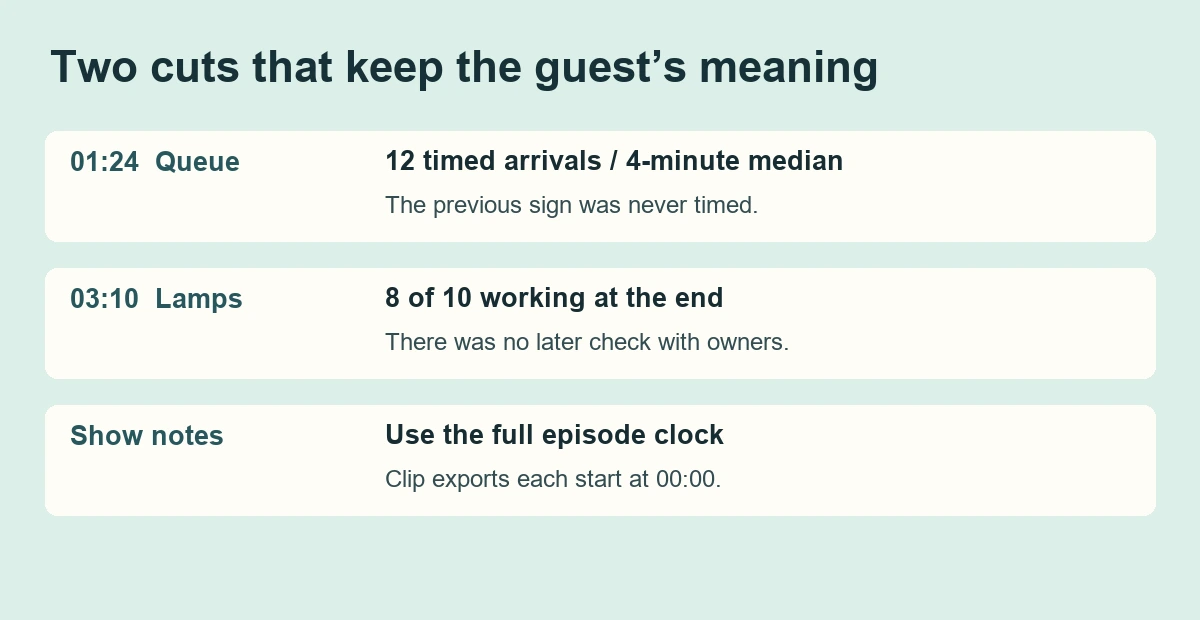
The first reference clip starts at 01:24 on the episode clock. The guest gives the median for twelve timed arrivals and explains that the old sign was never timed. An audience seeing just the clip should still know why this was an observation, not a measurement of time saved.
The next clip starts at 03:10. Eight lamps worked when tested at the end of the session. The two remaining lamps needed parts. Cut after the guest explains the separate tally and the absence of follow-up. Calling that “eight of twelve customers helped” changes both the denominator and the outcome.
| Draft caption to check | What the recording supports |
|---|---|
| “A new sign cut waits by four minutes.” | Median wait among twelve timed arrivals was four minutes that Saturday. The previous sign was never timed. |
| “The team permanently fixed 80% of visitors’ items.” | Eight of ten lamps worked at the end of the session. Other items and longer-term results were outside that count. |
Make show notes from the final edit
In your project, choose Recordings for notes about the original, or Exports for notes about a finished edit. Hover over the intended recording or export and choose Ask AI → Show notes. Riverside lists this feature for Pro, Grow, Webinar and Business on a computer browser or the Mac app. The input must have a transcript and run longer than five minutes. Our full interview clears that length requirement. Neither short clip does.
Check the first words at each chapter. Our full-source markers are 00:00 for the two tables, 01:00 for timing the queue, 02:50 for the bench count, and 03:42 for writing a caption. If you remove ten seconds from the opening, the queue chapter moves to roughly 00:50. Compare the actual edited transcript before copying the times into a podcast description.
Hand the Marketer a publishable brief
Give Marketer the approved captions and episode summary. Ask for one draft per clip and keep the project in review while you check the copy. For a number-heavy interview, a good last pass is to underline the unit, time window and comparison in each draft. Each should point to a line in the transcript.
The practice kit includes show-notes.txt and both portrait MP4s. Compare the on-screen wording with the transcript, or use the text-only notes to do the exercise silently. If you use the generated cover for the episode, the companion guide lets you inspect its original file.
Inspect the actual AI-generated cover used for this episode →
Sources & verification
The download contains an original 5:22 fictional repair-cafe interview voiced using speech synthesis, two locally edited MP4s and editorial reference notes. Riverside required sign-in in our session. Its controls and plan requirements below come from its published instructions. The clips are reference cuts made by AIHotple.
- Riverside introduces its production agents
- Riverside Help Center on agent tasks and credits
- Riverside instructions for Magic Clips
- Riverside instructions and eligibility for AI Show Notes
Sources checked: 2026.11.07