- Inspect the original asset before a site resizes it or someone takes a screenshot.
- Read the creation statement, file integrity and certificate trust separately.
- A missing embedded record leaves origin unresolved. Ask for an earlier file.
Start with the file you received. A signed production record can tell you what a tool declared when it created an image. Your conclusion also depends on whether that record still matches the file and whether the verifier trusts the signing credential.
Files for this exercise
AIHotple example files and prompts. Try the exercise before substituting real work data.
Open the original cover in a browser inspector
Download the practice ZIP and extract original.png and copy.png. The files depict the same microphones. Start with original.png. Open Adobe Content Authenticity Inspect, choose the file selection control, and give it that PNG. Use the downloadable original for this test: the smaller WebP displayed on the article page is a separate website asset.
Find the tool or issuer, the recorded creation action, and any validation warning. Write down the exact wording beside the filename. This makes it possible to revisit a warning even if another verifier displays a different badge.
Read three separate pieces of evidence
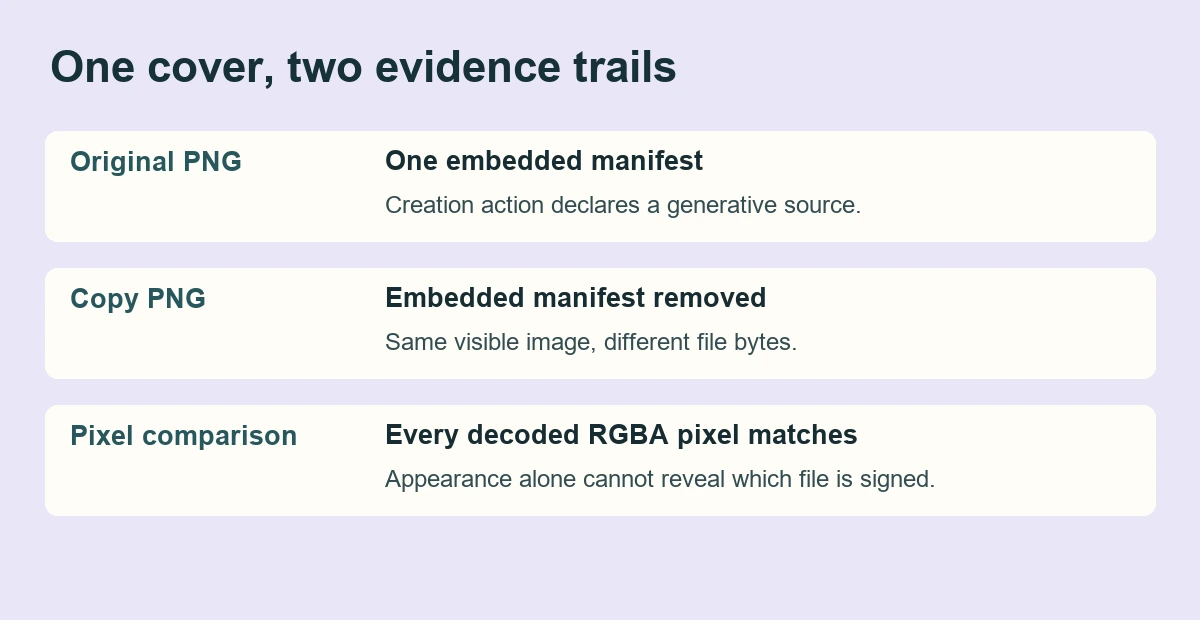
Our local report for original.png listed one embedded manifest, the signed record bundled with the image. Its generator field named OpenAI Media Service API. The creation action declared trainedAlgorithmicMedia, a source type for generative output. We also know how this particular image was made because AIHotple commissioned it for the interview article.
| Question | Result from the original PNG | How to report it |
|---|---|---|
| What origin was declared? | A creation action with trainedAlgorithmicMedia | The embedded record describes AI generation. |
| Does the signed content match? | claimSignature.validated and assertion.dataHash.match | The signature and asset-hash checks succeeded. |
| Did the credential pass every check? | Overall Invalid; signingCredential.untrusted and signingCredential.invalid | The local verifier did not accept the signer as trusted. Its report also flagged a missing required certificate usage. |
Compare the second file before drawing a conclusion
Inspect copy.png next. We created it by removing just the PNG chunk that carries the manifest. We kept the compressed picture data and independently compared every decoded RGBA pixel. The pixels matched exactly. The local reader found no claim in the copy.
This is how the same artwork can produce two different evidence trails. You can demonstrate that the two supplied images match because both originals are available to compare. With a single unlabelled image from a group chat, you do not have that reference. Ask the sender for the earliest export.
Reproduce the local result if a badge is ambiguous
With the official c2patool installed, extract the ZIP into a folder and open a terminal there. Run the commands below one at a time. In the first report, find the action’s digitalSourceType and the validation results. In our run the claim signature and hashes matched, but the overall state was Invalid. For the second command, “No claim found” was the expected result.
A browser inspector can use different trust settings or offer to search for possible matches. An external match can be useful for following an image back to its source. Record it as a retrieved match and note which file you submitted. It is a different observation from finding a manifest embedded in the file itself.
Get C2PA Tool from the official repository ↗
c2patool original.png --detailed
c2patool copy.png --detailed
Decide what you can say when you publish
For this sample, an accurate credit is “AI-generated illustration commissioned by AIHotple. The original PNG contains an AI creation record. Our local verifier reported a certificate warning.” For the derivative alone, the useful statement is narrower: “No embedded record was found in the file examined.”
Keep the original alongside the web export so a reader can repeat the check. To verify a photo that claims to show an actual event, separately establish who supplied it, when it was captured and what independent reporting confirms. A signed edit history cannot settle those questions on its own.
See how the cover accompanies a fictional interview and two edited clips →
Sources & verification
We tested the original AI-generated Riverside article cover and a purpose-made copy with C2PA Tool 0.28.4. We checked the decoded pixels independently. The browser walkthrough follows Adobe and Content Authenticity Initiative documentation. The results table reports the local tool run.
- Content Authenticity Initiative guide to Adobe Inspect
- Adobe on finding possible credential matches
- Official C2PA Tool and release downloads
- C2PA frequently asked questions
Sources checked: 2026.11.07