- Draft both files from the same source brief.
- Check the DOCX and PPTX themselves, including presenter notes.
- Put decision-critical status on the slide people see.
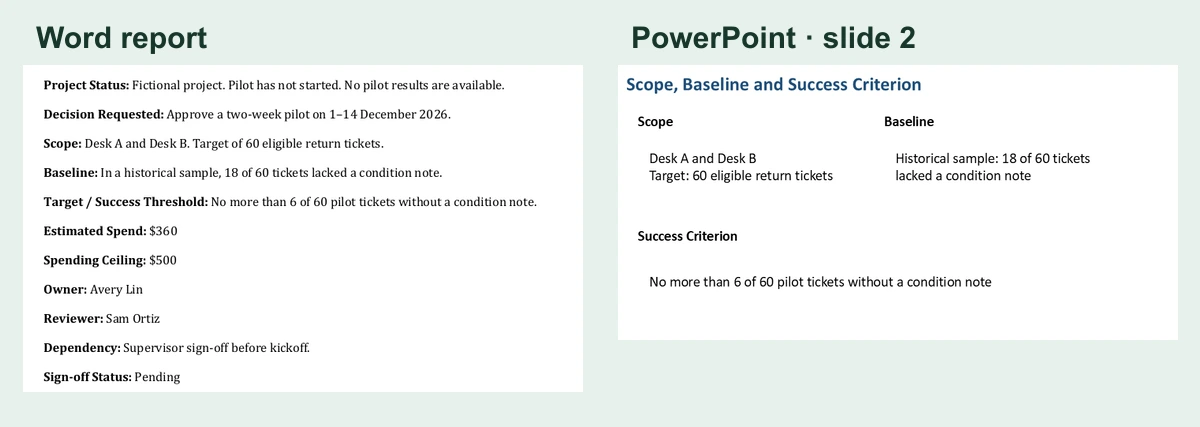
Two separate Copilot Chat requests returned a one-page Word report and four editable slides with presenter notes. The dates, counts, spending figures and pending sign-off matched. The no-results caveat was visible in Word and appeared only in the deck’s presenter notes.
Files for this exercise
AIHotple example files and prompts. Try the exercise before substituting real work data.
Create a Word report from one source brief
The fictional Cedar Desk project requests approval for a two-week returns pilot. The dates, spending ceiling, ticket count and pending sign-off are all in the source. Both requests below use that source, so a paraphrasing mistake in Word cannot flow into the slides.
- Open Copilot Chat on the web
Sign in and choose New chat. Our test used the main Copilot composer under the personal account. The availability of named agents is governed separately by Microsoft’s licensing and organization settings.
- Request a file by extension
Paste the Word request below. Ask for a one-page editable report with pending sign-off and no invented results or savings. Wait for the actual .docx download link.
- Open the DOCX in Word
Download the file and open it. The report should include the 18/60 baseline, no more than 6/60 target and the difference between estimated spend and the spending ceiling.
CEDAR DESK RETURNS PILOT — FICTIONAL SOURCE
Audience: operations leads
Decision requested: approve a two-week pilot on 1–14 December 2026.
Scope: Desk A and Desk B. Target of 60 eligible return tickets.
Baseline: 18 of 60 tickets lacked a condition note in a historical sample.
Success threshold: no more than 6 of 60 pilot tickets without a condition note.
Estimated spend: $360. Spending ceiling: $500.
Owner: Avery Lin. Reviewer: Sam Ortiz.
Dependency: supervisor sign-off before kickoff. Sign-off is pending.
Risk: part-time staff may miss the change. Mitigation: include the two-minute checklist at shift handoff.
No pilot results are available. This brief makes no savings estimate.

Use only the Cedar Desk Returns Pilot brief above. Create an editable one-page Word report for operations leads. Cover decision requested, scope, baseline, target, spending estimate and ceiling, ownership, and the pending sign-off. Include the stated risk and mitigation. Label the project fictional and do not imply it has started. Do not estimate savings.
Return the actual downloadable .docx file. Use only the pasted text. Do not search the web, read existing files, send anything or share the result.
Create the slides in a new chat
Use the original brief again. Ask for four slides with short presenter notes. Keep the requested approval and the pending sign-off explicit. The deck we got made the decision and the cost easy to find but kept the no-results caveat in a speaker note.
- Start a second chat
Choose New chat again and paste the PowerPoint request below. Look for a real .pptx attachment or download link.
- Check the deck in PowerPoint
Open the file. Slides 1–4 cover the decision, metrics, costs and ownership. Open the Notes pane to read what an audience will miss if the deck is sent as a PDF or read without presenter notes.
CEDAR DESK RETURNS PILOT — FICTIONAL SOURCE
Audience: operations leads
Decision requested: approve a two-week pilot on 1–14 December 2026.
Scope: Desk A and Desk B. Target of 60 eligible return tickets.
Baseline: 18 of 60 tickets lacked a condition note in a historical sample.
Success threshold: no more than 6 of 60 pilot tickets without a condition note.
Estimated spend: $360. Spending ceiling: $500.
Owner: Avery Lin. Reviewer: Sam Ortiz.
Dependency: supervisor sign-off before kickoff. Sign-off is pending.
Risk: part-time staff may miss the change. Mitigation: include the two-minute checklist at shift handoff.
No pilot results are available. This brief makes no savings estimate.

Use the same original Cedar Desk Returns Pilot brief above. Create an editable four-slide deck. Slide 1: decision requested and proposed dates. Slide 2: scope, baseline and success criterion. Slide 3: cost, risk and mitigation. Slide 4: owner, reviewer and pending sign-off. Add short presenter notes if supported. Do not imply approval, report pilot results or estimate savings.
Return the actual downloadable .pptx file. Use only the pasted text. Do not search the web, read existing files, send anything or share the result.
Review the decision details before handing off both files
Word opened as one page with native editable text. PowerPoint contained four slides with text objects and notes. We read both files against the source below. For a slide deck sent without a presenter, edit slide 1 to identify the pilot as fictional and note that no results are available yet.
| Field | Meaning from the original brief | Word and PowerPoint check |
|---|---|---|
| Decision and dates | Approve proposed pilot, 1–14 Dec 2026 | Both present it as a request |
| Scope and baseline | Two desks, target 60 tickets, historical gap 18/60 | Both preserve counts and time context |
| Success | At most 6 of 60 pilot tickets missing condition notes | Both preserve the threshold |
| Cost | Estimate $360, ceiling $500 | Both preserve the distinction |
| Status | Supervisor sign-off pending. No pilot results. | Both show pending. Word states no results in the body. PowerPoint puts it in slide 2 notes. |
If Copilot gives you an outline without a file
Ask once for the actual attached format by name. If the app still gives you only text, paste it as a draft into Word or PowerPoint and verify it manually. Microsoft documents separate Word and PowerPoint Agents for eligible Microsoft 365 Copilot license holders. Check the agent or editing instructions for your plan before depending on a particular menu.
See another hands-on comparison of editable PowerPoint files →
Sources & verification
We tested the regular Copilot Chat web interface with a signed-in personal account and no new purchase. We rendered the downloaded DOCX and PPTX in desktop Word and PowerPoint and inspected their native text and slide notes. The app’s labeled Word and PowerPoint Agents, Copilot in Office editing, organization policies, and real workplace files were outside this run.
- Microsoft Ignite announcement for Office in Copilot
- Microsoft Copilot help for creating a file from Chat
- Microsoft support for editing with Copilot in Office
- Microsoft 365 Copilot Word, Excel and PowerPoint Agents and license
Sources checked: 2026.11.18