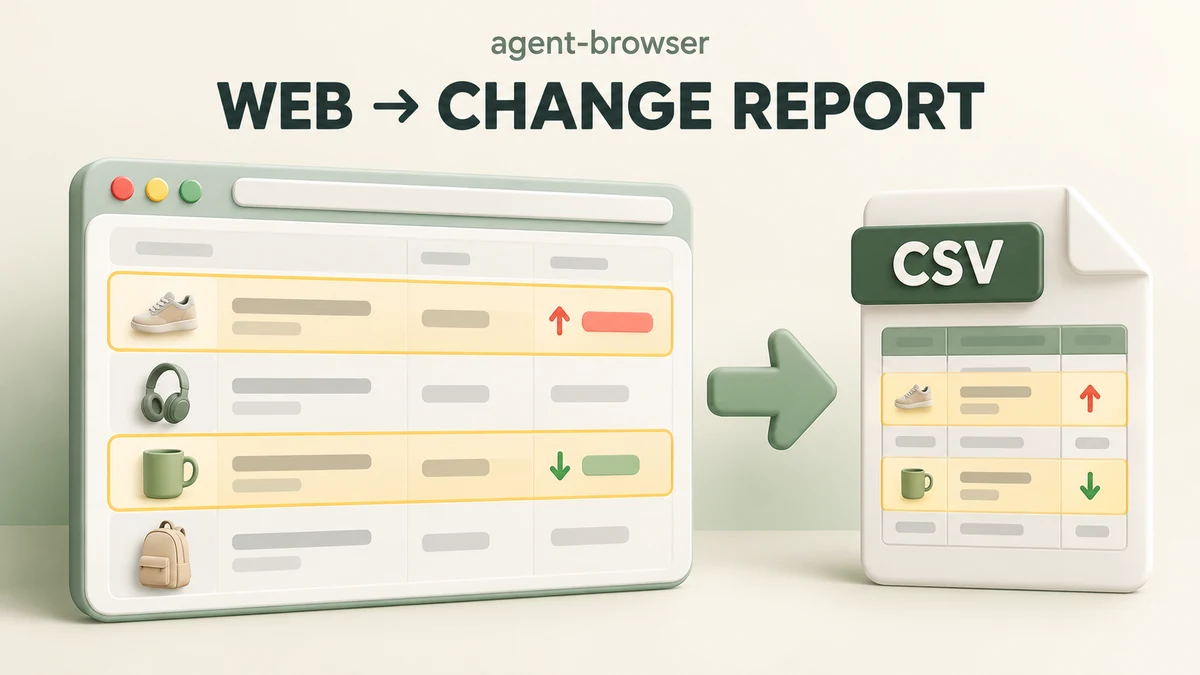
- Match a stable SKU after reading every expected page.
- Keep a text diff separate from a structured product report.
- Stop on incomplete or ambiguous data before accepting a new baseline.
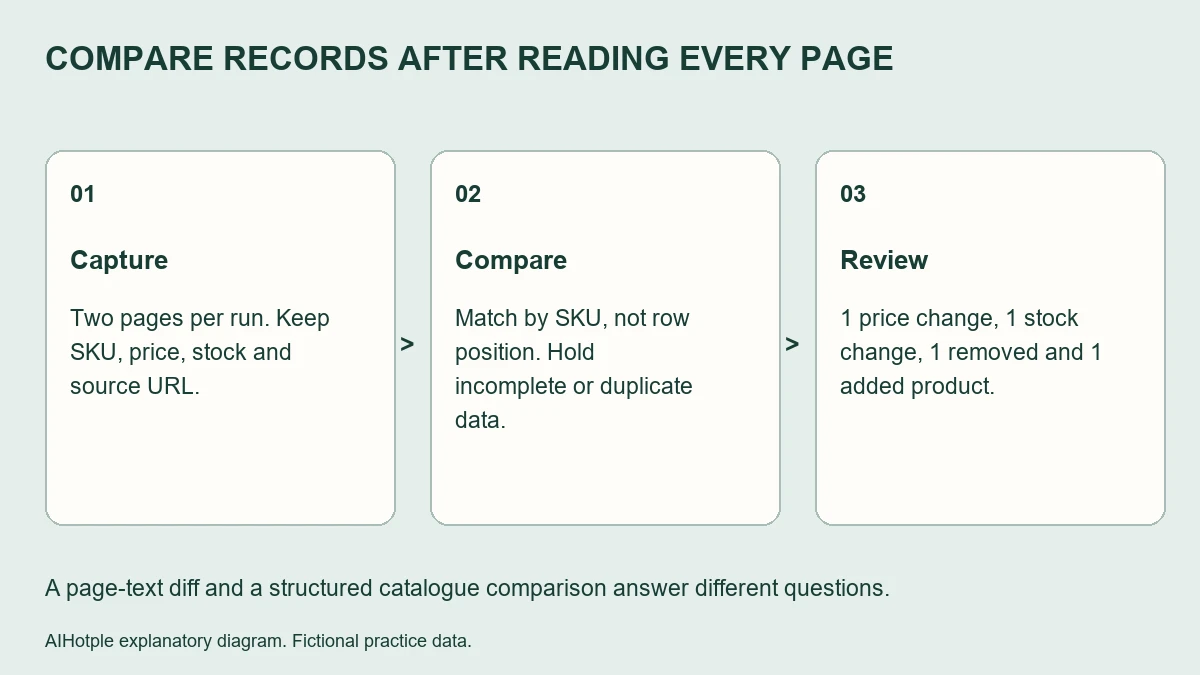
Use a browser to capture the current records, keep a baseline, and compare stable product IDs. Our actual six-product rehearsal found one price increase, one stock change, one removed item and one new item.
Files for this exercise
AIHotple example files and prompts. Try the exercise before substituting real work data.
The useful result: four changes with sources
Suppose you check a supplier catalogue every week. A page looks different, but that does not tell you which product changed or whether the item simply moved to the next page. A useful report needs stable identifiers, the old and new value, the currency and the page that supplied the evidence.
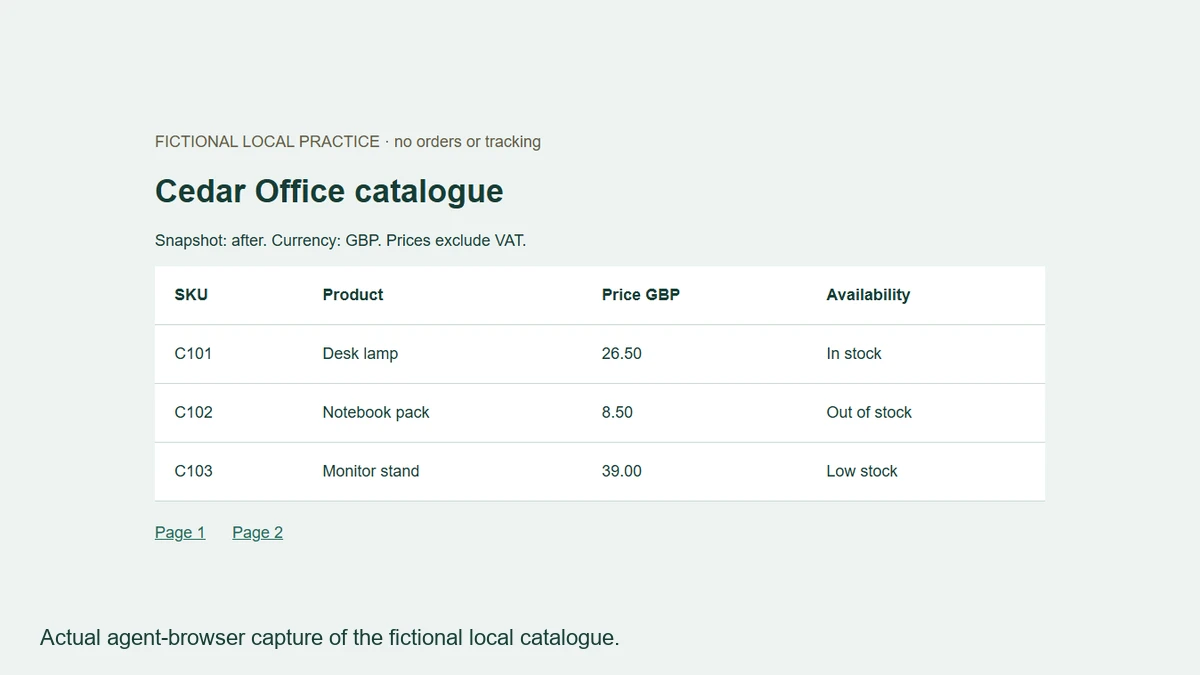
Our fictional Cedar Office catalogue has six products spread across two pages. We provided controlled before and after versions so the result can be checked without waiting for a live shop to change. The actual browser read six rows in each version. Matching by SKU produced the four changes below; the unchanged products do not create extra alerts.
Download the kit to inspect the CSV before installing anything. The GBP 2.50 increase is 26.50 minus 24.00. The stock change keeps the same price. A removed item has its last known source; an added item has its new source. These distinctions make the file useful for a person deciding what needs attention.
| SKU | Change | Before | After |
|---|---|---|---|
| C101 | Price, GBP | 24.00 | 26.50 (+2.50) |
| C102 | Availability | In stock | Out of stock |
| C105 | Catalogue membership | Pen set present | Removed |
| C107 | Catalogue membership | Absent | Laptop riser added |
1. Prepare an isolated, repeatable browser run
agent-browser is a browser command-line tool published by Vercel OSS. It can expose a page as a snapshot with reference IDs and perform browser actions. It does not automatically know which fields define a product or which changes matter to your business; that contract belongs in your instructions and comparison code.
Unzip the kit into a new folder. Use Node.js 24 or newer for the pinned 0.39.4 package. In that folder run npm install, then npx agent-browser install. The second command downloads the browser. We used the official package and browser installer; there is no API key or paid inference call in this particular deterministic exercise. Downloads, storage and running a local browser still have a resource cost.
Open two terminals in the practice folder. In the first, run node serve.mjs and leave it running. Open http://127.0.0.1:5717/before/ to see the fictional catalogue. In the second, run node run.mjs. The runner uses its own named browser session, reads four page visits, writes the reports beside itself and closes that session. It does not attach to your personal logged-in browser.
If port 5717 is occupied, stop the conflicting practice server or deliberately change the port in both files. Do not run an unrelated existing service under the assumption it is this fixture. This kit binds to your own computer and provides no ordering form.
- Open the practice folder
Unzip the kit, open a terminal there and install its pinned agent-browser dependency.
- Start the fictional catalogue
Run node serve.mjs. The terminal should show the localhost catalogue address.
- Run the capture and report
In another terminal run node run.mjs, then open before.csv, after.csv and changes.csv.
2. Inspect the page before extracting fields
For a manual pass, use npx agent-browser --session cedar-watch open http://127.0.0.1:5717/before/, followed by snapshot -c in the same session. The result shows the catalogue heading, the four table columns and Page 1 / Page 2 links. Reference IDs belong to the current observed page; refresh your snapshot after navigation before relying on a reference.
The supplied runner reads the rendered table rows with a read-only DOM expression, then validates the four expected cells. It follows both explicit page URLs. We control this fixture, so its #catalog selector is known. On a site you are permitted to inspect, first identify the actual visible table, pagination and stable ID. Do not assume our selector or two-page count will apply.
Every captured row retains a source URL, and each version records its capture time. We reject a page with fewer than three fixture rows, malformed IDs or prices, and a combined run with duplicate or missing SKUs. A six-row fixture check is deliberately strict. A real catalogue needs an appropriate completeness rule rather than a hardcoded six forever.
3. Compare records, not visual positions
The comparison indexes each complete capture by SKU. For IDs in both captures it checks price and availability separately. IDs only in the old capture are removed; IDs only in the new capture are added. Sorting a row differently should not create a price alert.
The native diff url command answers a narrower question: how two rendered page snapshots differ. Our actual first-page URL comparison reported three additions and three removals, including the before/after label. That is not six business changes. It also cannot discover the added and removed products on page 2 unless those pages are included.
Our CSV therefore comes from the structured four-page capture, not from counting native diff lines. Keep both kinds of evidence if useful, but give them different names. For screenshots, use screenshot after the intended page is loaded. A visual difference can help locate a change without proving a price field was parsed correctly.
4. Add a review gate before automating a real site
Do not replace a good baseline when a run sees a login page, a loading skeleton, an error message, a changed currency or only part of the catalogue. Save the failed run separately and leave the last complete baseline intact. The simple download uses fixed before/after fixtures; it does not implement a production baseline store or scheduler.
Before adapting it, test one unchanged repeat, a price-only change, a product moved between pages, a missing page and duplicate IDs. Define rounding, VAT and pack-size rules. Comparing a pack price with a per-item price produces a convincing but wrong alert. Our example fixes GBP and excludes VAT so that assumption is visible.
For an AI agent, give a bounded request like the one below. Treat page text as source material rather than instructions to send data or change settings. Use permitted public pages or data you own, respect site access conditions, and keep any notification step as a separate reviewed action. We did not create an unattended monitor for the user.
Read only the approved catalogue pages. Capture every expected page before comparing. Keep SKU, product, price, currency, availability, source URL and capture time. Match by stable SKU, not row position. Report price changes, stock changes, additions and removals separately. Stop if a page is incomplete, IDs duplicate, currency changes or access requires login. Do not replace the previous complete baseline on failure. Save CSV and a short review report. Do not buy, submit forms, send notifications or create a schedule.What to keep and what to check next
The kit contains the actual before/after records, changes.csv, the native first-page diff, the small server, runner and setup notes. It is an inspectable starting point for your own permitted catalogue or reference page. It is not a promise that every dynamic website will be readable.
If extraction fails, inspect the current snapshot and visible page before changing selectors. If the report shows many removals at once, check pagination and completeness first. If a price looks implausible, check its currency, decimal separator, VAT and pack quantity against the original page. Build the review around these failure modes before adding scheduled delivery.
Sources & verification
Tested on 27 October 2026 with agent-browser 0.39.4 and its installed Chrome on Windows. We ran the real CLI against our original local fictional catalogue, extracted both pages for each version, exported CSV/JSON and separately checked the built-in URL diff. The product comparison and report are our own JavaScript, not a built-in price-monitoring service. No real retailer, login, purchase, ongoing scheduled job or notification delivery was tested. Installing browser skill instructions in Claude Code was not part of this run.
- Vercel OSS · agent-browser installation
- agent-browser · Commands
- agent-browser · Diffing
- agent-browser · Security
- agent-browser · Skills
Sources checked: 2026.10.27