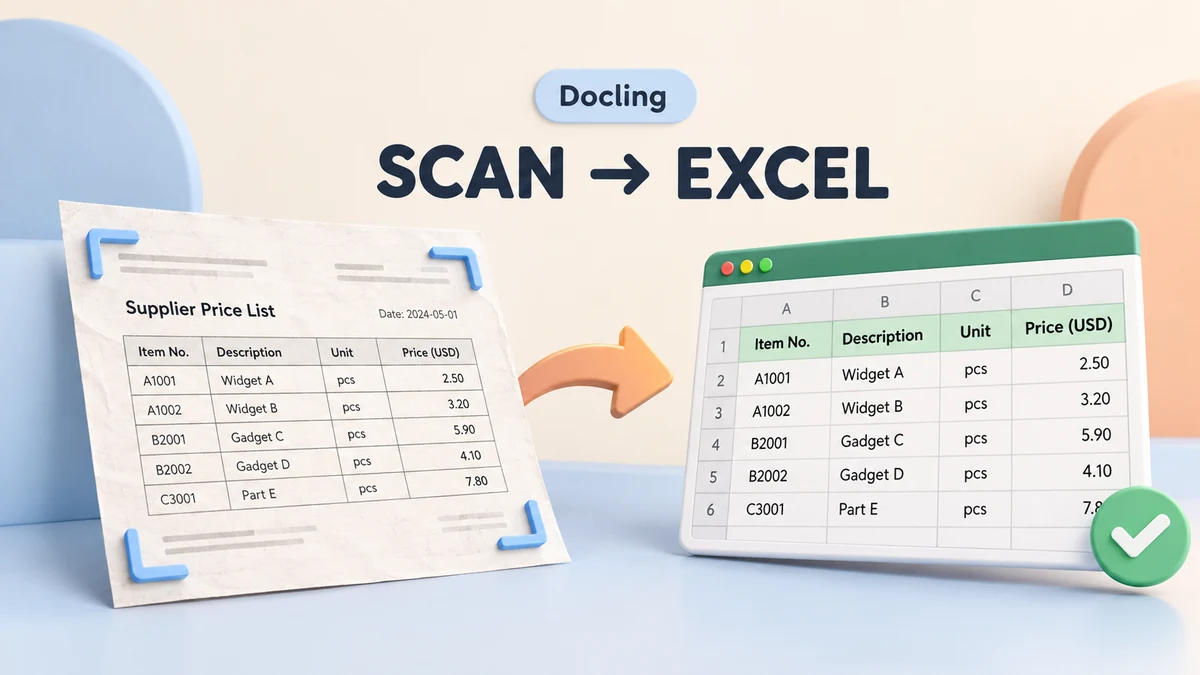
- Keep the scan, raw extraction and reviewed data separate.
- Retain pack quantity, currency and source page before deriving unit prices.
- A successful MCP connection does not prove that the extracted rows are correct.
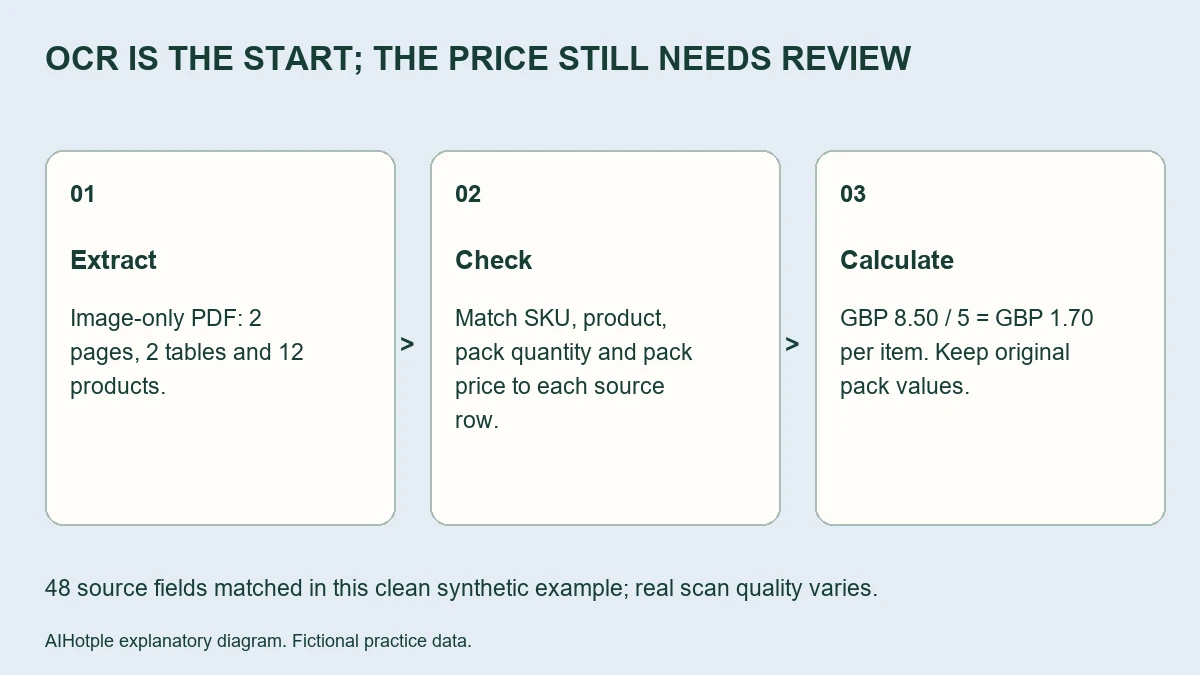
Extract first, compare each row with the scan, then calculate. Our two-page fictional price list produced two tables and 12 rows; all 48 source fields matched the independent reference.
Files for this exercise
AIHotple example files and prompts. Try the exercise before substituting real work data.
Start with the source and the acceptance rule
The download contains a clean, fictional two-page Cedar Office price list. Each page holds six products with SKU, product name, pack quantity and pack price in GBP excluding VAT. We created it as page images: a PDF text-extraction check returned zero characters. This makes it an actual OCR exercise rather than copying a hidden text layer.
Docling detected two tables and exported six rows from each. We compared the 12 rows and 48 fields with an independent reference prepared before conversion, then visually checked the rendered source pages. There were no mismatches in this controlled example. That result describes these large, straight, high-contrast synthetic tables; it is not an accuracy benchmark for photographed, handwritten or damaged supplier sheets.
The acceptance rule is simple: every SKU is unique, all expected rows exist, pack quantity and pack price match the source, and the source page remains traceable. If a row is ambiguous, hold it for review. Do not invent a value because the table needs to look complete.
1. Set up local OCR without a document API
Use a fresh Python virtual environment for the practice. Our tested environment used Python 3.12 and docling[rapidocr]==2.142.1. The RapidOCR extra installs the OCR engine and ONNX runtime. Models may download on the first run, and the environment includes substantial dependencies. Local processing after model preparation is different from a verified offline or air-gapped setup; we did not test network isolation.
Unzip the kit, open a terminal in its folder and install the pinned requirements there. Run python convert.py. The script enables table structure recognition, full-page English OCR and CPU inference while leaving remote services disabled. It saves raw-docling.json and one raw-table CSV per detected table. Keep these raw files before changing anything.
A graphical chat assistant is optional. You can run the conversion directly, inspect its output and use a chat tool only to explain anomalies. Giving an assistant a PDF does not by itself prove which OCR engine ran or whether the document left your machine.
- Open the source PDF
Inspect pages 1 and 2. Note GBP, pack quantity, pack price and the six rows on each page.
- Run the pinned local conversion
Create the isolated environment, install requirements and run python convert.py.
- Open the raw outputs
Check raw-table-1.csv, raw-table-2.csv and raw-docling.json before using checked data.
2. Check the rows before calculating anything
Run python check.py to compare the raw tables with the independent reference and export checked-prices.csv. That reference is appropriate for this teaching fixture because we authored its source. For a real supplier PDF you must review against the actual page, not an invented reference or another summary of the same OCR output.
The check requires the expected headers, exactly 12 rows and exact agreement on all four source fields. It preserves SKU strings and decimal prices. It also adds the source page. A table count or a successful conversion status alone would miss a wrong digit, dropped row or shifted column.
Review lookalike identifiers, decimal marks, merged headers, repeated column labels and values that cross page boundaries. Keep the original image beside the row being reviewed. On a genuine low-quality scan, log the original OCR text, correction and source location rather than silently replacing it.
| Field | Why it matters | Example check |
|---|---|---|
| SKU | Matches the right product | P102 must not become P1O2 |
| Pack quantity | Defines the denominator | 5 items, not 1 |
| Pack price and currency | Preserves the quoted amount | GBP 8.50 excluding VAT |
| Source page | Makes review repeatable | P102 is on page 1 |
3. Open a useful workbook, not just a formatted table
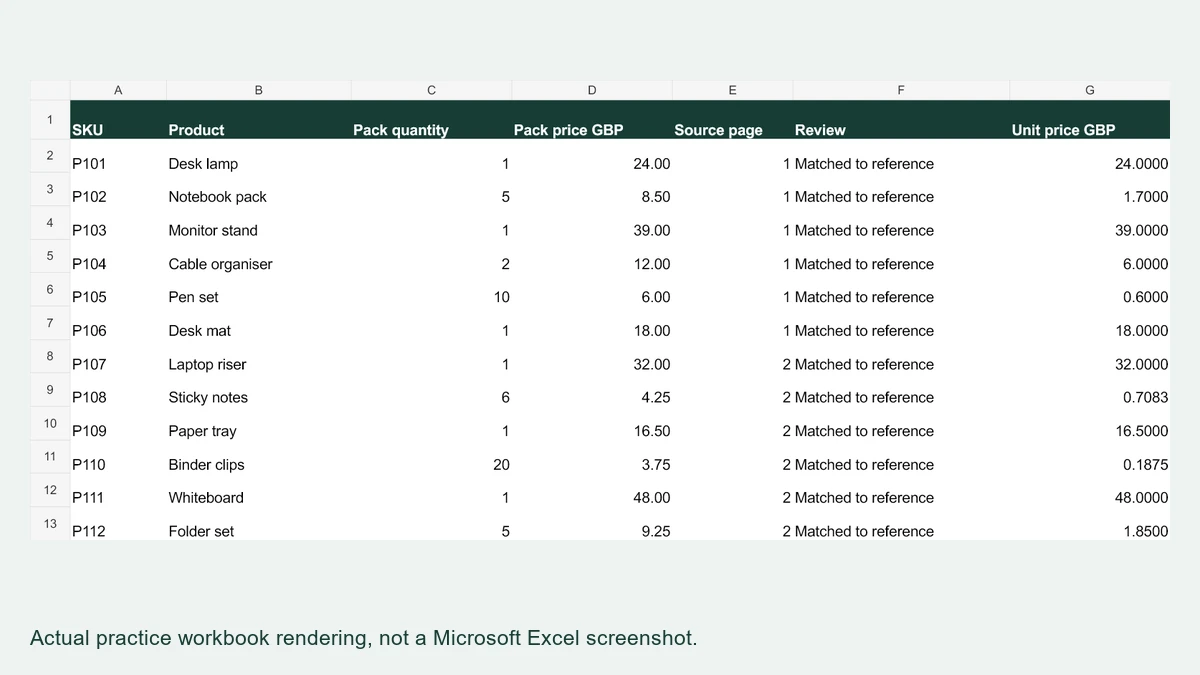
Open checked-prices.xlsx in your spreadsheet app. Columns A–F retain the checked source values, source page and review label. Column G calculates pack price divided by quantity. For P102, GBP 8.50 for five notebooks becomes GBP 1.70 per item. P110 is GBP 3.75 for 20 clips, or GBP 0.1875 per item. Avoid rounding intermediate comparisons down to whole pennies when small unit costs matter.
We checked all 12 formula results independently and changed one pack price from 8.50 to 10.00: the dependent per-item value changed from 1.70 to 2.00, then the input was restored. This happened in our spreadsheet authoring engine. We have not claimed a desktop Excel execution test. The delivered file retains formulas so your app can recalculate them.
The workbook is an editorial result built from checked extraction. Docling itself produced structured tables and CSV, not this styled formula workbook. You can also open checked-prices.csv directly in Excel, keep IDs as text, set prices and quantities as numbers, and add the same simple division formula yourself.
4. Use MCP as an interface, then verify the returned document
We also installed docling-mcp[local]==3.3.0 in the isolated environment and started its stdio conversion tools with DOCLING_MCP_CONVERSION_MODE=local. The current project defaults to remote mode, so make this choice explicit. Version 3 uses MCP Python SDK 2; do not copy a version-1 client example without checking compatibility.
Our real SDK client initialized the server, listed five conversion/cache tools and called convert_document_into_docling_document with the local PDF path. It returned a document key with from_cache=false. That proves a conversion request ran through MCP. It does not prove that the separately checked CSV came from that key, nor that a desktop AI client was configured: the reviewed extraction above came from convert.py.
The supplied mcp-check.py shows this bounded local handshake and first conversion. Its temporary server exits after the check, so do not treat a returned in-memory cache key as a durable document archive. In a client of your own, use the actual tool schema and export/review steps offered by that server. Keep local-file access restricted to the practice input you intended to use.
No API key, paid conversion service or cloud storage was used for this example. Initial package/model downloads and local processing are still real costs. A remote mode, connector or model enrichment option would change the data path and resource requirements.
Convert only the supplied fictional scanned PDF. Retain the raw Docling document and table outputs. Return the document key if using MCP, then identify how the table will be exported. Keep SKU, product, pack quantity, pack price, currency and source page. Flag ambiguous cells and missing rows instead of guessing. Compare all source fields with the page before deriving unit price. Do not send the document to a remote service, place an order or mark unreviewed rows as checked.When the result needs another pass
If no table is found, check the scan resolution, page rotation, OCR language and whether the requested page actually contains a table. If columns merge, inspect the full structured output and page image before forcing a flat CSV. If your source has several currencies or price tiers, add explicit fields rather than collapsing them into one price column.
This workflow is useful for preparing a supplier comparison or an internal import queue. It deliberately ends with reviewed data, not an automatic purchase. Keep the conversion script, original PDF, raw output and correction record for a real job so another person can trace a disputed number.
Sources & verification
Tested on 27 October 2026 on Windows with Docling 2.142.1, RapidOCR 3.10.0 and ONNX CPU inference. The original fictional PDF contains page images and zero embedded text. Direct local conversion produced the checked tables. A separate real stdio MCP client connected to docling-mcp 3.3.0, listed its tools and converted the same PDF in explicit local mode. We did not connect this server to a Claude or Codex account. The XLSX was built from checked data and its 12 formulas recalculated and input-tested in our authoring engine; native Microsoft Excel recalculation was not tested. No payment or external document-processing API was used, but initial model downloads required internet access.
- Docling · Installation
- Docling · Full-page OCR example
- Docling · Table export example
- Docling · Native OCR engines
- Docling MCP · Local mode and SDK compatibility
Sources checked: 2026.10.27